F5 Workforce AI security > Class 1 - F5 Workforce AI security - READ ONLY > Console side - F5 Workforce AI security Admin Portal Source |
Check and learn the policy applied
- In Chrome, click on F5 Workforce AI security Admin Portal - No Login required, SSO done
- On the left menu, click on
Default Policy.
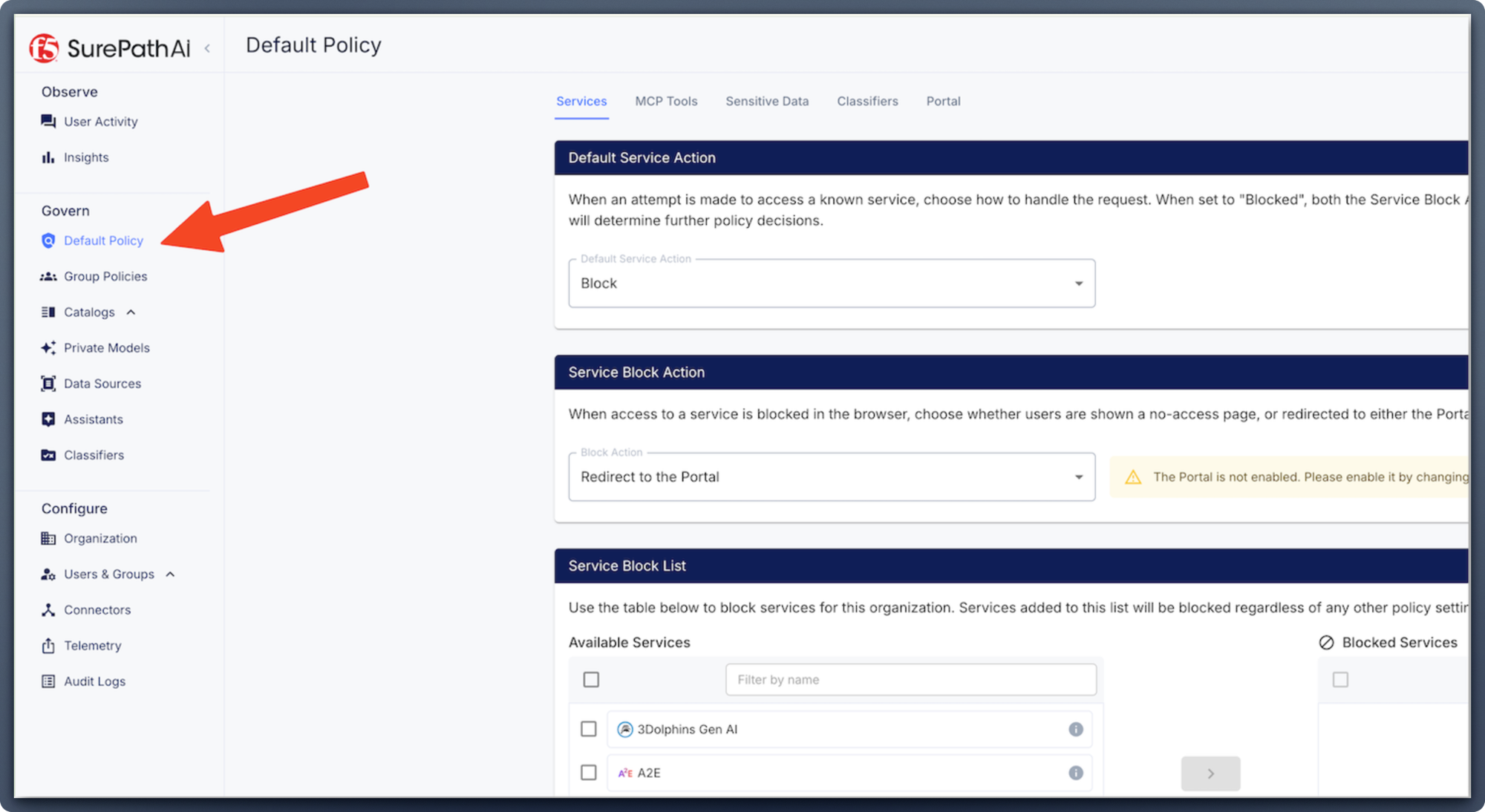
- You can start by the
Servicestab, and check the services that are enabled and allowed. As you can see a service can be allowed but in Monitoring mode, meaning no action is taken, only monitoring and logging.
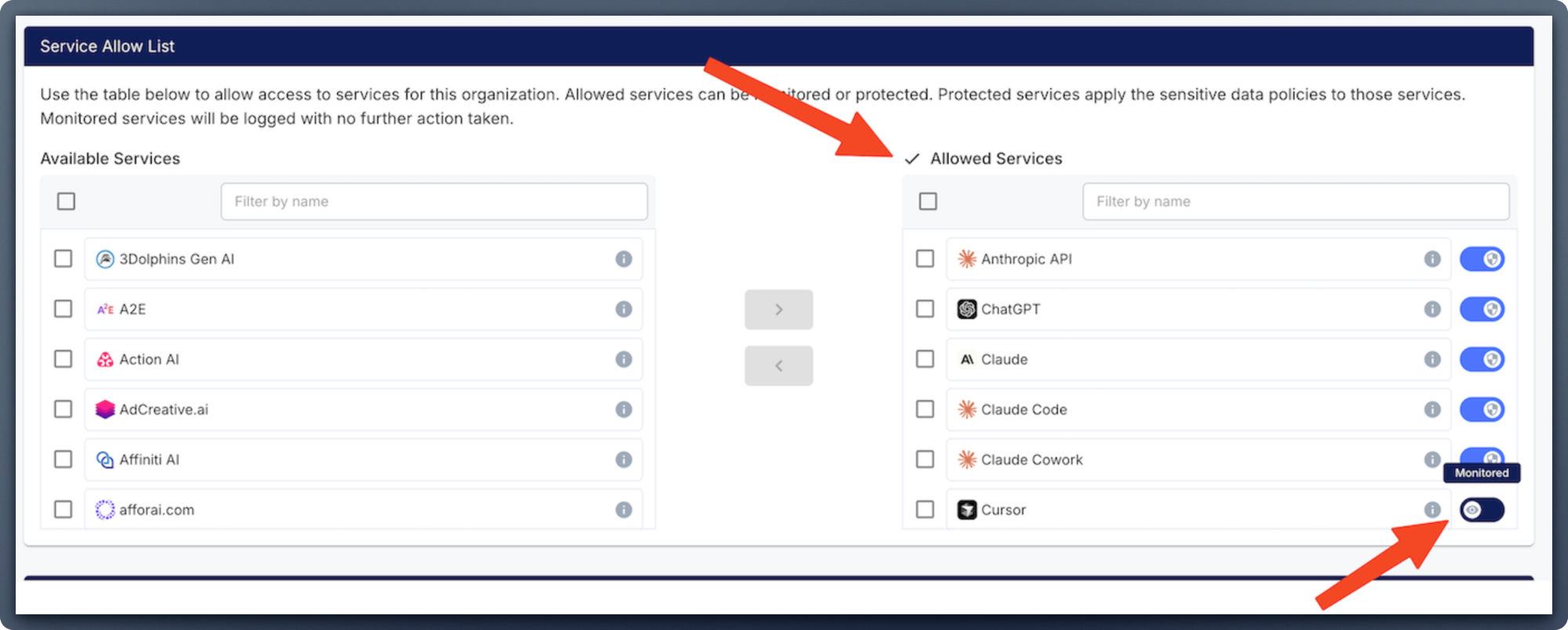
In the MCP Tools tab, check the tools allowed. You can see we only allow
GithubwithListtools. And also check the defaultactionsNote
As you can see,
read-only toolsare allowed even if they are not explicitily allowed in the policy. And all other tools are blocked.
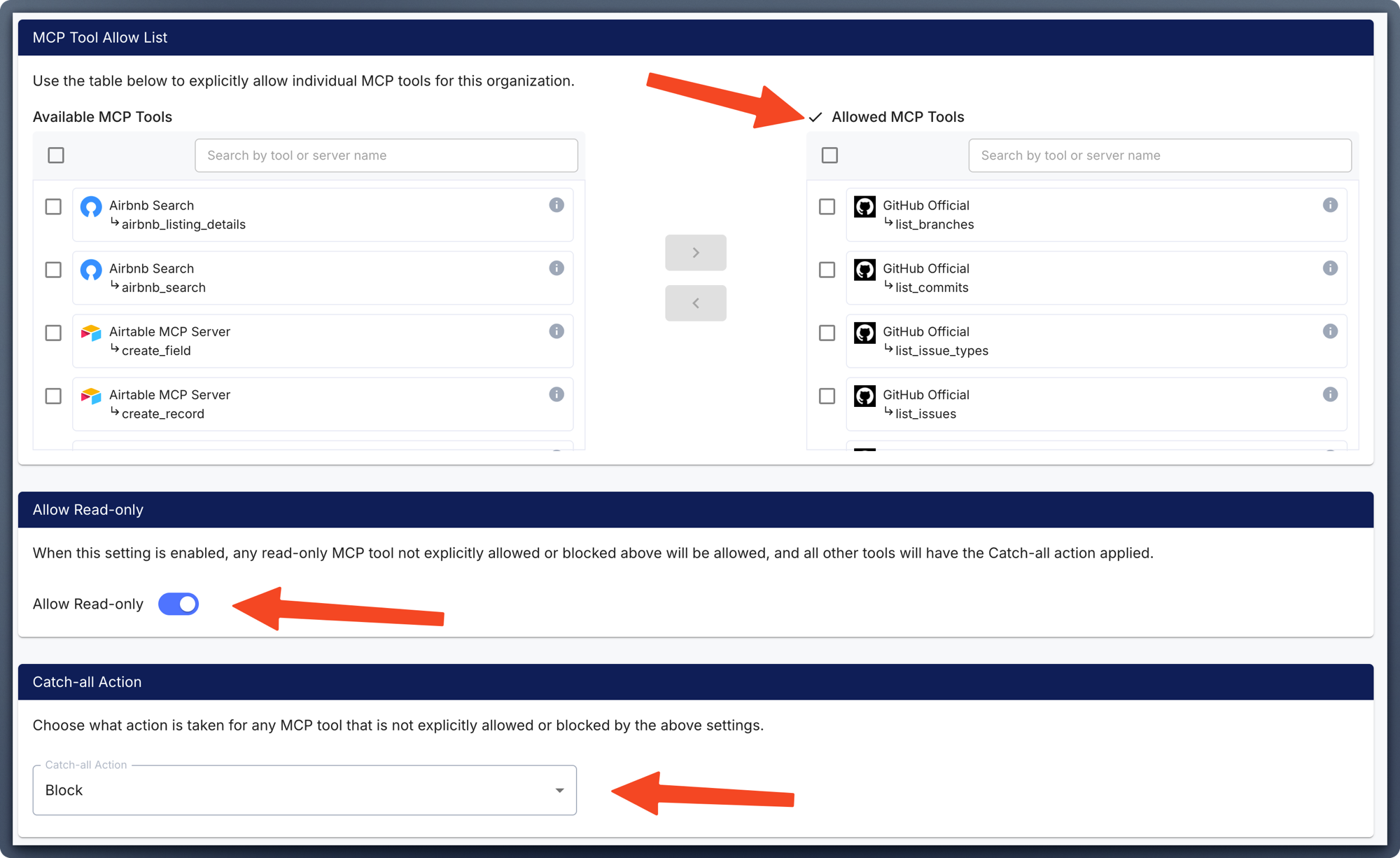
- In the
Sensitive Datatab, you can see the sensitive entities enabled.
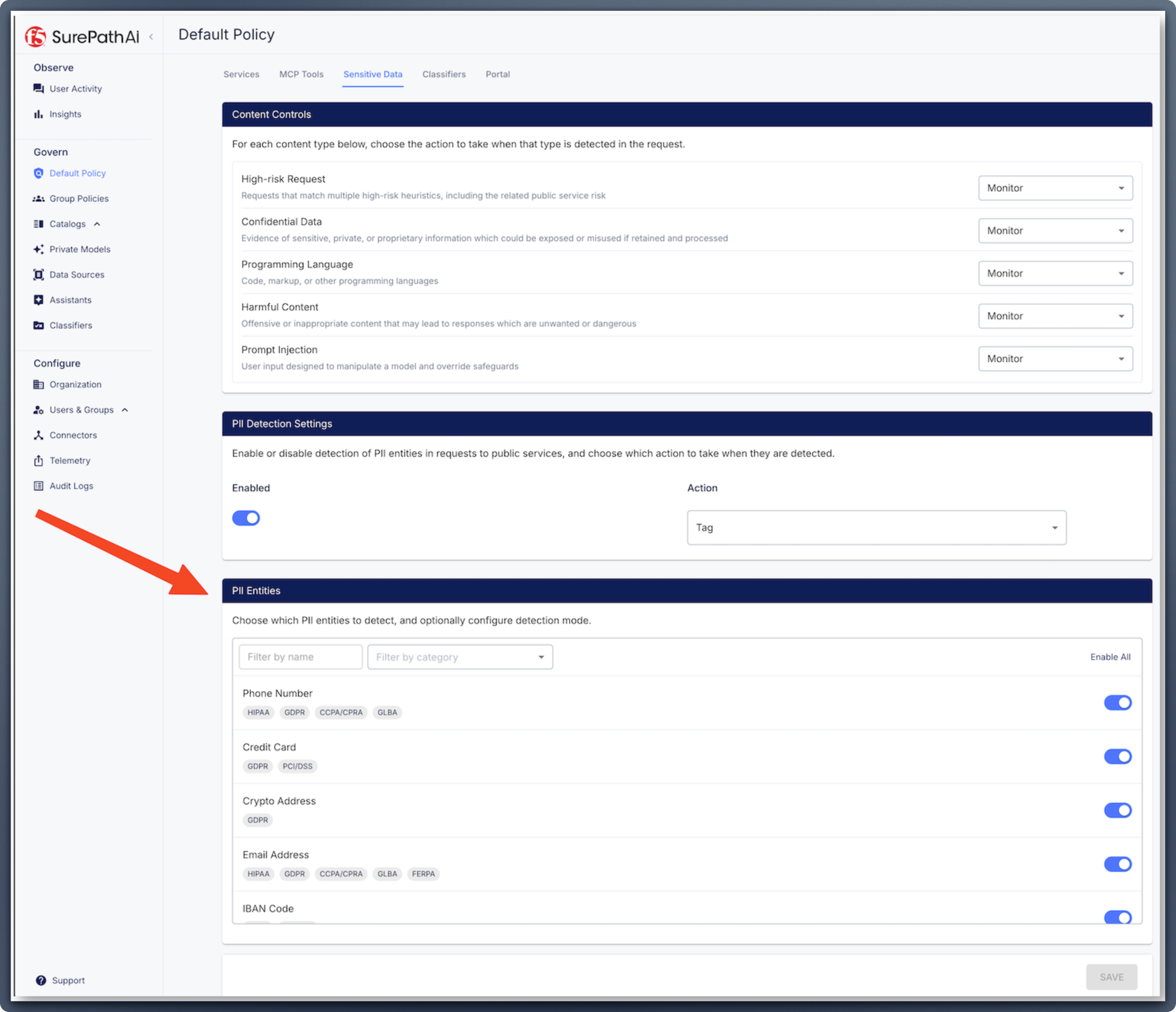
- The
Classifiersare set in 2 separated sections. The intent is set on the left menu and the classifiers are enabled into the policy. As you can see, 4 classifiers are enabled in blocking mode.
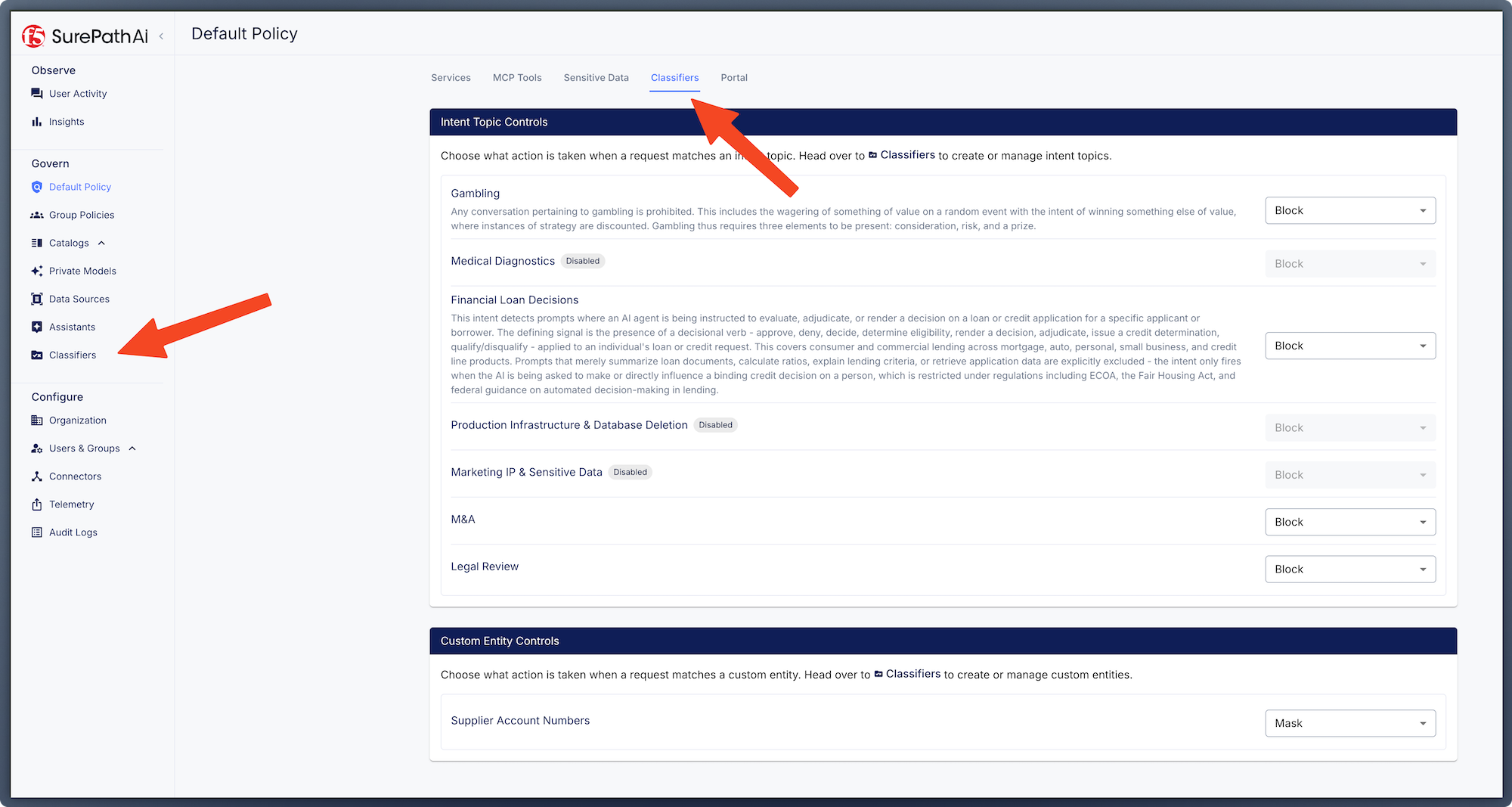
- Click on the left menu
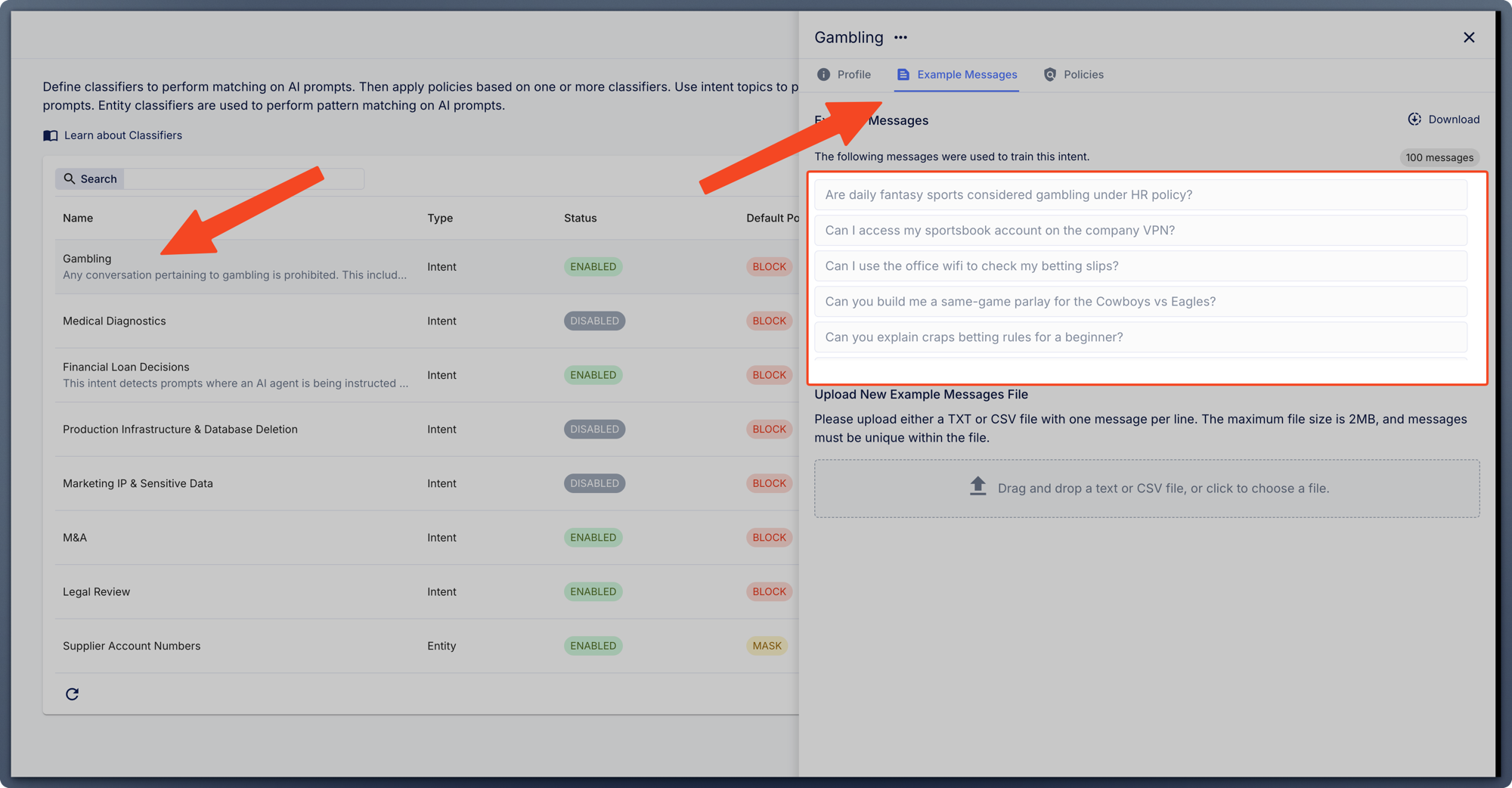
Classifiersto see the list of classifiers and select one by clicking on the right arrow.- You can see that 100 messages has been added to learn the Classifier on what to detect.
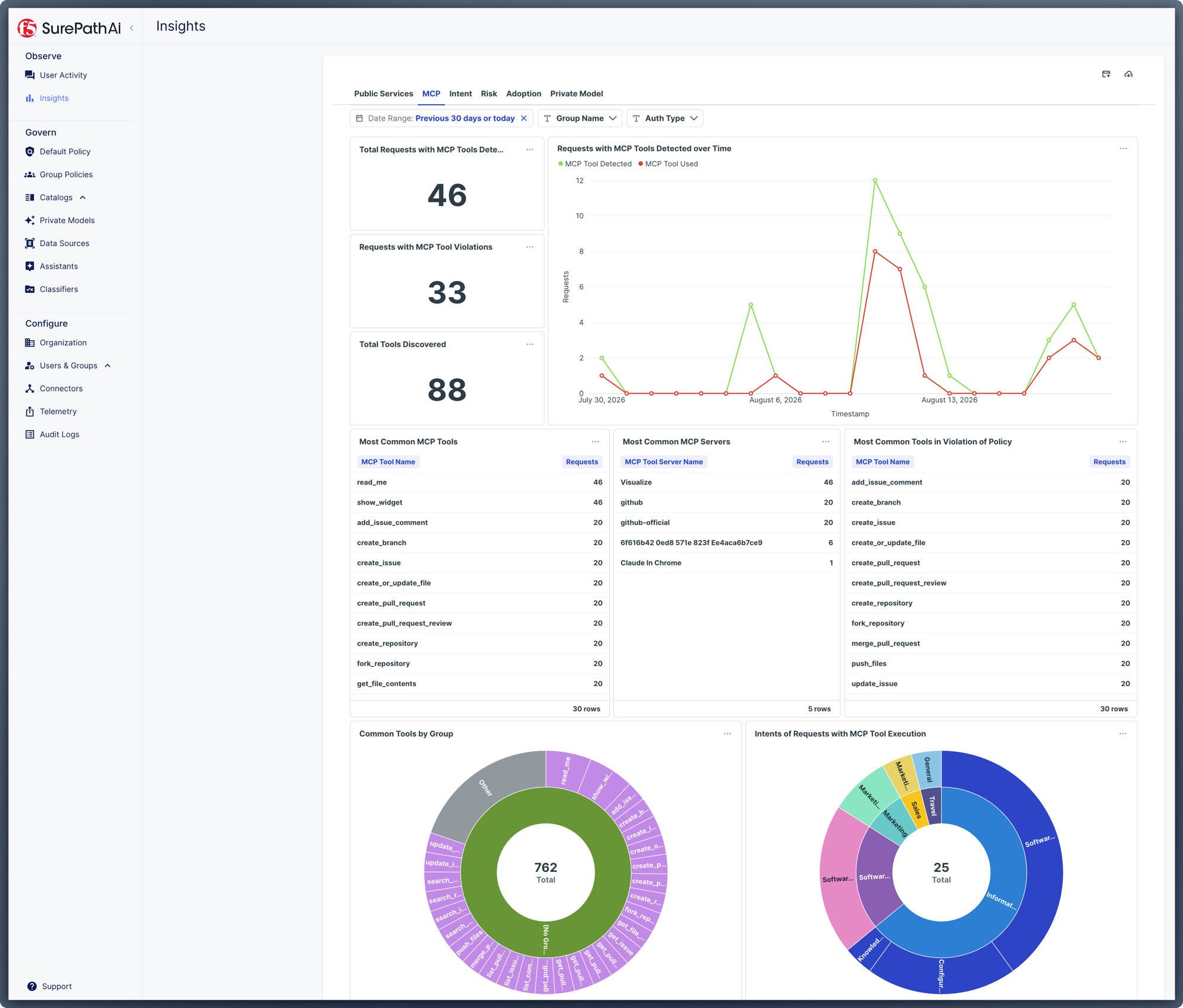
- Then, last things to see today, are the
insights. Click on the left menuInsightsto see the list of insights.
Note
This is the end of the lab guide. Feel free to navigate and explore the Surepath Admin Portal. You can also send your own prompts to try triggering BLOCK or REDACT.