F5 XC EMEA Workshop > Class 4 - API Protection > Dynamic API Protection Source |
Enable API discovery for BIG-IP
In the previous lab, we learnt how F5 Distributed Cloud can discover API Endpoints when those endpoints are exposed on F5 Distributed Cloud infrastructure. But many modern applications (API firt) reside on-premises behind BIG-IP. In order to offer the same level of services, F5 deployed the on-premises API Discovery for BIG-IP.
In this lab, you will learn how to onboard a BIG-IP into F5XC, in order to enable the API Discovery feature on this BIG-IP.
Key take aways before jumping into the lab:
- Out of Band Discovery
- CE required on BIG-IP Network
- CE collects and anonymises logs from BIG-IP
- F5XC runs API Discovery engine in F5XC infrastructure
- Outcomes
- Inventory
- Security Insights risks
- Compliance
- Authentication state
- Sensitive Data

Deploy and register Customer Edge (CE)
The CE (Customer Edge) is not yet registered. But it is already deployed in your UDF environment. The CE is deployed with 2 NICs
- NIC Outside in charge of IPSEC tunnels between CE and RE
- NIC Inside in charge of configuring BIG-IP and collect logs from BIG-IP
Note
In a nutshell, F5XC will configure the BIG-IP to collect request logs from the Virtual Server, and send those logs to the CE. Then the CE will anonymize the logs and send them to the F5XC infrastructure to render the API Discovery endpoints and insights.
Register the CE
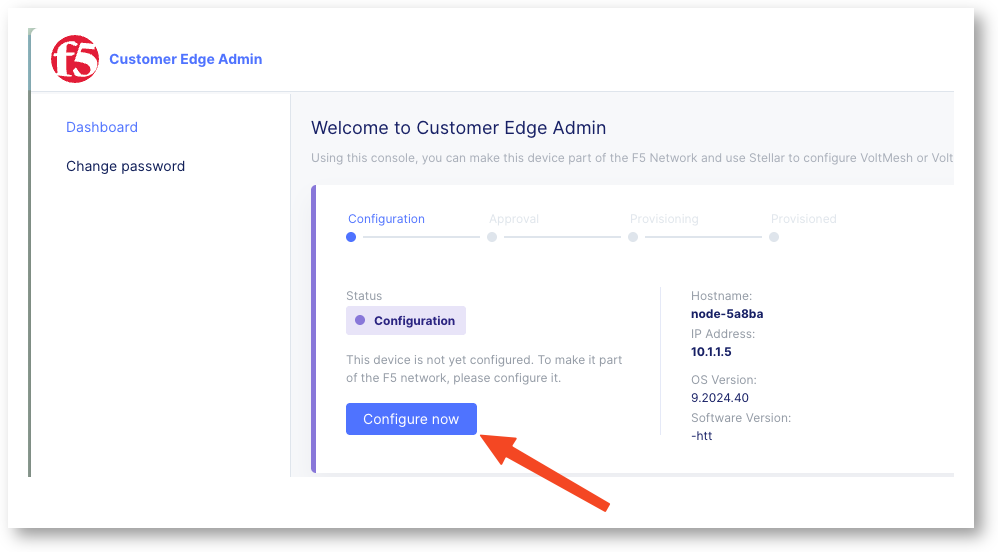
In UDF environment, connect to the Customer Edge (CE) UI with credentials below
- Creds :
admin/Volterra123 - Update credentials, you can reuse the same password
Volterra123 - Click on
Configure Nowbutton
- Token (copy paste using the copy button below)
$$smsv2Token$$
- Cluster Name:
$$smsv2SiteName$$ - Hostmane:
master0 - Click
Save Configuration
Wait 15min to see the CE registered in the F5 Distributed Cloud Console.
Check Registration on the F5 Distributed Cloud Console
In F5 Distributed Cloud Console
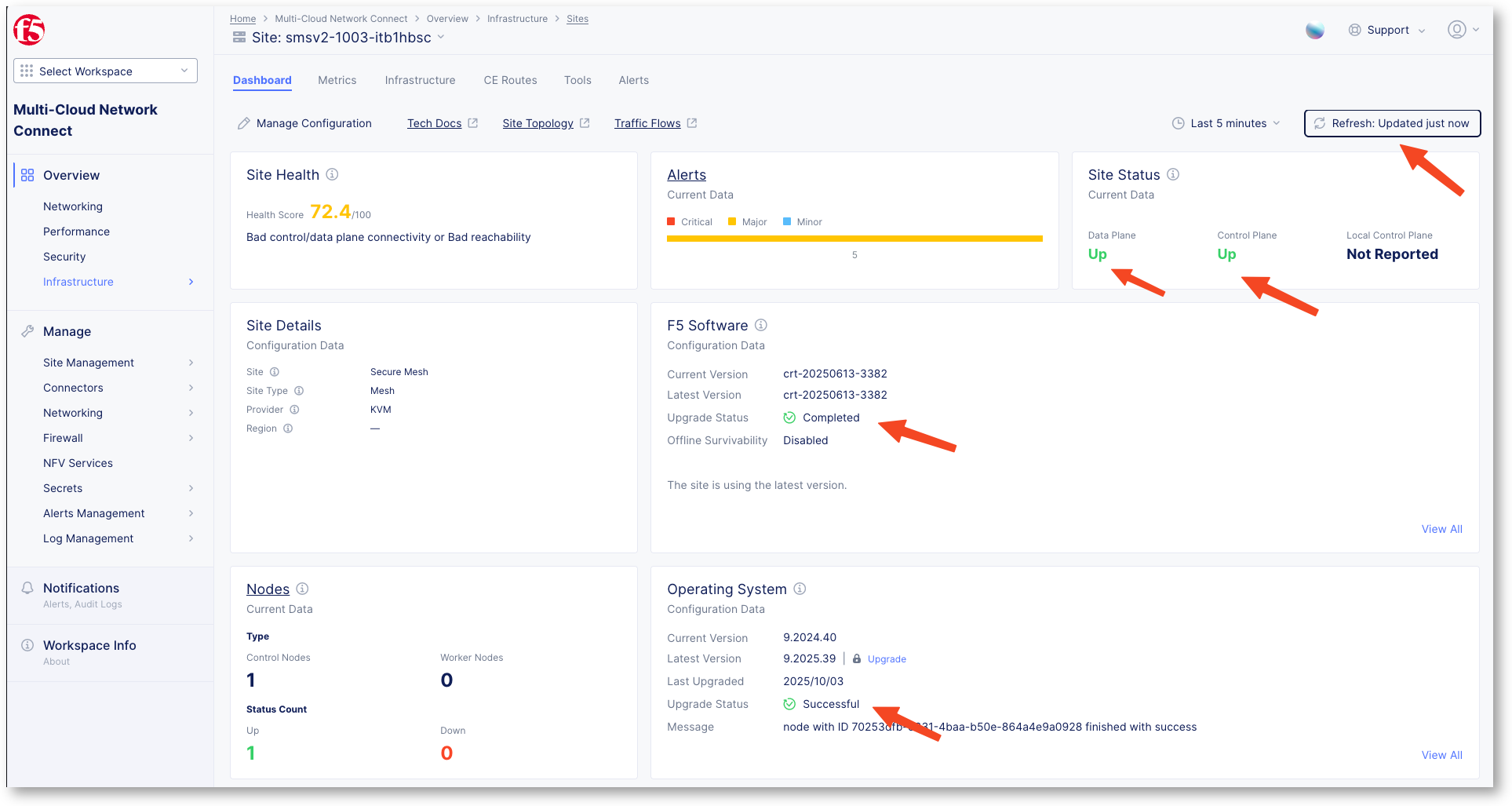
- Go to Multi-Cloud Network Connect > Overview > Infrastructure > Sites
- Search for your site
$$smsv2SiteName$$ - Click on it
- Refresh the page till upgrades are finished and every flag is green
Note
Your CE is up and running and ready to connect to the BIG-IP in order to collect logs.
Onboard on-premises BIG-IP
The BIG-IP is already up and running into your lab environment. Each student has his own BIG-IP.
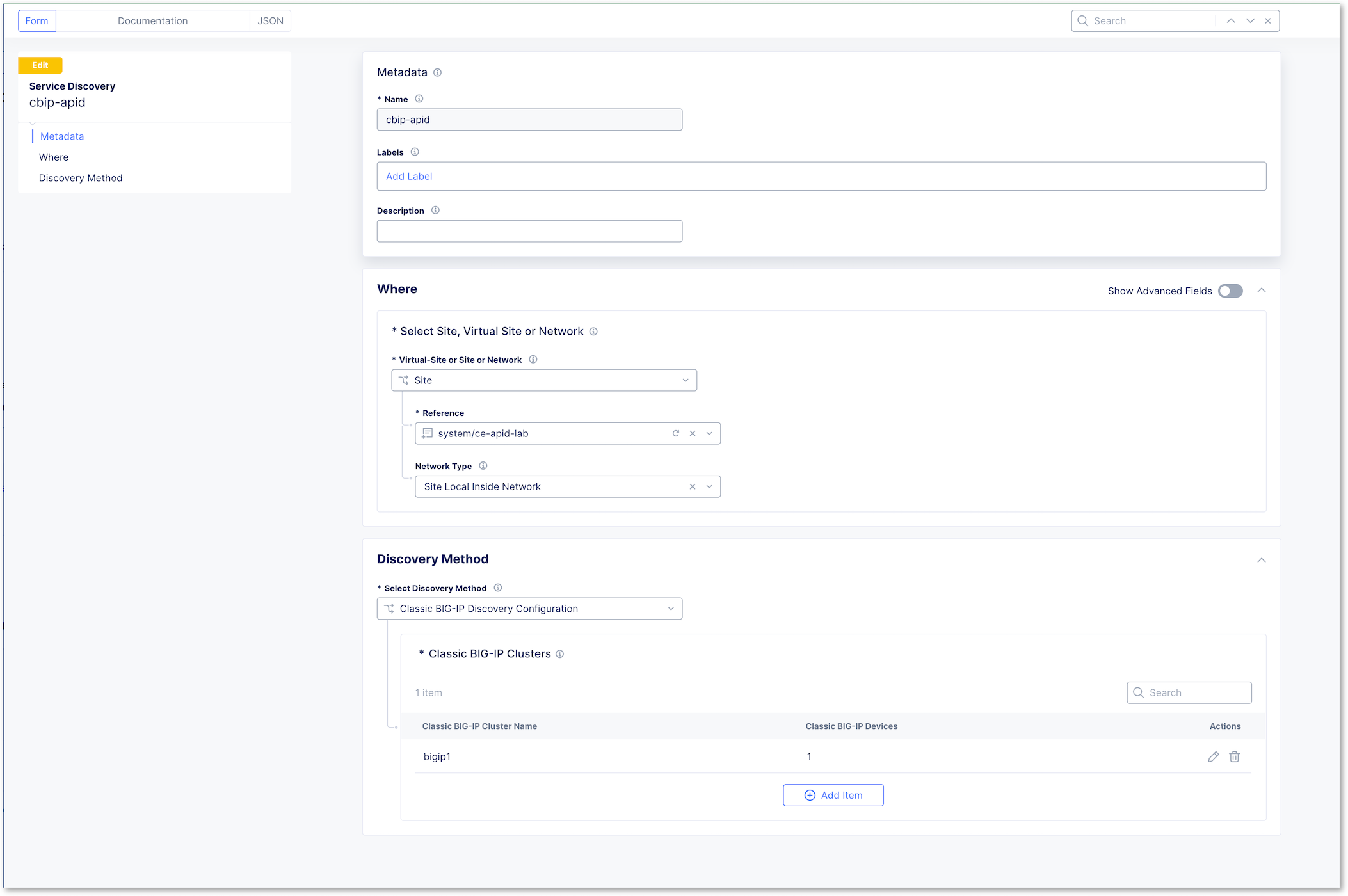
Go to Multi-Cloud App Connect tile > Manage > Service Discovery, and create a new Service Discovery type BIG-IP
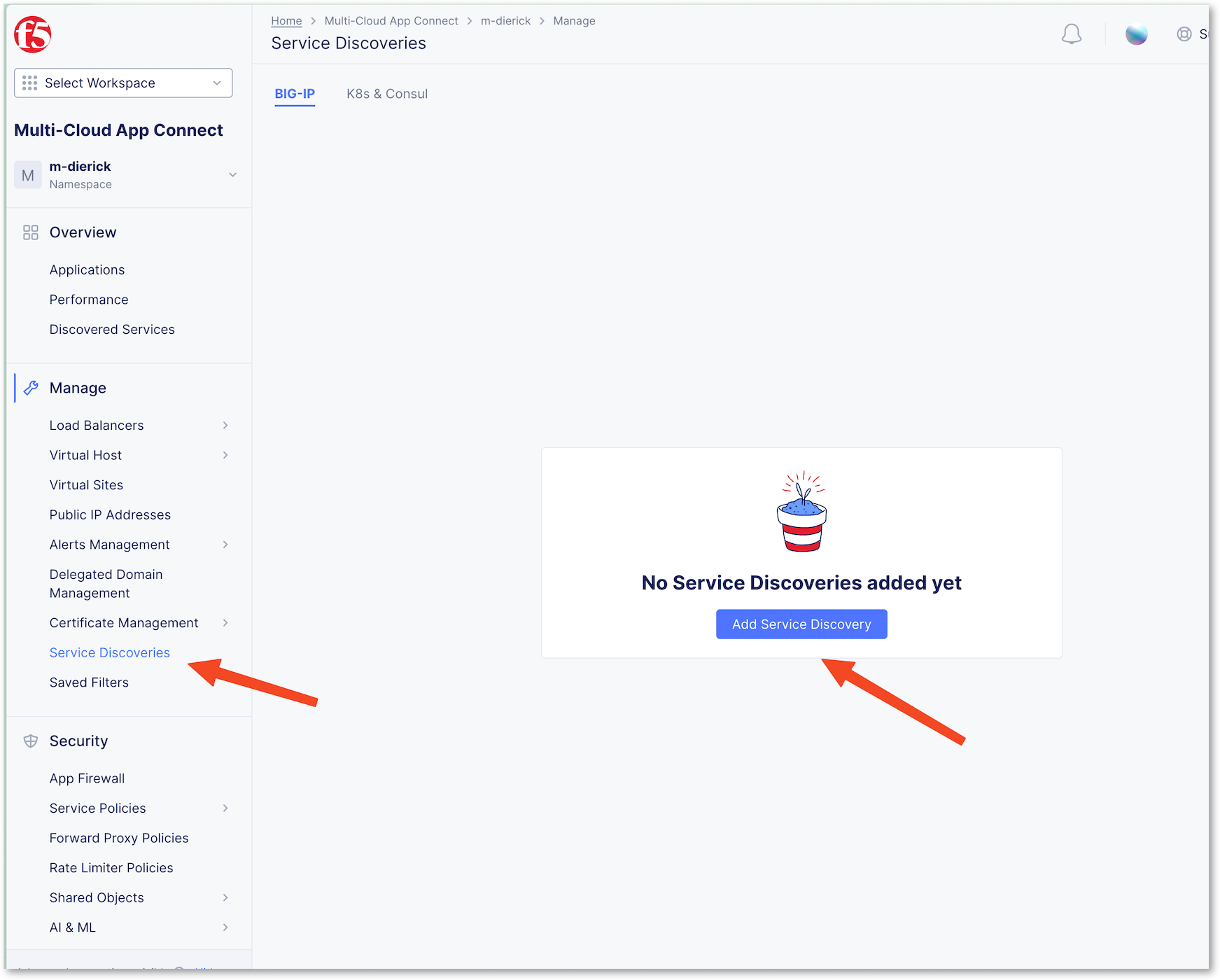
Configure the service discovery so it can find the BIG-IP
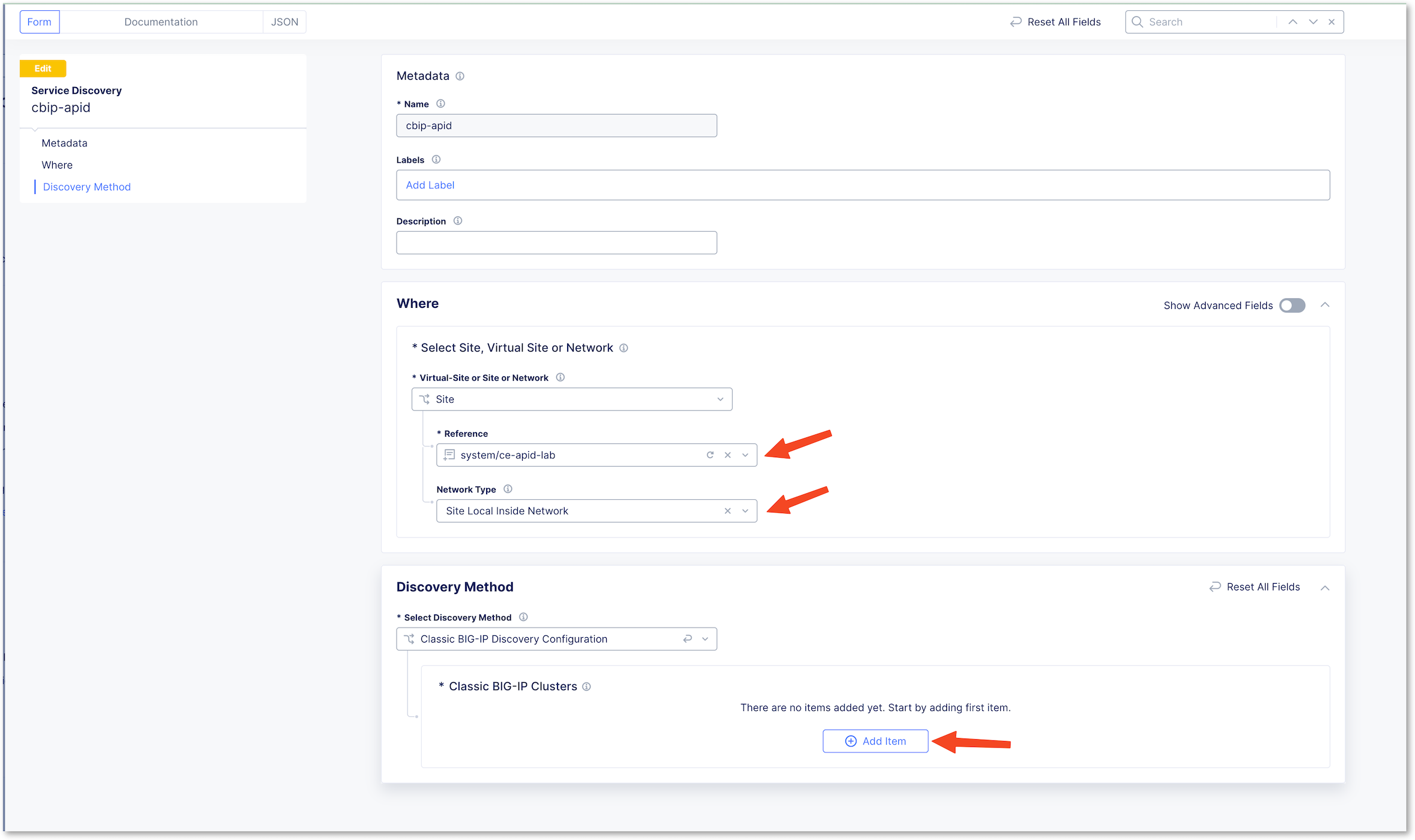
- Name:
cbip-apid - Select your CE named
$$smsv2SiteName$$underReference - Select
Site Local Inside NetworkunderNetwork Type<- This is the interface on the BIG-IP Self-IP (but we could have used the mgmt interface) - Click
Add ItemunderClassic BIG-IP Clusters
- Give a name to the BIG-IP such as
bigip1 - Configure with the BIG-IP settings
- Management IP:
10.1.20.8<- Self-IP address - Management Port:
443 - Admin username:
admin - Admin password:
- Select
Clear Secretinstead ofBlindfold - Secret is:
admin
- Select
- Management IP:
- Apply
Your configuration should look like this
After few minutes (up to 2min), you can click on Refresh button, you should see 2 services. This service is the BIG-IP Virtual Server

Note
At this stage, the BIG-IP is onboarded in F5 Distributed Cloud and API Discovery can be enabled on this BIG-IP (from the F5XC Console) so that the BIG-IP sends traffic logs to F5XC.
Enable API Discovery on BIG-IP Virtual Server
Click on the 2 Services blue link to be redirected to the Multi-Cloud App Connect discovered services page where we will enable the different features on the BIG-IP. If you are lost, you can access this page as well by Multi-Cloud App Connect tile > Overview > Discovered Services
You can see now the BIG-IP Virtual Server

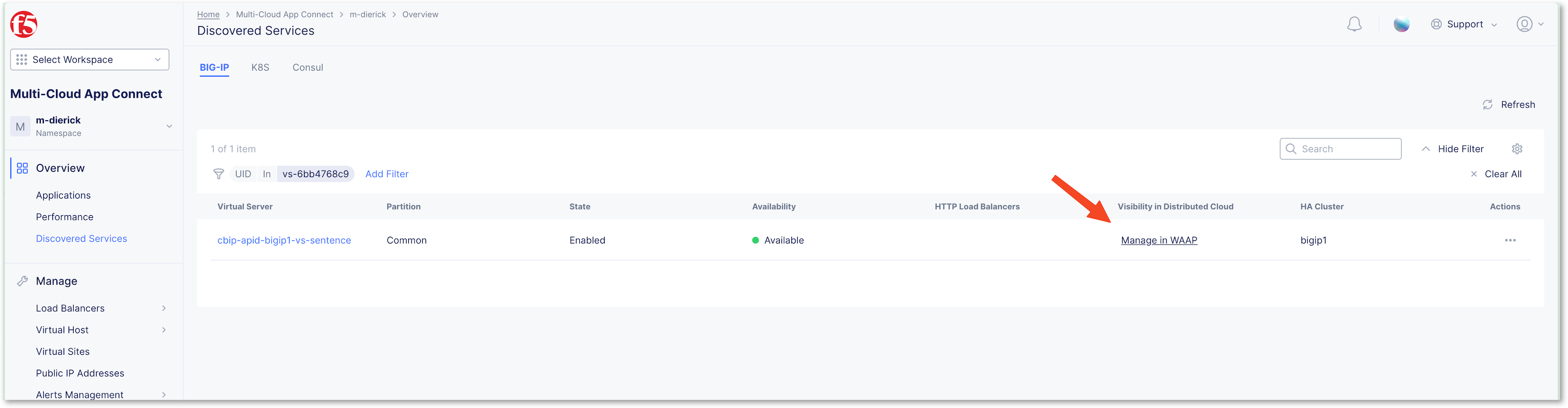
You can see several VS. Enable API Discovery on the VS named cbip-apid-bigip1-vs-sentence
Click on Actions dots and Enable Visibility in All workspaces`

Note
At this moment, F5XC will configure the BIG-IP with some extra settings in order to send logs traffic to the CE. If you connect to the BIG-IP TMUI, you can see one new Virtual Server. This VS collects logs and security insights.

In the F5XC Console, you can see that the VS has a new option called Manage in WAAP. Click on it.
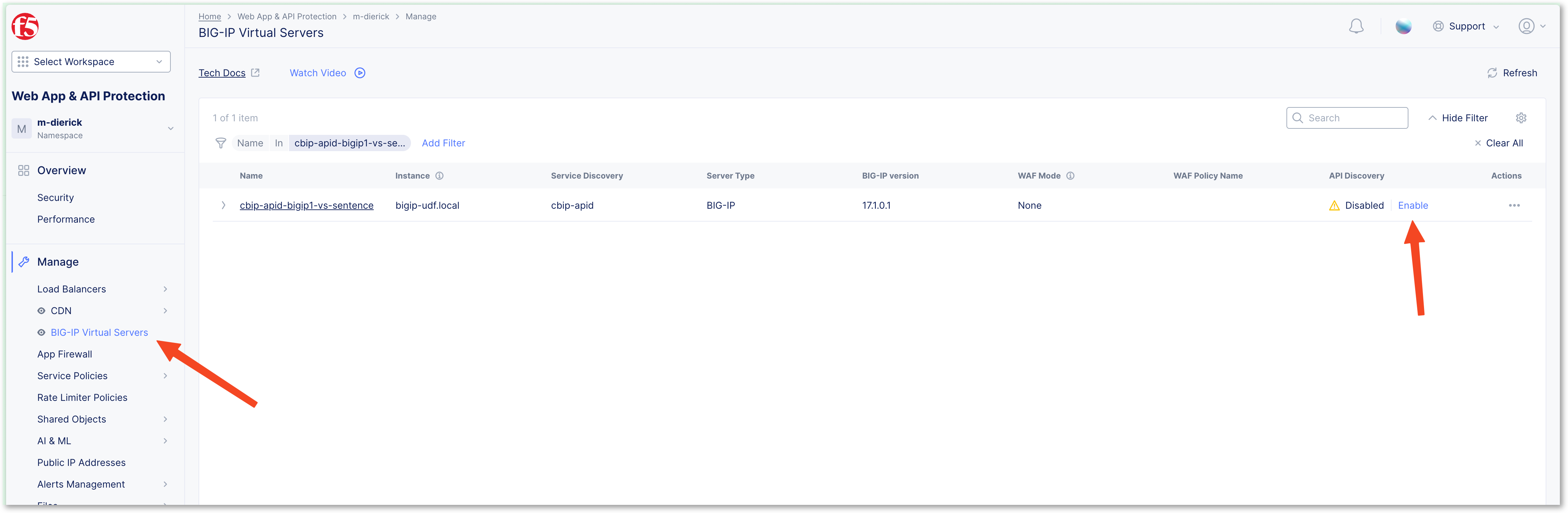
You will be redirected to the WAAP menu but in a new section dedicated to BIG-IP Virtual Servers. Click on Enable under API Discovery
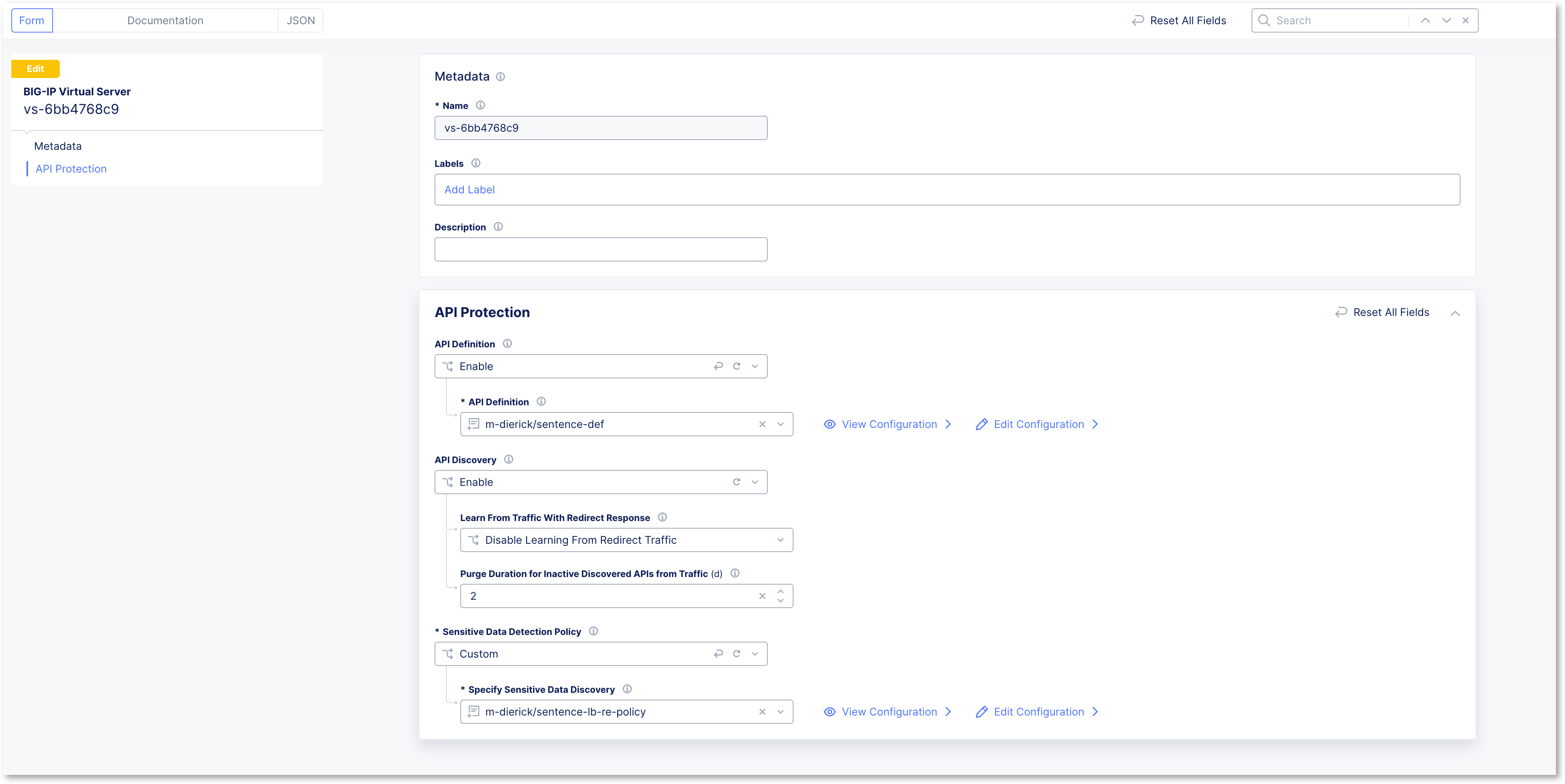
Configure the Virtual Server similar to what you did in the previous lab for the F5XC HTTP Load Balancer. We will reuse the same profiles
Select your API Definition
Note
If you have not done the previous labs, you can create the API Definition now by following the instructions in the lab 2 -> Link to import swagger. Stop the lab when the Definition is created, and come back to this lab to select the API Definition and enable API Discovery.
Enable API Discovery
Select your Custom Sensitive Date Detection Policy
Note
You are done. Now, let’s wait 2 hours so that F5XC can handle logs sent by CE. There is a traffic generator already running in your lab environment to populate BIG-IP logs.
Check API Endpoints discovered on BIG-IP VS
Let’s see if discovery is done. Click on the Virtual Server
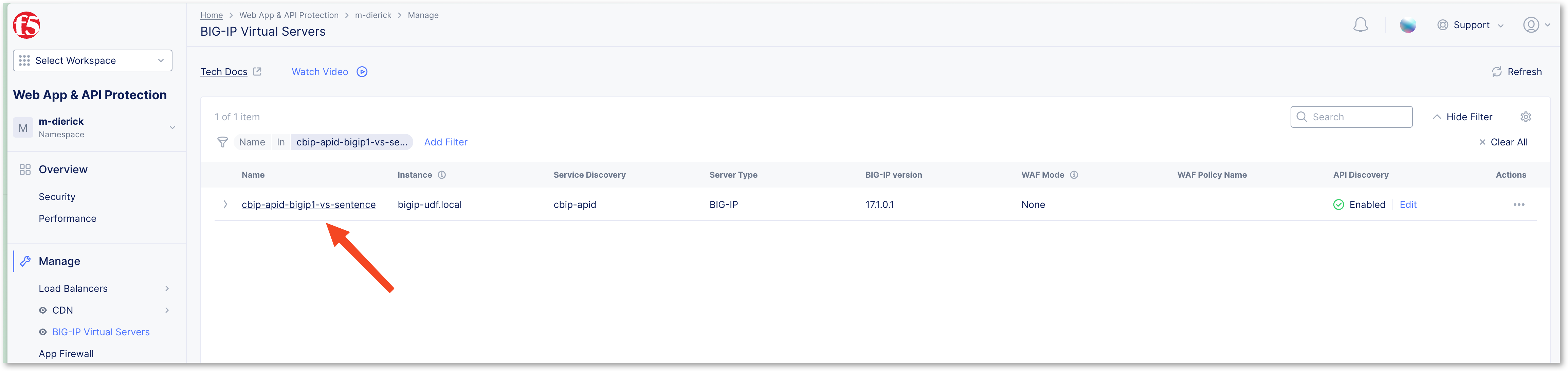
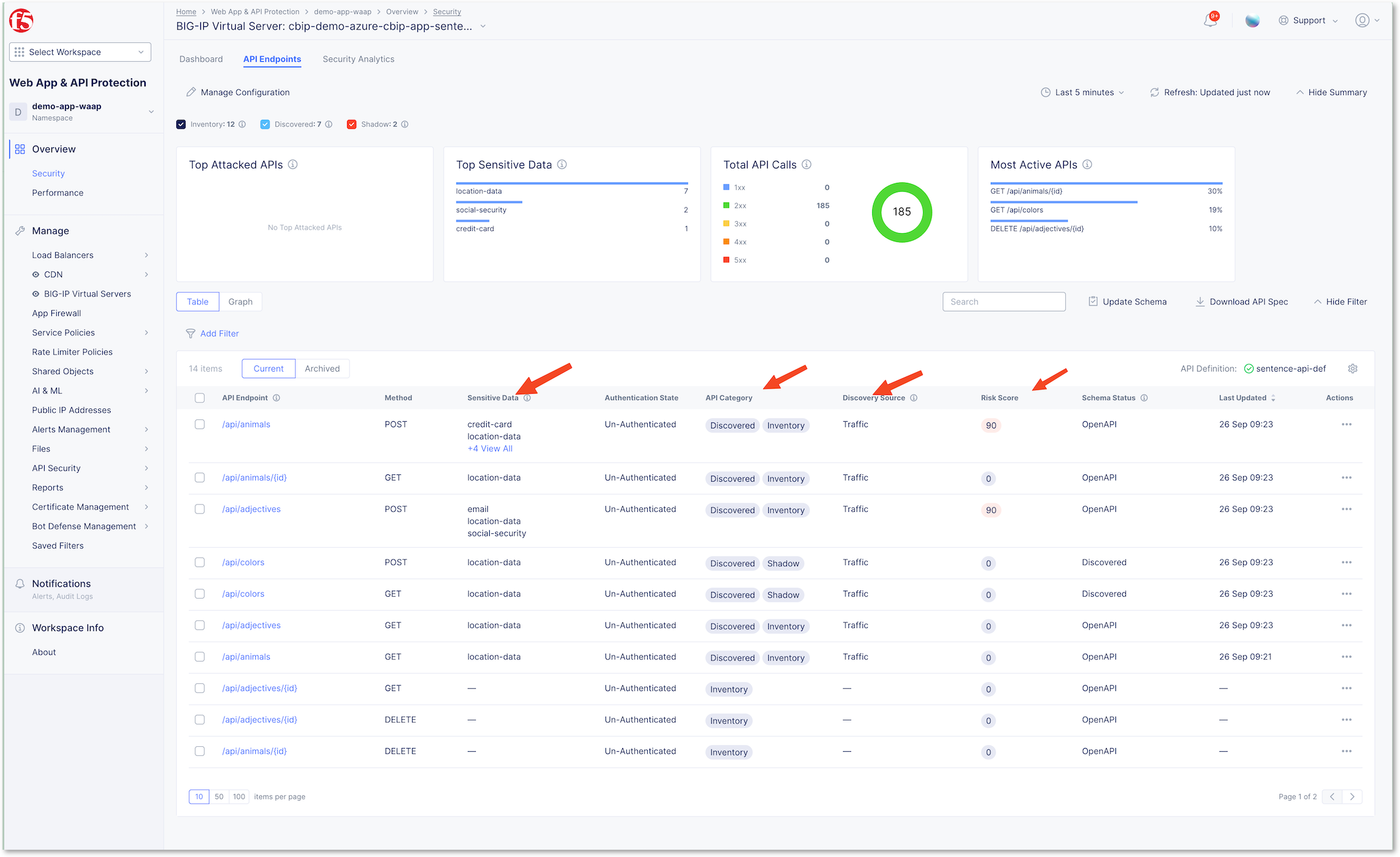
And then click on API Endpoints. You can see all the API Discovery Outcomes
- Inventory
- Security Insights risks
- Compliance
- Authentication state
- Sensitive Data
Note
As you can see, you are able to get all API Discovery added values for an on-premises BIG-IP without having to use a cloud HTTP LB. The traffic remains private in the datacenter on the BIG-IP and only anonymized logs are sent to the cloud to generate the API Discovery outcomes.