Backup BIG-IP and F5OS instances
Overview
F5 Insight lets you back up BIG-IP and F5OS instances across your fleet from a centralized console. Use these features to capture a point-in-time copy of device configuration and state, protect against accidental changes or hardware failure, and support planned maintenance workflows.
You can perform backup operations using either the web console or the REST API.
Key capabilities include:
- Create backups on demand for individual instances or across a fleet.
- Store backups on F5 Insight and/or on network storage (NFS or SMB).
- Download backups for offline retention.
- Schedule backups to run automatically.
- Software installation integration — create backups as part of the software installation workflow.
Important
Backup operations are available to Administrator users only.
Concepts
Backup types
| Type | Contents | Supported devices |
|---|---|---|
| BIG-IP UCS | Full device configuration archive (User Configuration Set) | BIG-IP TMOS |
| F5OS backup | Device configuration and system state | F5OS-A (rSeries) |
Use the web console
Create a backup job
Go to the Manage section in the left toolbar and select Automation.
Select Jobs.
Select Add Job.
Select Backup.
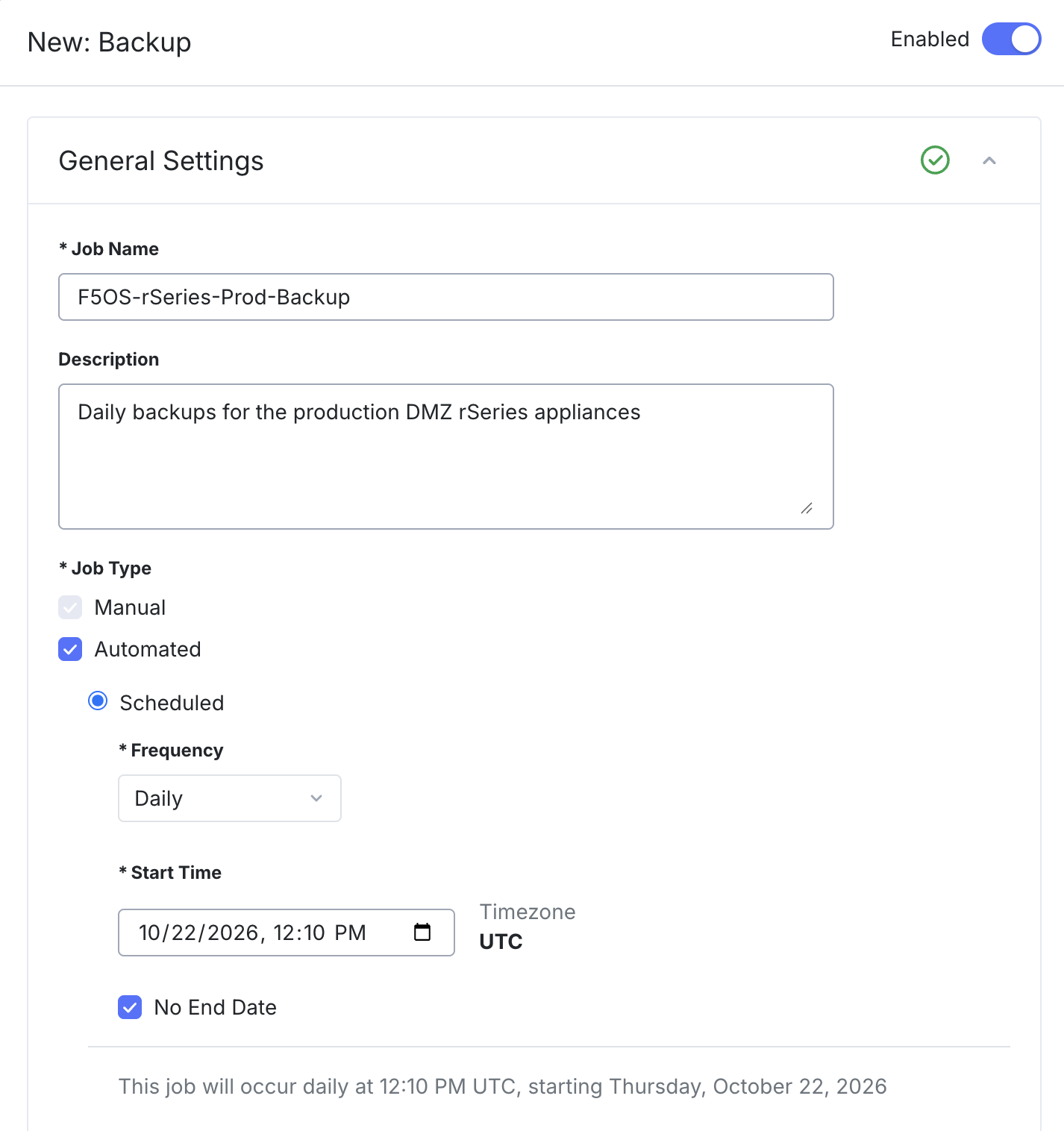
Enter a Job Name. Use a name that indicates the instances, location, or schedule — for example,
weekly-bigip-backuporrSeries-config-backup.Enter a Description (optional).
If a schedule is desired, check the Automated checkbox and configure a schedule. Otherwise, leave it unchecked for a one-time backup.
Note
The schedule timing is based on the F5 Insight appliance’s local time zone. If you want to schedule backups at a specific time in a different time zone, you must calculate the time difference and adjust the schedule accordingly.
- Select the Execution Type:
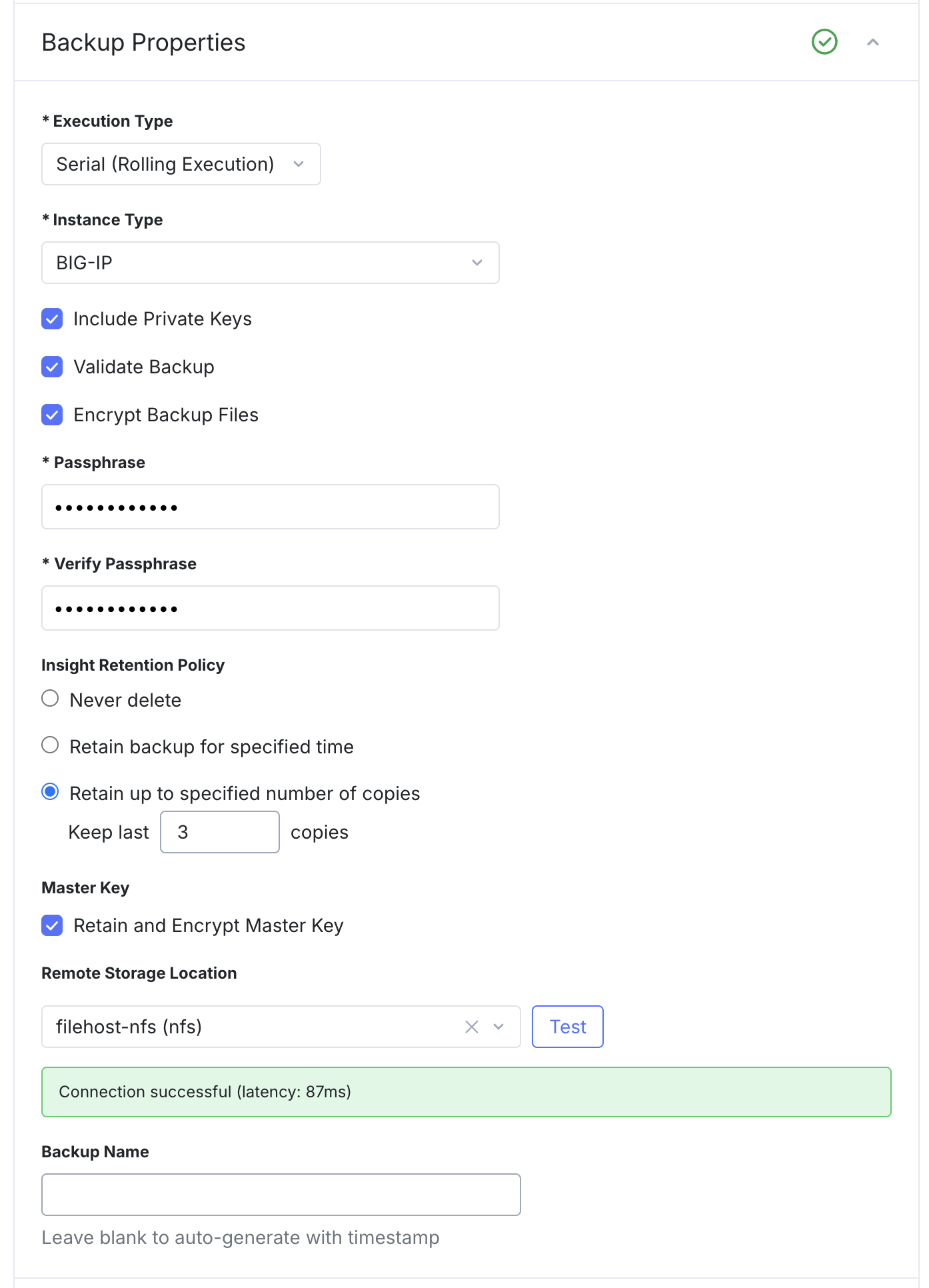
- Serial (Rolling Execution) — backs up devices one at a time.
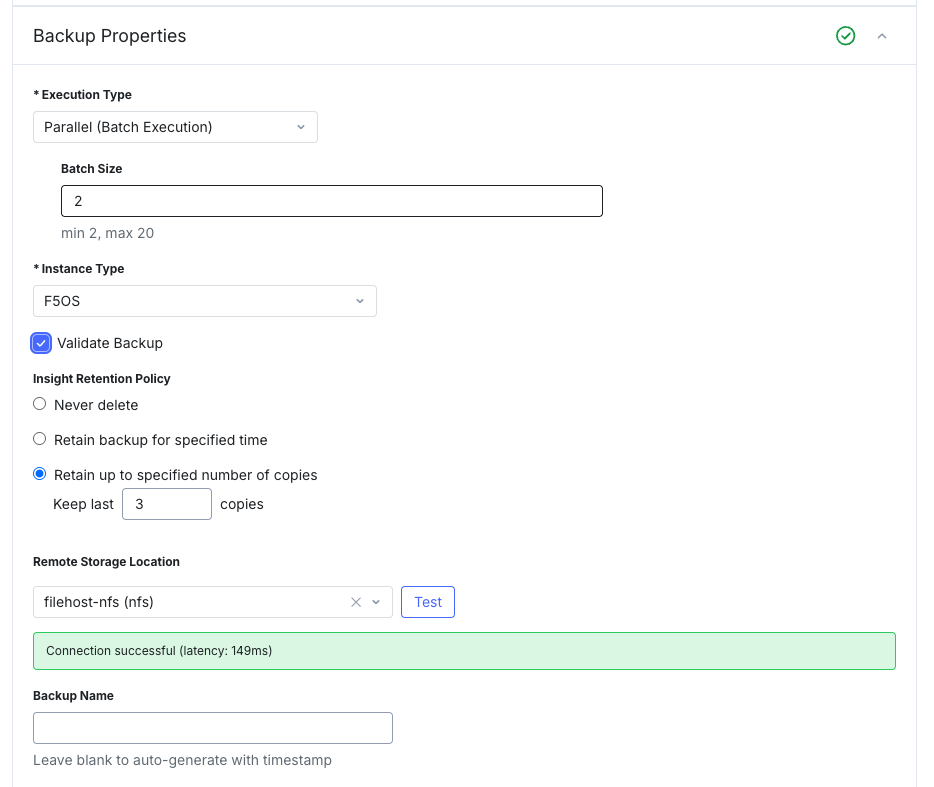
- Parallel (Batch Execution) — backs up multiple devices simultaneously. Configure Batch Size: Min. 2, Max. 20.
- Select the Instance Type — BIG-IP or F5OS — to apply the appropriate backup settings for the target device type.
BIG-IP backup properties:
Include Private Keys — When checked, private SSL/TLS keys are included in the backup archive. Leave unchecked if your security policy prohibits storing private keys in backup files.
Validate Backup — When checked, F5 Insight verifies the integrity of the backup file after it is created. Recommended for production environments.
Encrypt Backup Files — When checked, the backup archive is encrypted. Requires a Passphrase and Verify Passphrase to be set.
Passphrase / Verify Passphrase — Enter and confirm the passphrase used to encrypt the backup. You must supply this passphrase to restore the backup. Store it securely — F5 Insight does not retain it.
Insight Retention Policy — Controls how F5 Insight retains backups on its local storage:
- Never delete — Backups are retained indefinitely.
- Retain backup for specified time — Backups are automatically deleted after the configured time period.
- Retain up to specified number of copies — Only the most recent N backups are kept (for example, Keep last 3 copies). Older backups are deleted automatically.
Master Key
Important
When Retain and Encrypt Master Key is checked, the BIG-IP master key is retrieved from the device and stored securely in F5 Insight’s vault. The master key is associated with the backup and is required to restore encrypted objects such as SSL certificates and passphrases. If the master key is not retained at backup time, encrypted objects cannot be decrypted during a restore onto a different or rebuilt device.
Remote Storage Location — Select a pre-configured remote storage target (NFS or SMB) where the backup file will be stored. Select Test to verify connectivity before saving. A Connection successful message confirms the target is reachable and writable.
Backup Name — (Optional) Enter a name for the backup file. If left blank, F5 Insight generates a name automatically using a timestamp.
F5OS backup properties:
- F5OS backups do not support encryption or private key inclusion. The Validate Backup option is available, as are the Insight Retention Policy, Remote Storage Location, and Backup Name options.
- Configure the Backup Properties for the selected instance type (see above).
- Next, Select the instances to include in the backup job by selecting the ‘Select Instances’ button. The Select Instances panel opens, listing all matching instances (BIG-IP vs F5OS) in your fleet. Use the search to locate the desired instances, then check the boxes next to the instances you want to backup.
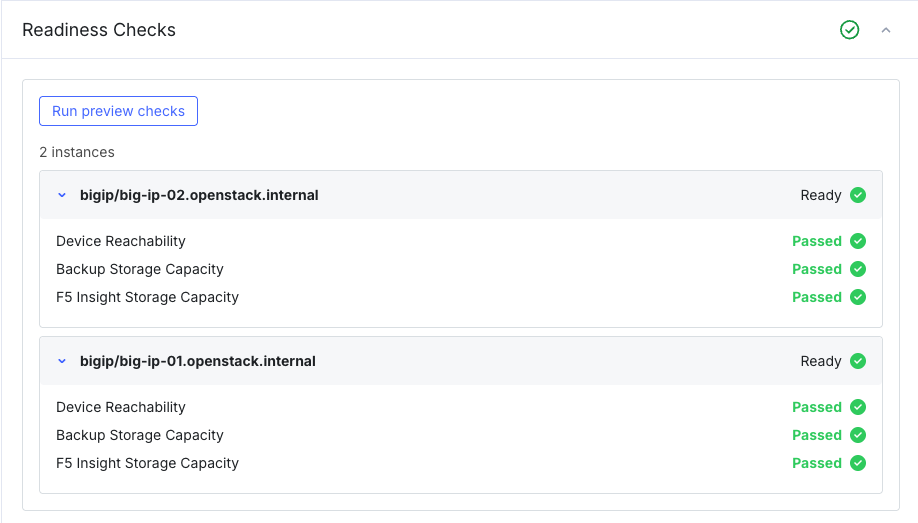
- Optionally run the Readiness Checks to verify that the selected instances are reachable, have sufficient space on the instance and on F5 Insight.
If this is a one-time backup, select Execute Job to start the backup job immediately. If this is a scheduled backup, select Save to save the job and Insight will execute it according to the configured schedule.
Note
Even if a job saved as a “Scheduled” job, you can still execute it ad-hoc by selecting Execute Job button in the job config drawer, or click the Play icon in the job list to execute it.
Example of a backup job’s execution progress:

Enabling an instance backup as part of a software installation
- Go to the Manage section in the left toolbar and select Automation.
- Select Jobs.
- Either Select Add Job and then Software Installation OR select an existing Software Installation job to edit.
- Navigate to the Backup Properties section of the software installation job configuration.
- Example settings for a software installation job that includes a backup:

Use the REST API
All backup operations available in the web console are also available through the F5 Insight REST API. You can use the API to automate backup jobs, query execution status, manage backup files, and run readiness checks programmatically.
All backup endpoints are under the base path /api/v1/fleet/backup-restore and require a valid JSON Web Token (JWT). Requests from non-administrator users are rejected with HTTP 401.
Job lifecycle
A backup job moves through the following states:
| Status | Description |
|---|---|
DRAFT |
Job created but configuration is incomplete (for example, no instance targets). Can be edited. |
READY |
Configuration is complete and valid. Can be executed. |
RUNNING |
An execution is in progress. |
PAUSING |
Pause requested. In-flight instances finish their current step before the job pauses. |
PAUSED |
Execution paused at a checkpoint between batches. Instance locks are retained. |
CANCELLING |
Cancel requested. Remaining instances are marked CANCELLED after in-flight instances finish. |
COMPLETED |
All instances processed successfully. |
FAILED |
One or more instances failed, job stopped. |
Only DRAFT and READY jobs can be updated. Only non-RUNNING jobs can be deleted.
Backup job endpoints
| Method | Endpoint | Description |
|---|---|---|
GET |
/jobs/device-backup |
List all backup jobs. Filter by status query parameters. |
POST |
/jobs/device-backup |
Create a backup job. name is required, job starts in DRAFT or READY depending on whether config.deviceTargets is populated. |
GET |
/jobs/device-backup/{jobId} |
Get full job details including config and current status. |
PUT |
/jobs/device-backup/{jobId} |
Replace all mutable job fields (name, description, enabled, config required in body). Only allowed in DRAFT or READY state. |
DELETE |
/jobs/device-backup/{jobId} |
Permanently delete a job. Not allowed while the job is RUNNING. |
POST |
/jobs/device-backup/{jobId}/activate |
Start a new execution for a READY job. Returns 202 Accepted with an executionId. |
POST |
/jobs/device-backup/{jobId}/pause |
Request a pause. In-flight devices finish. No new devices are claimed. Returns 202 Accepted. |
POST |
/jobs/device-backup/{jobId}/resume |
Resume a PAUSED job. Returns 202 Accepted. |
POST |
/jobs/device-backup/{jobId}/cancel |
Cancel the job. Remaining non-terminal devices are marked CANCELLED and device locks are released. Returns 202 Accepted. |
POST |
/jobs/device-backup/{jobId}/clone |
Create an independent copy of the job with a new name. |
Example: create a daily BIG-IP backup job
POST /api/v1/fleet/backup-restore/jobs/device-backup
Content-Type: application/json
Authorization: Bearer <TOKEN>

{
  "name": "daily-bigip-prod",
  "description": "Daily UCS backup for production BIG-IPs",
  "config": {
    "instanceType": "BIG-IP",
    "batchSize": 5,
    "validateBackup": true,
    "includePrivateKeys": true,
    "retainMasterKey": true,
    "encryption": {
      "passphrase": "<PASSPHRASE>"
    },
    "retention": {
      "retentionCount": 7
    },
    "storageTarget": "filehost-nfs",
    "deviceTargets": [
      { "deviceId": "aaaaaaaa-aaaa-aaaa-aaaa-aaaaaaaaaaaa" },
      { "deviceId": "bbbbbbbb-bbbb-bbbb-bbbb-bbbbbbbbbbbb" }
    ],
    "schedule": {
      "backupFrequency": "daily",
      "startDateTime": "2026-10-22T12:00:00Z",
      "timezone": "UTC"
    }
  }
}
Execution endpoints
| Method | Endpoint | Description |
|---|---|---|
GET |
/jobs/device-backup/{jobId}/executions |
List all executions for a job, newest first. |
GET |
/jobs/device-backup/{jobId}/executions/{executionId} |
Get a single execution including per-device progress (instanceProgress). |
GET |
/jobs/device-backup/{jobId}/executions/{executionId}/devices |
List per-device state for a specific execution. Each device shows its current state, progress percentage, step-by-step timeline, and any error messages. |
Each device progresses through the following states during execution: PENDING, PREFLIGHT, SAVING, SPACE_CHECKED, DOWNLOADING, VALIDATING, UPLOADING_REMOTE, COMPLETED, FAILED, CANCELLED, SKIPPED.
Backup file endpoints
| Method | Endpoint | Description |
|---|---|---|
GET |
/backup-files |
List all stored backup files across all jobs. Filter by deviceId, status, or fileName. |
GET |
/backup-files/{backupFileId} |
Get metadata for a single backup file. |
DELETE |
/backup-files/{backupFileId} |
Delete a backup file. Rejected if an active restore references it. |
POST |
/backup-files/bulk-delete |
Delete multiple backup files in one request. Body: { "backupFileIds": ["<uuid>", ...] }. Files that can’t be deleted are returned as partial failures without blocking other deletions. |
GET |
/backup-files/{backupFileId}/download |
Stream a backup file as a download attachment. Supports byte-range requests. |
Backup file statuses: PENDING (in progress), AVAILABLE (ready to download or restore from), FAILED.
Readiness check endpoints
Run readiness checks before activating a backup job to verify that devices are reachable and have sufficient storage capacity.
| Method | Endpoint | Description |
|---|---|---|
POST |
/backup/readiness |
Trigger asynchronous readiness checks for a set of target devices. Returns a run_id to poll. |
GET |
/backup/readiness/{runId} |
Poll results for a readiness run. Poll until status is no longer PENDING or RUNNING. |
GET |
/backup/readiness |
List all past readiness check runs. |
Each device in the results includes two checks:
- ``device_reachability`` — verifies F5 Insight can reach the device (HARD: failure blocks backup).
- ``backup_storage_capacity`` — estimates whether the device has sufficient local space (SOFT: warning only, does not block backup).
- ``f5_insight_storage_capacity`` — estimates whether F5 Insight has sufficient local space to stage backups (SOFT: warning only).
Example: trigger a readiness check
POST /api/v1/fleet/backup-restore/backup/readiness
Content-Type: application/json
Authorization: Bearer <access_token>

{
  "context": {
    "device_targets": [
      { "device_id": "aaaaaaaa-aaaa-aaaa-aaaa-aaaaaaaaaaaa" },
      { "device_id": "bbbbbbbb-bbbb-bbbb-bbbb-bbbbbbbbbbbb" }
    ]
  }
}
Example response (202 Accepted)
{
  "run_id": "c3d4e5f6-0000-0000-0000-000000000001",
  "message": "Readiness checks triggered"
}
Poll GET /backup/readiness/{run_id} until status is PASSED, WARNING, FAILED, or ERROR.
See also
For full request and response schemas, refer to the F5 Insight v2.0 API documentation.
Troubleshooting
| Issue | Cause | Resolution |
|---|---|---|
| Job stays in DRAFT state | No device targets have been added to the job, or a required field is missing. | Open the job and add at least one instance under Select Instances. Check that Backup Properties are fully configured (passphrase required if encryption is enabled). |
| Readiness check fails — Device Reachability | F5 Insight cannot reach the device over the management network. | Verify the device is online and reachable from the F5 Insight appliance. Check the device’s management IP, firewall rules, and that iControl REST is accessible on the BIG-IP (port 443). Re-run the readiness check after resolving connectivity. |
| Readiness check warns — Backup Storage Capacity | The device’s local filesystem does not have enough free space to store the backup file. | Free up disk space on the device before running the backup. UCS archives sizes vary, but can sometimes grow to be up to 1–2 GB. Make necessary arrangements to free up space on the BIG-IP’s /var partition. |
| Readiness check warns — F5 Insight Storage Capacity | F5 Insight’s local storage does not have enough free space to stage backups for all selected devices. | Delete existing backup files to free space, or configure a Remote Storage Location so backup files are uploaded off-appliance after staging. |
| Backup job execution fails — one or more devices | The device was unreachable during execution, the backup file failed validation, or the remote upload failed. | Open the execution and check the per-device step timeline for the specific failed step and error message. Common steps: PREFLIGHT, SAVING, DOWNLOADING, VALIDATING, UPLOADING_REMOTE. |
| Cannot delete a backup file | The backup file is referenced by an active restore job. | Cancel or complete the restore job that references this backup file before deleting it. |
| Encrypted backup cannot be restored — passphrase error | The passphrase entered does not match the one used when the backup was created. | Re-enter the exact passphrase used at backup time. F5 Insight does not store passphrases. If the passphrase is lost, the backup cannot be decrypted. |
| Encrypted objects fail to decrypt after restore | The backup was created without Retain Master Key, or the master key was not applied during restore. | For future backups, enable Retain and Encrypt Master Key. For an existing backup, restore from a backup that was created with master key retention, and ensure Use Retained Master Key is selected on the restore job. |
| Remote storage upload fails | The NFS or SMB share is unreachable, credentials are incorrect, or the share does not have write permission. | Go to the backup job’s Remote Storage Location setting and select Test to verify connectivity. Check the share path, host, and (for SMB) username and password. |
| Backup job is RUNNING but making no progress | All target devices are locked by another job, or the execution is paused. | Check whether another backup or restore job is running against the same devices. If the job is PAUSED, resume it via the UI or the POST /jobs/device-backup/{jobId}/resume API endpoint. |
If an issue persists, contact F5 Support and provide the job name, execution ID, date, and the per-device error message from the execution detail view. Include a Support Bundle to help F5 Support diagnose the issue. See Generate a support bundle.