F5 Instance License Management
Overview
F5 Insight provides centralized license management for BIG-IP Virtual Edition (VE) instances and license re-activation for both BIG-IP and F5OS instances across your fleet.
BIG-IP Virtual Edition Registration Key Pool - Flow Diagram
For BIG-IP VE RegKeys, F5 Insight can manage those in RegKey Pools. For activation or re-activation of those registration keys, F5 Insight can handle the communication with the F5 Licensing Server on behalf of the device.
Registration Key Pool — activation flow
Note
Steps 2 and 3 (EULA exchange) only occur when the F5 Licensing Server requires acceptance for the registration key being activated. For most keys this exchange is skipped and the flow proceeds directly from step 1 to step 4.
Non-BIG-IP Virtual Edition Registration Key Pool - Flow Diagram
For all other license re-activation activities, F5 Insight acts as the intermediary between your devices and the F5 Licensing Server. Whether re-activation is triggered as part of a software installation job, a dedicated licensing automation job, or directly from the F5 Instances page, F5 Insight handles all communication with F5’s licensing server on behalf of the device. You never need to manually interact with the licensing server — F5 Insight manages the full end-to-end flow.
Automatic re-activation flow
Note
Steps 4 and 5 (EULA exchange) only occur when the F5 Licensing Server requires acceptance. For most re-activations this exchange is skipped and the flow proceeds directly from step 3 to step 6.
Important
License management operations are available to administrator users only.
Registration Key Pools
RegKey license management is available under Manage → License Management in the left navigation, which contains two pages:
- Licenses — Create and manage Registration Key Pools and the individual registration keys within them.
- Assignments — View and manage device-to-license mappings across your fleet.
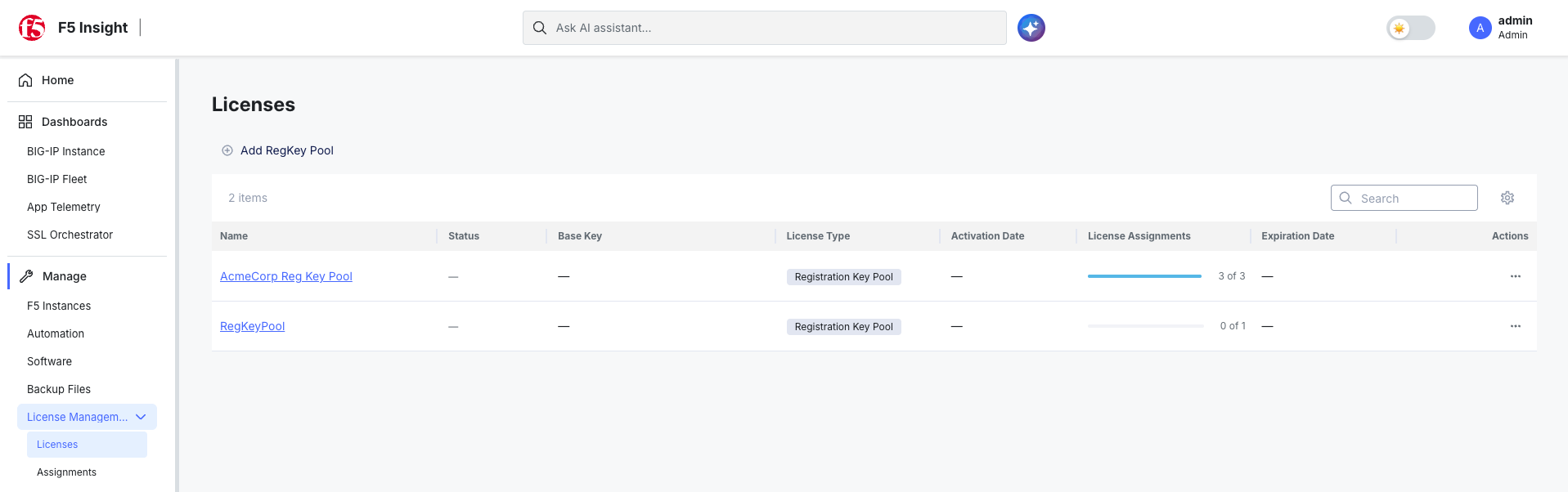
A Registration Key Pool is a named collection of BIG-IP VE registration keys managed by F5 Insight. Pooling registration keys allows F5 Insight to assign, re-assign, revoke, and re-activate licenses on BIG-IP VE instances from a single location.
Create a Registration Key Pool
- In the left toolbar, select Manage → License Management → Licenses.
- Select Add RegKey Pool.
- Enter a Registration Key Pool Name and an optional Description.
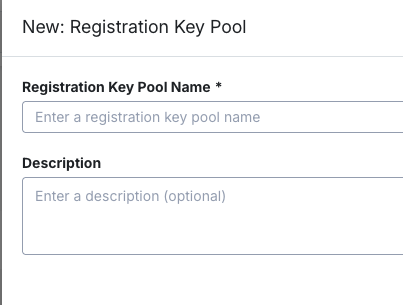
- Select Save. The pool appears in the Licenses list.
After creating a pool, add individual registration keys to it using Add Reg Key or Import CSV.
To add a single key, select Add Reg Key, enter the Base Registration Key, and choose the Activation Method (Automatic or Manual), then select Activate.

To add multiple keys at once, select Import CSV and upload a CSV file containing your registration keys.
Note
When importing registration keys via Import CSV, F5 Insight automatically activates them with the F5 Licensing Server. Ensure F5 Insight has internet (egress) access before using this method.
Upon completion, a Bulk Operation Status dialog confirms the import result for each key:

Manage registration keys
Select a pool from the Licenses page to open its detail view, which lists all registration keys with their status, assigned device, device license status, activation date, expiration date, and service check date.
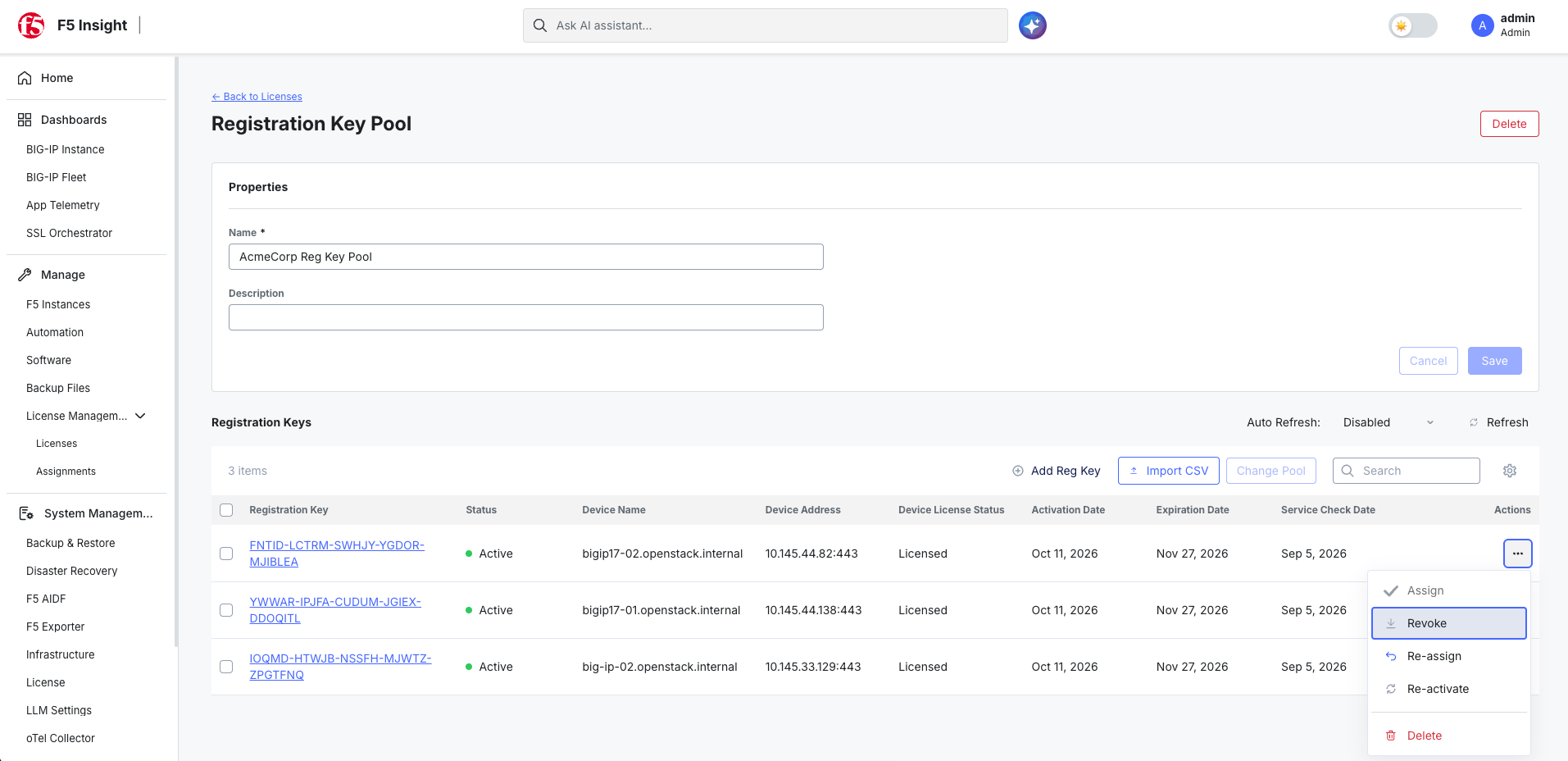
Each registration key supports the following actions from the ... menu:
- Assign — Assign an unassigned registration key to a managed BIG-IP VE device.
- Revoke — Remove the license assignment from the device. The key returns to an unassigned state in the pool.
- Re-assign — Move a registration key from its current device to a different managed BIG-IP VE device.
- Re-activate — Re-activate the license on the currently assigned device (see below).
- Delete — Permanently remove the registration key from the pool.
Re-assign a registration key
#. Select … next to the registration key and choose Reassign. +#. In the Reassign: Registration Key panel, select the target BIG-IP device from the Device dropdown.

- Select Re-assign to confirm.
Re-activate a registration key
Re-activation contacts the F5 licensing server to refresh the license on the assigned device. F5 Insight supports two activation methods:
Automatic activation — F5 Insight contacts the F5 licensing server directly. Requires F5 Insight to have internet (egress) access.
- Select
...next to the registration key and choose Re-activate. - Confirm the License Name, Base Registration Key, and any Add-on Keys.
- Select Automatic as the Activation Method.
- Select Re-activate.
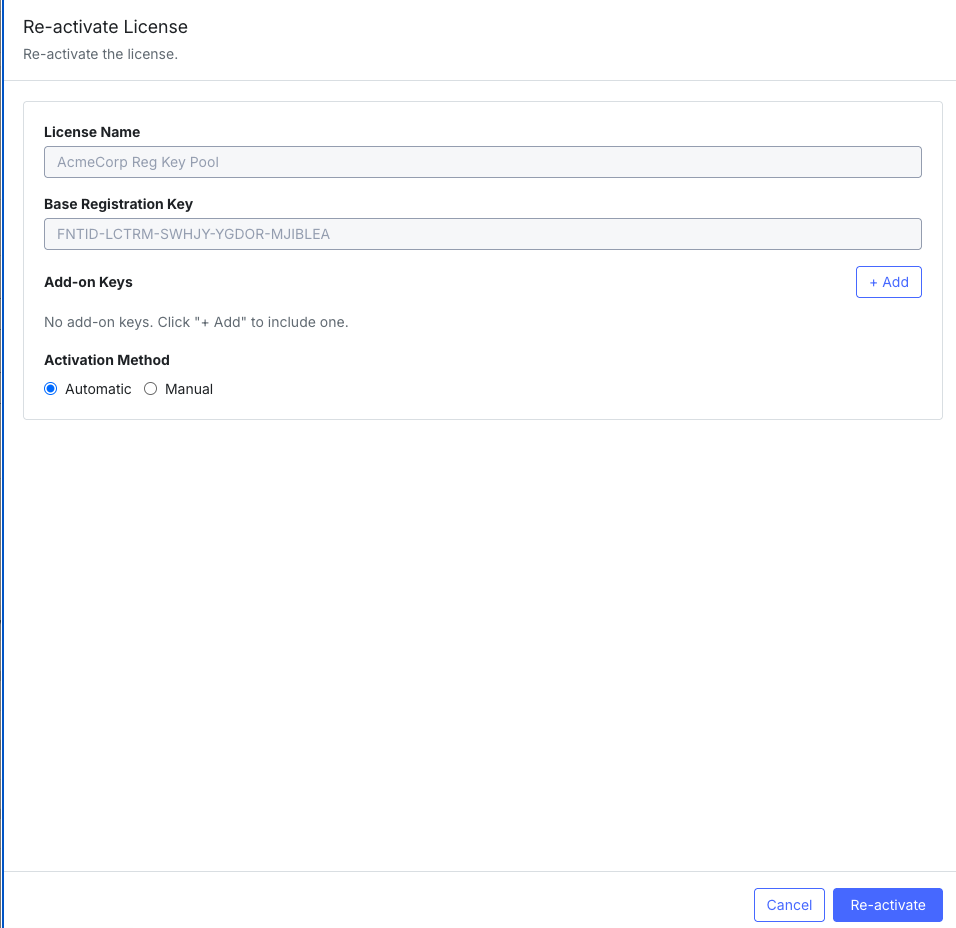
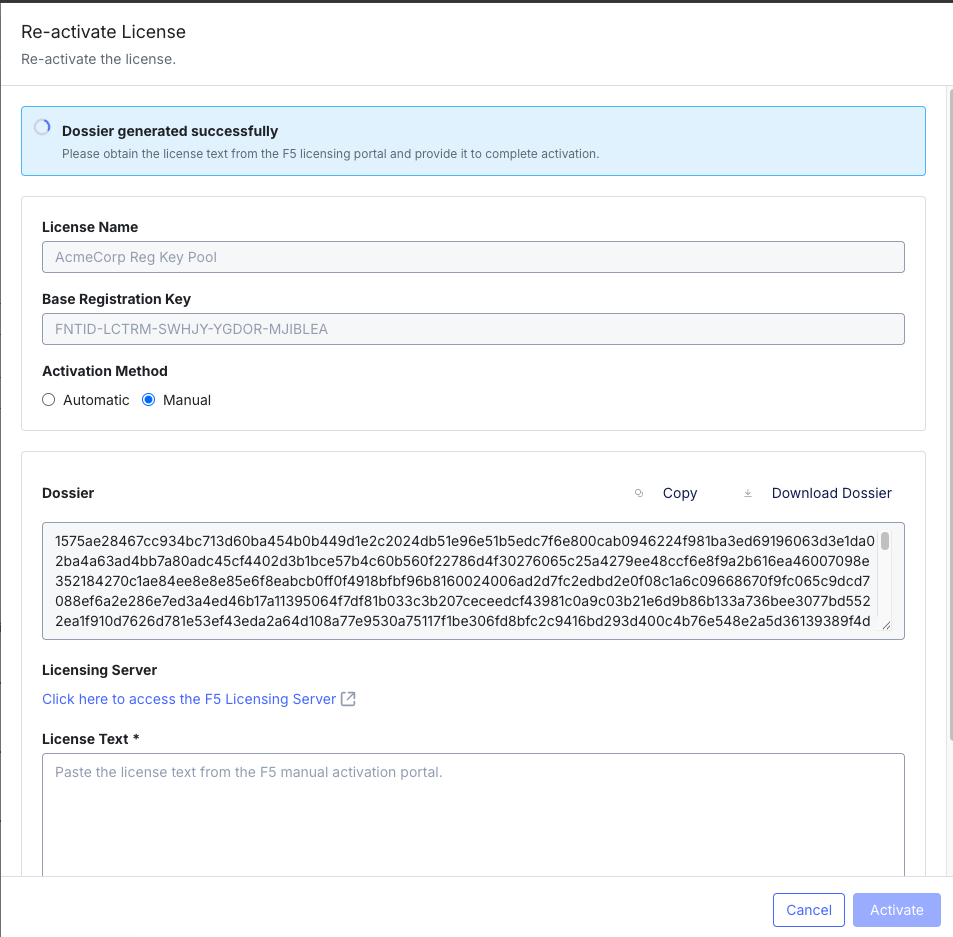
Manual activation — Use when F5 Insight does not have internet access. F5 Insight generates a dossier that you take to the F5 licensing portal to obtain a license text, which you then paste back.
- Select
...next to the registration key and choose Re-activate. - Select Manual as the Activation Method.
- Select Re-activate. F5 Insight generates a Dossier.
- Select Copy or Download Dossier, then go to the F5 Licensing Server and obtain your license text.
- Paste the license text into the License Text field and select Activate.
Warning
Re-activating a license will cause a brief traffic interruption on the instance. If the instance is an F5OS host or vCMP Host, guests and tenants will also experience traffic interruption.
License assignments
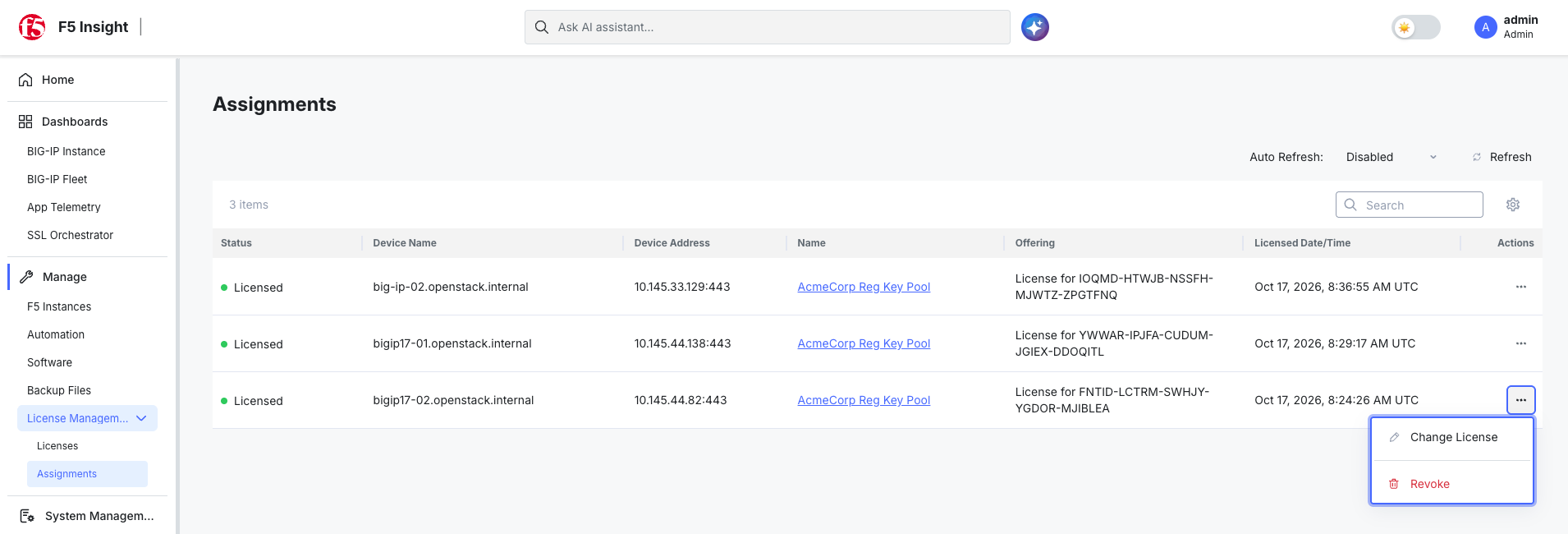
The Assignments page provides a fleet-wide view of all device-to-license mappings, showing each device’s license status, device name, device address, assigned pool, offering, and the date the license was applied.
Change a license assignment
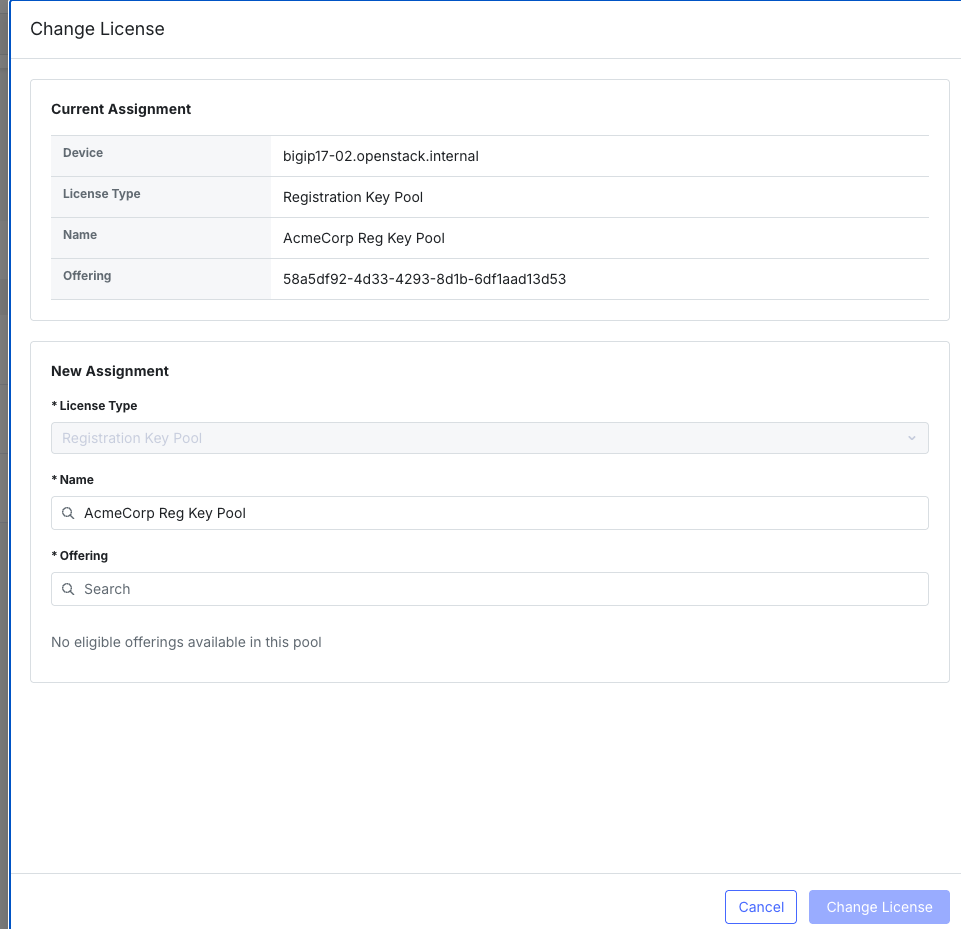
Use Change License to move a device from one license offering to another within the same or a different pool.
- On the Assignments page, select
...next to the device and choose Change License. - Review the Current Assignment details.
- Under New Assignment, select the License Type, Name (pool), and Offering.
- Select Change License to apply.
Revoke a license assignment
Select ... → Revoke to remove the license from a device. The registration key returns to the pool as unassigned and available.
Warning
Revoking a license removes the device’s license. The device will become unlicensed and traffic processing will stop. Ensure the device is out of service before revoking.
License Re-activation in Software Installation Jobs
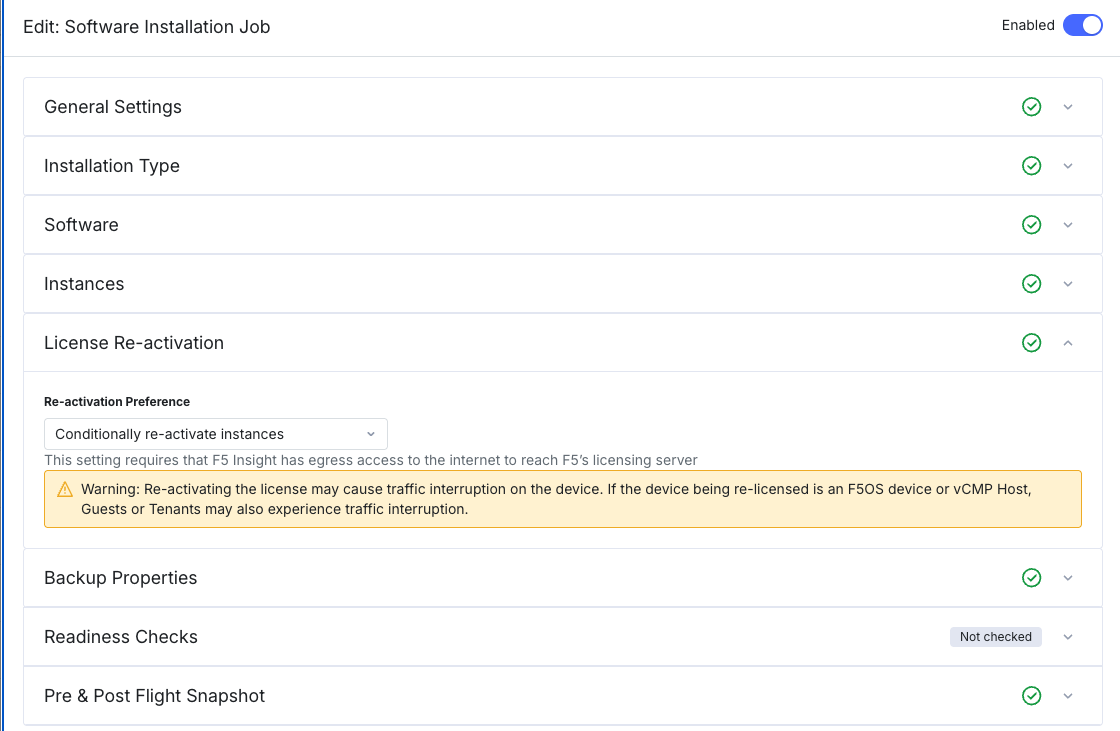
When configuring a Software Installation job, the License Re-activation section controls how F5 Insight handles device licenses during the installation process.
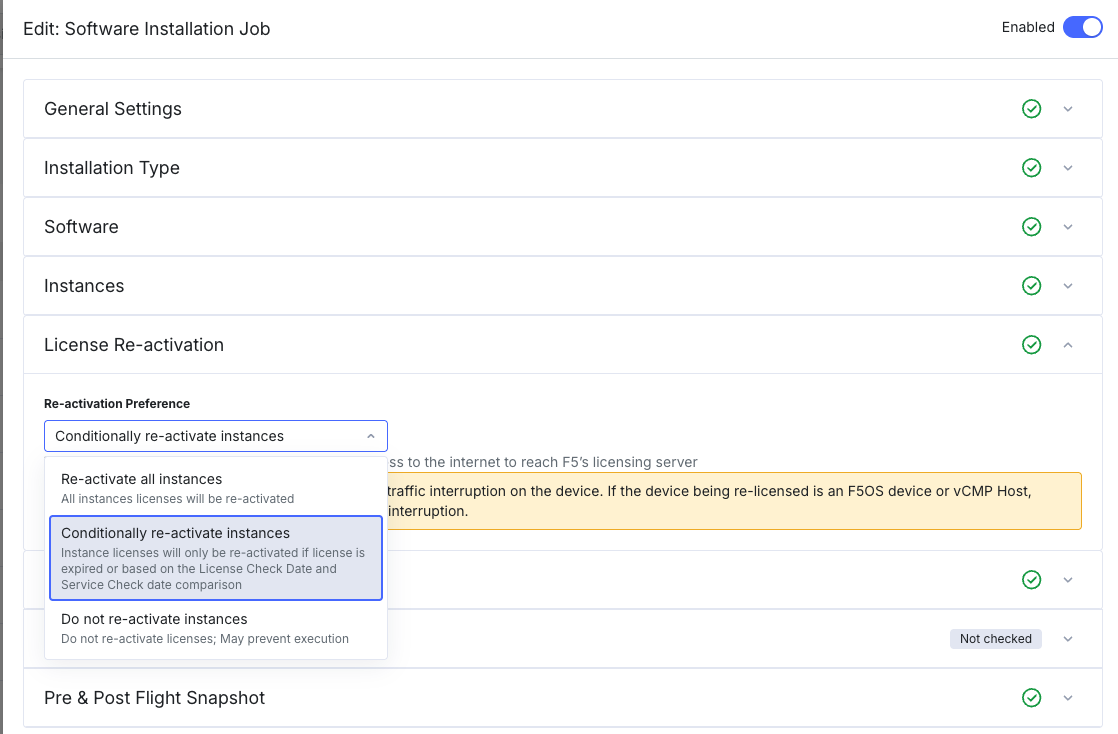
Configure the Re-activation Preference:
- Re-activate all instances — All instance licenses are re-activated during the installation, regardless of their current license status.
- Conditionally re-activate instances — (Default) Licenses are re-activated only if the license is expired or based on the License Check Date and Service Check Date comparison. This is the recommended setting for most environments.
- Do not re-activate instances — Licenses are not re-activated. Use with caution — this may prevent the installation from executing if a license check is required.
Note
License re-activation requires F5 Insight to have egress access to the internet to reach F5’s licensing server.
Warning
Re-activating a license will cause a traffic interruption on the instance. If the instance being re-licensed is an F5OS instance or vCMP Host, guests and tenants will also experience traffic interruption.
Readiness check — License Re-activation conflict
If a device’s license is already managed by F5 Insight (via a Registration Key Pool), the Readiness Check will fail with a blocking error when a Software Installation job also attempts to re-activate the license. This is a v2.0 limitation that will be addressed in a future release.

The error message reads: “Device license is already managed by F5 Insight License Manager; software installation cannot re-activate it.”
To resolve: set the Re-activation Preference to Do not re-activate instances in the Software Installation job, or remove the device from the License Manager pool before running the installation with re-activation enabled.
License Re-activation Job Type
F5 Insight also supports a dedicated Re-activate License job type — a standalone automation job that re-activates licenses across a fleet of BIG-IP or F5OS instances in bulk, independent of any software installation.
Create a Re-activate License job
- Go to the Manage section in the left toolbar and select Automation.
- Select Jobs.
- Select Add Job → Re-activate License.
- Enter a Job Name and an optional Description.

- Expand Re-activation Settings and configure the following:
- Execution Type — Select Serial (Rolling Execution) or Parallel (Batch Execution). For Parallel, set the Batch Size (Min 2, Max 20).
- Instance Type Targeted for Relicensing — Select BIG-IP or F5OS.

- Expand Select Instances and select the instances to include. The table shows each instance’s License Type, License End Date, and Service Check Date to help prioritize which instances need re-activation.

Optionally expand Readiness Checks and select Run preview checks to validate that each selected instance is eligible for re-activation before executing the job.
The readiness checks verify:
- Instance Supported — The instance type is supported for re-activation.
- Instance Reachable — F5 Insight can reach the instance.
- License Available — The instance has a license that can be re-activated.
- License Not Managed by F5 Insight — The instance license is not already managed by the F5 Insight License Manager (Registration Key Pool). If it is, the check fails with “Instance is managed by F5 Insight.” This is a v2.0 limitation that will be addressed in a future release.
- License Not Managed by BIG-IQ — The instance is not managed by BIG-IQ.
- License Server Reachable — F5 Insight can reach the F5 licensing server.

Select Execute Job to start the re-activation immediately.
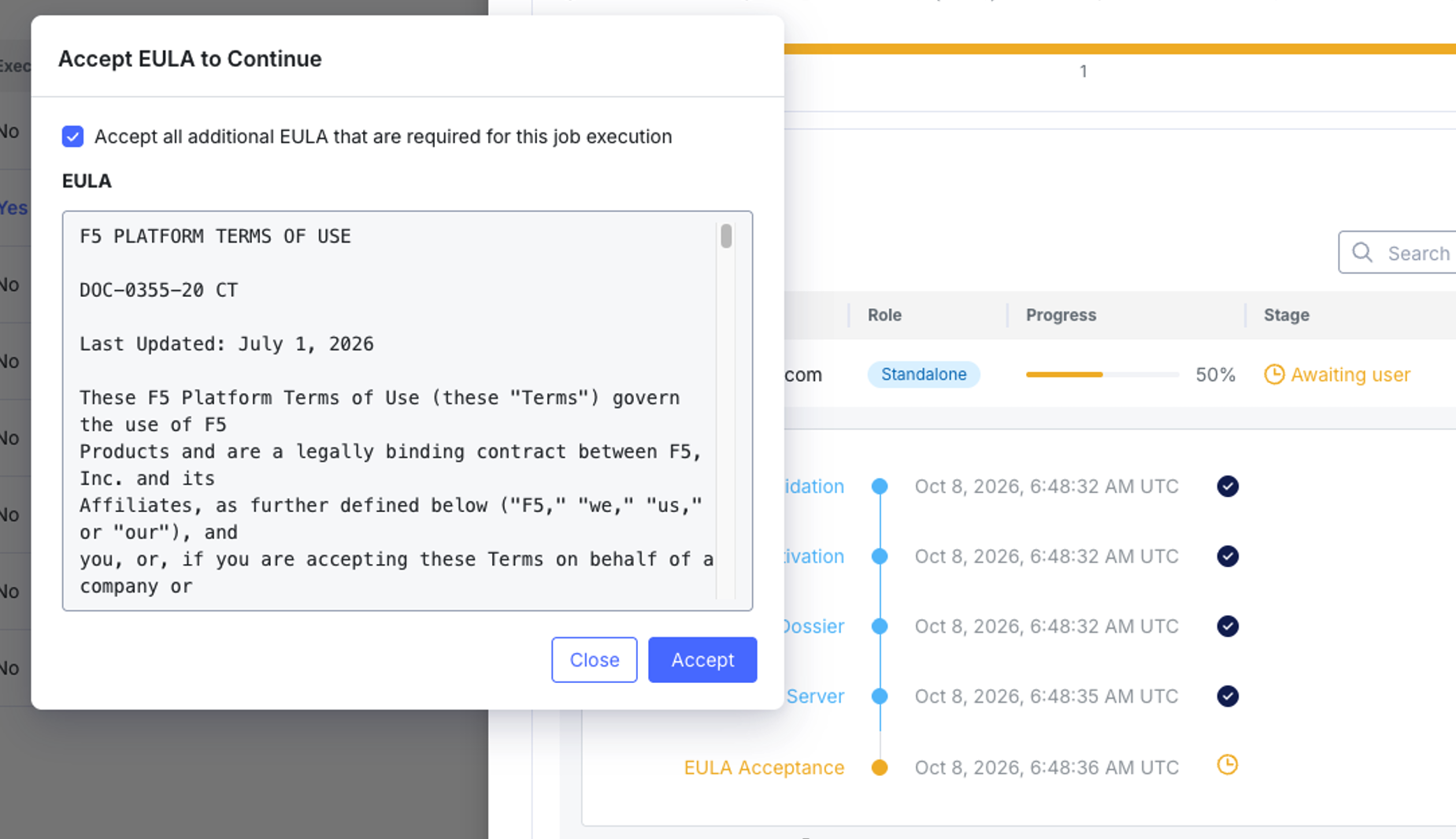
F5 Insight displays per-instance execution progress. Each instance moves through the following steps: Validation, Initiating Reactivation, Generating Dossier, Contacting License Server, and Reactivation Result.

When a new EULA is required by the F5 licensing server, F5 Insight shows the excution as Awaiting User at an EULA Acceptance step and displays an Accept EULA to Continue dialog. Review the EULA text and select Accept to continue, or Close to cancel. You can also check Accept all additional EULAs that are required for this job execution to automatically accept any further EULAs during the same execution.
Warning
Re-activating a license will cause a brief traffic interruption on the instance. If the instance is an F5OS host or vCMP Host, guests and tenants will also experience interruption.
License Re-activation — Without an Automation Job
For individual instances, you can re-activate a license directly from the F5 Instances page without creating an automation job.
- Go to Manage → F5 Instances → Instances.
- Locate the instance you want to re-activate and select the
...actions menu. - Select Re-activate License.

- The Re-activate License panel opens showing the instance’s current license details — Device Name, License Type, License Date, Expiration Date, Active Modules, Base Registration Key, and Add-on Registration Keys.
- Select the Activation Method — Automatic (requires outbound connectivity) or Manual.
- Select Activate to re-activate the license.

Warning
Re-activating a license will cause a brief traffic interruption on the instance. If the instance is an F5OS host or vCMP Host, guests and tenants will also experience interruption.
Note
This single-instance re-activation flow is independent of the Registration Key Pool and Re-activate License automation job. Use it for one-off re-activations where you do not need to manage the license as part of a pool or scheduled job.
Use the REST API
All license management endpoints are under the base path /api/v1/fleet/licensing/reactivate and require a valid JWT token. Requests from non-administrator users are rejected with HTTP 401.
Re-activate License job endpoints
| Method | Endpoint | Description |
|---|---|---|
GET |
/licensing/reactivate/jobs |
List all re-activate license jobs. Filter by status or $search. |
POST |
/licensing/reactivate/jobs |
Create a new re-activate license job (starts in DRAFT status). Returns 201 Created. |
GET |
/licensing/reactivate/jobs/{jobId} |
Get full job details. |
PATCH |
/licensing/reactivate/jobs/{jobId} |
Partially update a job. Only allowed in DRAFT or READY status. |
DELETE |
/licensing/reactivate/jobs/{jobId} |
Delete a job. Not allowed when status is RUNNING. Returns 204 No Content. |
GET |
/licensing/reactivate/jobs/{jobId}/devices |
List devices configured for a specific job, enriched with live licensing details. |
GET |
/licensing/reactivate/jobs/devices |
List all devices eligible for license re-activation. Required query param: type (BIGIP or F5OS). |
POST |
/licensing/reactivate/jobs/{jobId}/activate |
Activate a DRAFT or READY job — creates a new execution and starts batch processing. Returns 202 Accepted. |
POST |
/licensing/reactivate/jobs/{jobId}/pause |
Request a pause after the current batch completes. Returns 200 OK. |
POST |
/licensing/reactivate/jobs/{jobId}/resume |
Resume a paused execution. Returns 200 OK. |
POST |
/licensing/reactivate/jobs/{jobId}/cancel |
Cancel the active execution. Returns 200 OK. |
Execution endpoints
| Method | Endpoint | Description |
|---|---|---|
GET |
/licensing/reactivate/jobs/{jobId}/executions |
List all executions for a job. |
GET |
/licensing/reactivate/jobs/{jobId}/executions/{executionId} |
Get a single execution record with status and aggregate device counts. |
GET |
/licensing/reactivate/jobs/{jobId}/executions/{executionId}/devices |
List per-device progress for an execution. Filter by status (PENDING, RUNNING, AWAITING_USER, COMPLETED, FAILED, CANCELLED). |
GET |
/licensing/reactivate/jobs/{jobId}/executions/{executionId}/devices/{deviceId} |
Get state for a single device within an execution. |
GET |
/licensing/reactivate/jobs/{jobId}/executions/{executionId}/devices/{deviceId}/eula |
Get the EULA text for a device paused at the EULA_ACCEPTANCE step (status=AWAITING_USER). |
PATCH |
/licensing/reactivate/jobs/{jobId}/executions/{executionId}/devices/{deviceId}/eula |
Accept the EULA for a device (or all awaiting devices when acceptAll: true) to resume processing. The eulaText field must match exactly what was returned by the GET. Returns 200 OK. |
Standalone device re-activation endpoints
Use these endpoints to re-activate a single device’s license without creating an automation job.
Important
Standalone re-activation (POST /licensing/reactivate/devices/{deviceId}) is not available for devices managed by a Registration Key Pool. If the device’s license is managed by the F5 Insight License Manager, the API returns HTTP 409 with DEVICE_LICENSE_MANAGED. To re-activate a pool-managed device, use the Re-activate action within the pool, or use the Re-activate License automation job.
| Method | Endpoint | Description |
|---|---|---|
GET |
/licensing/reactivate/devices/{deviceId} |
Get the latest license re-activation status for a device. When manual re-activation is awaiting license text, returns the generated dossier. |
POST |
/licensing/reactivate/devices/{deviceId} |
Start re-activation. Body: { "mode": "ACTIVATING_AUTOMATIC" } or { "mode": "ACTIVATING_MANUAL" }. Automatic returns 202 Accepted; Manual (Phase 1) returns 200 OK with the dossier. |
PATCH |
/licensing/reactivate/devices/{deviceId} |
Continue an in-progress re-activation. Use to provide license text (Manual Phase 2) or accept a EULA (Automatic EULA flow). |
POST |
/licensing/reactivate/devices/{deviceId}/refresh |
Refresh a device’s live license metadata from the device and update the F5 Insight cache. Returns 200 OK. |
GET |
/licensing/reactivate/tasks |
Poll the status of an asynchronous re-activation task. Required query param: taskId. |
Readiness check endpoints
Run readiness checks before activating a job to confirm all target devices are eligible.
| Method | Endpoint | Description |
|---|---|---|
POST |
/licensing/reactivate/validate |
Trigger async readiness checks for a list of devices. Body: { "deviceIds": [...], "deviceType": "BIGIP" | "F5OS" }. Returns 202 Accepted with a validation_run_id to poll. |
GET |
/licensing/reactivate/validate/{runId} |
Poll the results of a readiness run. Poll until status is no longer PENDING or RUNNING. |
GET |
/licensing/reactivate/validate/{runId}/devices |
Get per-device check results for a readiness run. |
Example: trigger readiness checks
POST /api/v1/fleet/licensing/reactivate/validate
Content-Type: application/json
Authorization: Bearer <access_token>

{
  "deviceIds": [
    "aaaaaaaa-aaaa-aaaa-aaaa-aaaaaaaaaaaa",
    "bbbbbbbb-bbbb-bbbb-bbbb-bbbbbbbbbbbb"
  ],
  "deviceType": "BIGIP"
}
Example response (202 Accepted)
{
  "validation_run_id": "d4e5f6a7-0000-0000-0000-000000000001"
}
Poll GET /licensing/reactivate/validate/{runId} until status is PASSED, WARNING, FAILED, or ERROR.
See also
For full request and response schemas, refer to the F5 Insight v2.0 API documentation.
Troubleshooting
| Issue | Cause | Resolution |
|---|---|---|
| Readiness check fails — License Re-activation conflict | The device is managed by the F5 Insight License Manager and the Software Installation job is also set to re-activate licenses. | Set Re-activation Preference to Do not re-activate instances, or remove the device from the License Manager pool before running the job with re-activation enabled. |
| Re-activation fails — licensing server unreachable | F5 Insight does not have internet access to reach the F5 licensing server. | Use Manual activation method to generate a dossier, obtain license text from the F5 licensing portal, and paste it back into F5 Insight. Alternatively, configure network egress to allow F5 Insight to reach activate.f5.com. |
| No eligible offerings available when changing license | The selected pool has no unassigned keys available. | Add additional registration keys to the pool via Add Reg Key or Import CSV, then retry the change. |
| Revoke does not release the license on the device | Revoking in F5 Insight removes the assignment record but may not immediately contact the device to remove the license. | Verify the device’s license status directly via tmsh show sys license on BIG-IP, or via the F5OS management interface. |
| Registration key shows Inactive after re-activation | The activation did not complete successfully, or the service check date has passed. | Re-run re-activation. If using Automatic activation, ensure F5 Insight has internet access. If using Manual activation, verify the license text was pasted correctly and completely. |
If an issue persists, contact F5 Support and include a Support Bundle. See Generate a support bundle.