Software distribution jobs
Overview
Software distribution jobs copy software images from the F5 Insight platform to target instances to prepare for installation and software activation.
Benefits and key features
- Stage images ahead of the window — Push images to target instances before the maintenance window, to decrease upgrade time.
- Space-aware targeting — F5 Insight checks free space per instance and flags or skips instances that do not have sufficient space.
- Flexible execution — Distribute serially or in parallel batches to balance speed against load.
Prerequisites
- Software images uploaded to F5 Insight (see Software image management).
- Target instances registered and managed in F5 Insight.
- Network connectivity between F5 Insight and target instances.
Create a distribution job
Go to the Manage section in the left toolbar and select Automation.
Select Jobs.
Select Add Job.
Select Software Distribution.
Enter a Job Name. Use a helpful name that indicates the target instances or types and the software version, build, etc.
Enter a Description (optional).
Select the Target Instances, optionally using the search functionality.
Select the Software Image(s) to distribute.
Note
Each image can only be distributed to matching hardware — TMOS images to BIG-IP instances, F5OS-A images to rSeries appliances. F5 Insight rejects a job containing an incompatible image and instance pair when you execute it.
Note
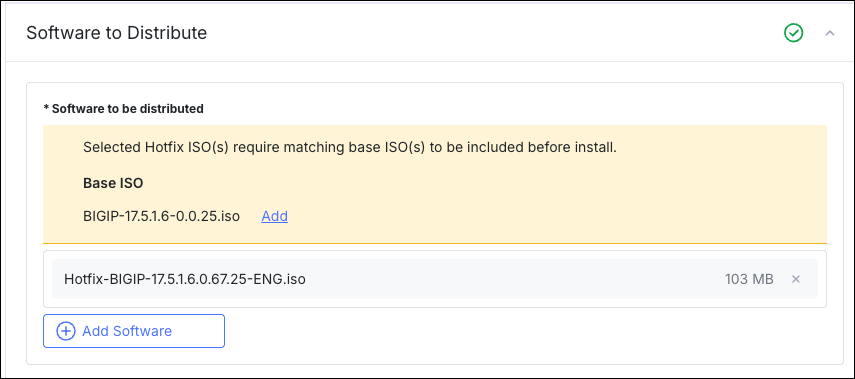
When a TMOS EHF is selected, F5 Insight prompts you to add the Base ISO image to the job, as the target will need the Base ISO for the EHF to be installed. Select the Add link and F5 Insight adds the Base ISO to the job automatically.
Before:
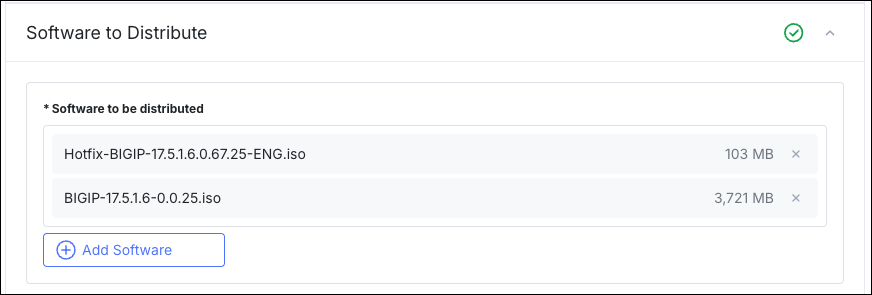
After selecting Add, both the EHF and its Base ISO are included in the job.
Select Run preview checks. F5 Insight runs the following checks against each target instance. A blocking failure must be resolved — or the instance removed from the job — before the distribution can run. A warning is reported for your review and does not prevent the job from running.
Check Result What it validates Base Image Pre Distribution Warning Used when the software to be distributed is a TMOS EHF: the Base ISO the hotfix requires is either already present on the target instance or included in this same job. Skipped when the distribution does not include a TMOS EHF. Image Compatibility Blocking The image’s product family matches the target instance’s platform — TMOS images install on BIG-IP instances, F5OS-A images on rSeries appliances. A TMOS image cannot upgrade the host software of an rSeries appliance (BIG-IP runs there as a tenant), and an F5OS-A image cannot be installed on a BIG-IP instance. Each image in the job is checked against each target instance. Disk Space Warning Sufficient free space on the target instance for the images being distributed. Available space is shown in MiB or GiB values. F5 Insight checks in advance whether the target already has the software being distributed, and if so, the free space indicator line is greyed out and the tooltip (i) confirms that the software is already present on the target instance. The preview then reports each instance:
Instances with insufficient space are shown with a warning showing the amount of free space and the amount of space required for the distribution with warning text: “insufficient space for distribution.”
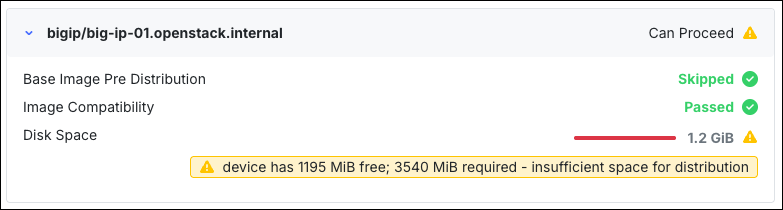
Preview check results for a target instance that does not have enough free space for the distribution.
Instances with sufficient space show as Ready to proceed without issue and a yellow or green free space indicator line.
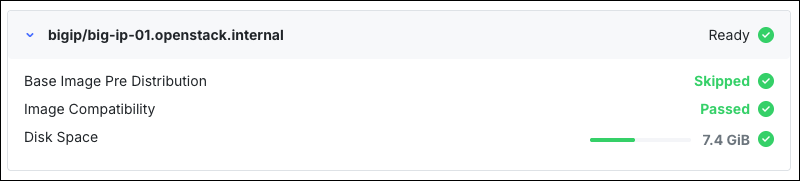
Preview check results for a target instance that has enough free space for the distribution.
Re-select Run preview checks if an administrator has cleared additional disk space (outside of the F5 Insight product) so that a previously blocked instance can be included.
Configure the Distribution Type, either Serial (Rolling Execution) or Parallel (Batch Execution):
- With Serial, the software is distributed to one instance at a time.
- With Parallel, define the Batch Size (how many instances are sent the files concurrently).
To save the job and run it later, select Save.
To run the job immediately, select Execute Job and confirm in the modal window that is displayed.
When you select Execute Job, F5 Insight shows a confirmation window. Optionally, enter a Change Request tracking # that will persist with the job execution details. Select Execute Job to start the distribution.
Monitor job execution status
- View job execution progress by clicking the Yes in the Executing column.
- View current or previous job executions by clicking on the digit in the Executions column for the Job you wish to view.
- Each job displays status: Enabled, Disabled, or Executing. The Executions column shows the number of times the job has run.
Troubleshooting
For more detailed software distribution log messages, SSH to the F5 Insight host and check /opt/f5insight/logs/provisioning.log.
Scale limits
- Support for 100 instances in one software distribution job.
- Support for up to 20 instances in parallel (parallel batch size).
- Support for up to 2 ISO files in one software distribution job.
- Support for up to 10 GB total size in one software distribution job.
- Support for up to 2 concurrent distribution jobs, the 3rd distribution job will be queued.
Out of scope for this release
The following capabilities are not included in this release:
- Other file types — Distributing other components, such as GeoIP databases, IP reputation databases, etc., is out of scope for this release.