F5 Application Delivery Controller Solutions > BIG-IP® Local Traffic Manager (LTM) - Getting Started Source | Edit on
Lab 5: SSL Offload and Security
In this Lab we will configure client-side SSL processing on the BIG-IP
Objective:
Create a self-signed certificate
Create a client SSL profile
Modify your HTTP virtual server to use HTTPS
Add additional security to your HTTPS web server using the HTTP profile
We will create a self-signed certificate and key for a client SSL profile to attach to our virtual server
Creating a Self-signed certificate and key
Go to System >> Certificate Management >> Traffic Certificate Management >> SSL Certificate List and select Create
Note
The default key size is 2048. You can save SSL resources on the server-side by lowering this key size

Enter:
Name: my-selfsigned-cert
Issuer: Self
Common Name: www.f5demo.com
Fill out the rest any way you would like
Creating SSL Client Profile
Go to Local Traffic >> Profiles >> SSL >> Client menu and select Create
Under General Properties
Name: my_clientssl_profile
Under Configuration in the Certificate Key Chain section, select the Custom box and hit Add
In the Add SSL Certificate to Key Chain pop-up select:
Certificate: my-selfsigned-cert
Key: my-selfsigned-cert
Select Add
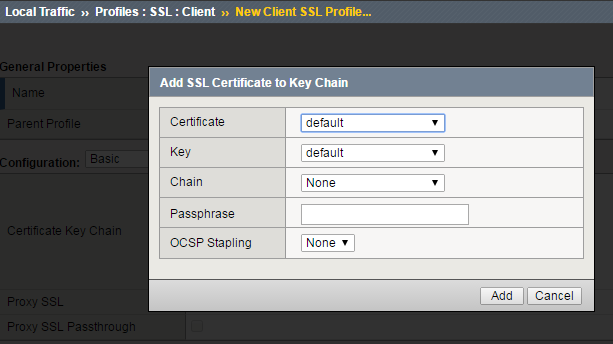
Hit Finished.
Building our New Secure Virtual Server
Go to Local Traffic >> Virtual Servers and hit the Create button or hit the “+” next to Virtual Servers
Name: secure_vs
Destination Address/Mask: 10.1.10.105
Port: 443 or HTTPS
SSL Profile (Client): my_clientssl_profile (the profile you just created)
Source Address Translation: Auto Map (remember why we need this?)
Default Pool: www_pool
Default all other settings. (Notice you did not require an HTTP profile)
Finish
Test our secure server. Go to you secure_vs at https://10.1.10.105
If you want to watch member traffic, go to the www_pool and reset the statistics
Browse to your secure virtual server
What port did your pool members see traffic on?
Securing Web Applications with the HTTP profile
Let’s begin by creating a custom HTTP profile
Go to Local Traffic >> Profiles >> Services, select HTTP and create a new profile
Under General Properties
Name: secure-my-website
Under Settings:
Set the Fallback Host: http://10.1.1.252 (this will take you an internal site)
Fallback on Error Codes: 404 (fallback site if a 404 error is received)
Response Headers Allowed: Content-Type Set-Cookie Location
Insert XForwarded For: Enabled (because we talked about it earlier)

Attach your new HTTP Profile to your secure (HTTPS) virtual server
Browse to your secure virtual server.
Do web pages appear normal?
Now browse to a bad page
For example,
What is the result?
Go to the Request and Response Headers page. You should see a sanitized server response at the bottom of the web page and the original client IP address
You can compare the headers by accessing your HTTP virtual server at http://10.1.10.100
While you are looking at the headers, check for the X-Forwarded-For header received by the server
Note
Even though the data is encrypted between your browser and the virtual server, the LTM can still modify the data (i.e. resource cloaking) because the data is unencrypted and decompressed within TMOS
Archive your work in a file called: lab5_security