F5 Application Delivery Controller Solutions > Troubleshoot with tcpdump and Wireshark Source | Edit on
F5 Specific tcpdump Switches
This section is for informative value and nothing will be done in the lab environment.
F5 has added some F5 specific switches to the tcpdump utility on the F5. These switches give additional information on your packet captures. These switches are placed after the interface option in the command line as follows:
:n gives low details
for example: tcpdump -nni 0.0:n -s0 -w /var/tmp/capture.pcap
This will give basic information such as whether the captured traffic is ingress or egress to the F5. It will also give the TMM instance the traffic is on as well as the Chassis slot processing the traffic. This option also lists the virtual server name that processes the traffic.
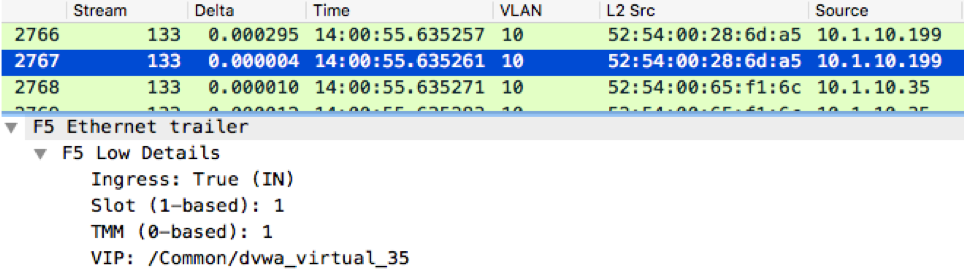
:nn gives medium details
for example: tcpdump -nni 0.0:nn -s0 -w /var/tmp/capture.pcap
This option will give all the low detail information plus the following:
Flow ID number
Peer Flow ID number
TCP RST cause
Flow type
HA unit
Ingress Slot
Ingress port
Priority
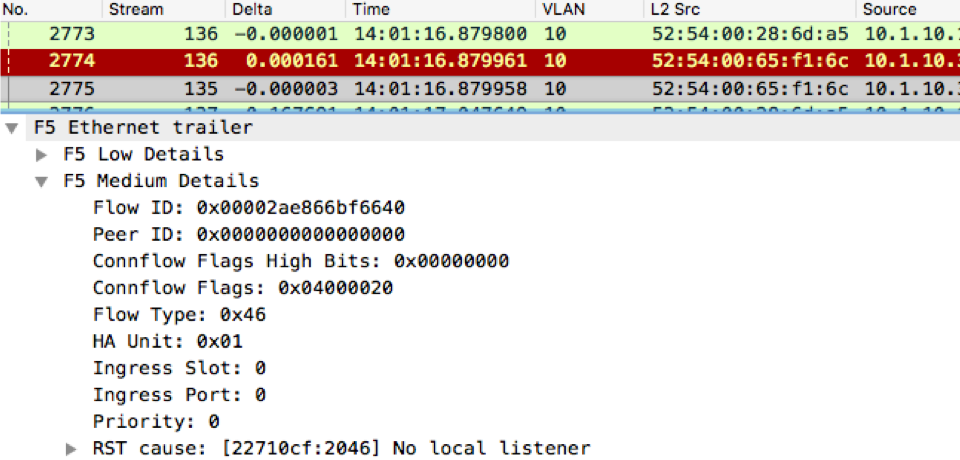
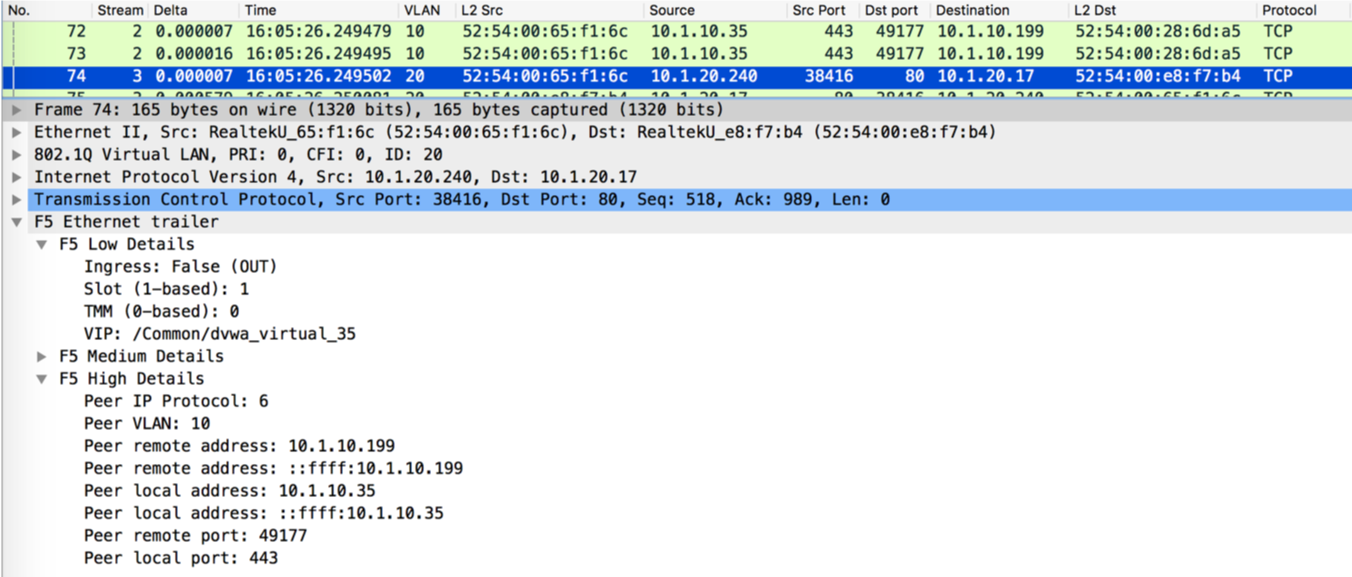
:nnn gives high details
for example: tcpdump -nni 0.0:nnn -s0 -w /var/tmp/capture.pcap
This option will give all the low and medium details plus the following
Peer IP Protocol
Peer VLAN
Peer Remote address
Peer local address
Peer remote port
Peer local port
:nnnp captures traffic on both the client and server side of the F5 related to the filter. For example if I captured for a virtual server at IP address 10.1.20.103 and the pool members were 10.1.10.5, 10.1.10.6, and 10.1.10.7, and my host filter was for 10.1.20.103, then my capture would gather all the traffic from client to 10.1.20.103 and from BIG-IP to the pool members.
for example: tcpdump -nni 0.0:nnnp -s0 -w/var/tmp/capture.pcap
This option will capture all traffic coming into the BIG-IP and correlated traffic going to all pool members.