F5 Application Delivery Controller Solutions > AI Data Delivery: Secure and Reliable Object Storage Source | Edit on
Lab 1: High Availability & Efficient Load Distribution
Business problem : AI pipelines need consistent, high‑throughput access to S3-compatible storage. Wiring clients directly to specific storage nodes creates tight coupling and operational risk: a single overloaded node throttles the entire pipeline.
Technical problem : Without a delivery layer, clients must pick a node, handle retries/failover, and live with uneven utilization (hot spots) and brittle endpoints.
Solution with BIG‑IP LTM : Expose a single, resilient virtual endpoint. Behind this VIP, BIG‑IP intelligently distributes S3 traffic across all healthy MinIO nodes and lets you scale by simply adding/removing pool members—no client changes required. Use Least Connections to smooth throughput for S3 workloads.
Following the tasks in the prior Introduction Section, you should now be able to access the UDF lab environment.
Task 1: Review the Lab Environment
These values align with the UDF topology. Keep them unchanged unless your environment differs.
Component |
Purpose |
Where to access |
|---|---|---|
MinIO Cluster‑1 (direct) |
Baseline test without BIG‑IP |
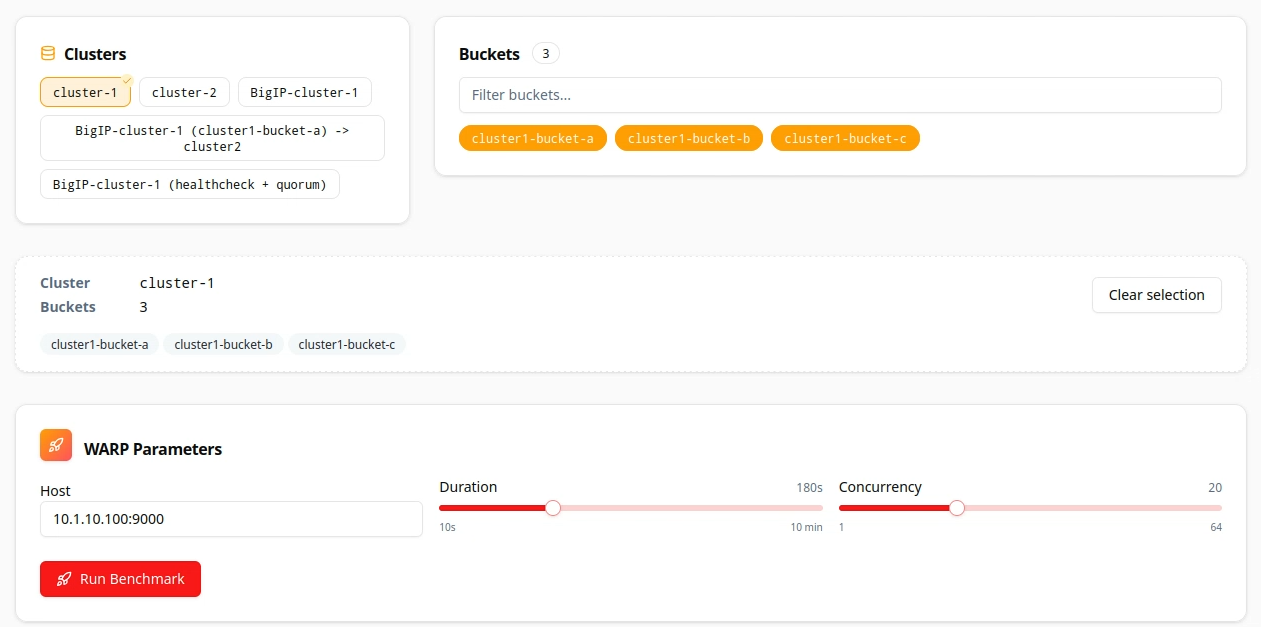
WARP parameters: 10.1.10.100:9000 |
BIG‑IP VIP for Cluster‑1 |
Single front door with LTM load |
WARP parameters: 10.1.40.160:9000 |
MinIO Console |
Review node-level metrics |
UDF → Cluster1-Node1 → Access → UI |
BIG‑IP TMUI |
Verify pools/members & methods |
UDF → BIG‑IP → Access → TMUI |
Task 2: Baseline: Send traffic directly to MinIO (no BIG‑IP)
The following steps will validate access to the application via a web browser, review the Performance Monitoring dashboard, and gather request details.
Quick aside, what is Warp? It is a high-performance, open-source benchmarking tool designed to measure and analyze the throughput and latency of S3-compatible object storage systems.
Warp simulates real-world workloads—such as PUT (uploads), GET (downloads), LIST, and DELETE operations—to evaluate performance, plan capacity, and identify bottlenecks.
The labs offer an easy-to-use graphical front end for Warp, to avoid needing to issue command-line actions.
|
|
|
|
|
|
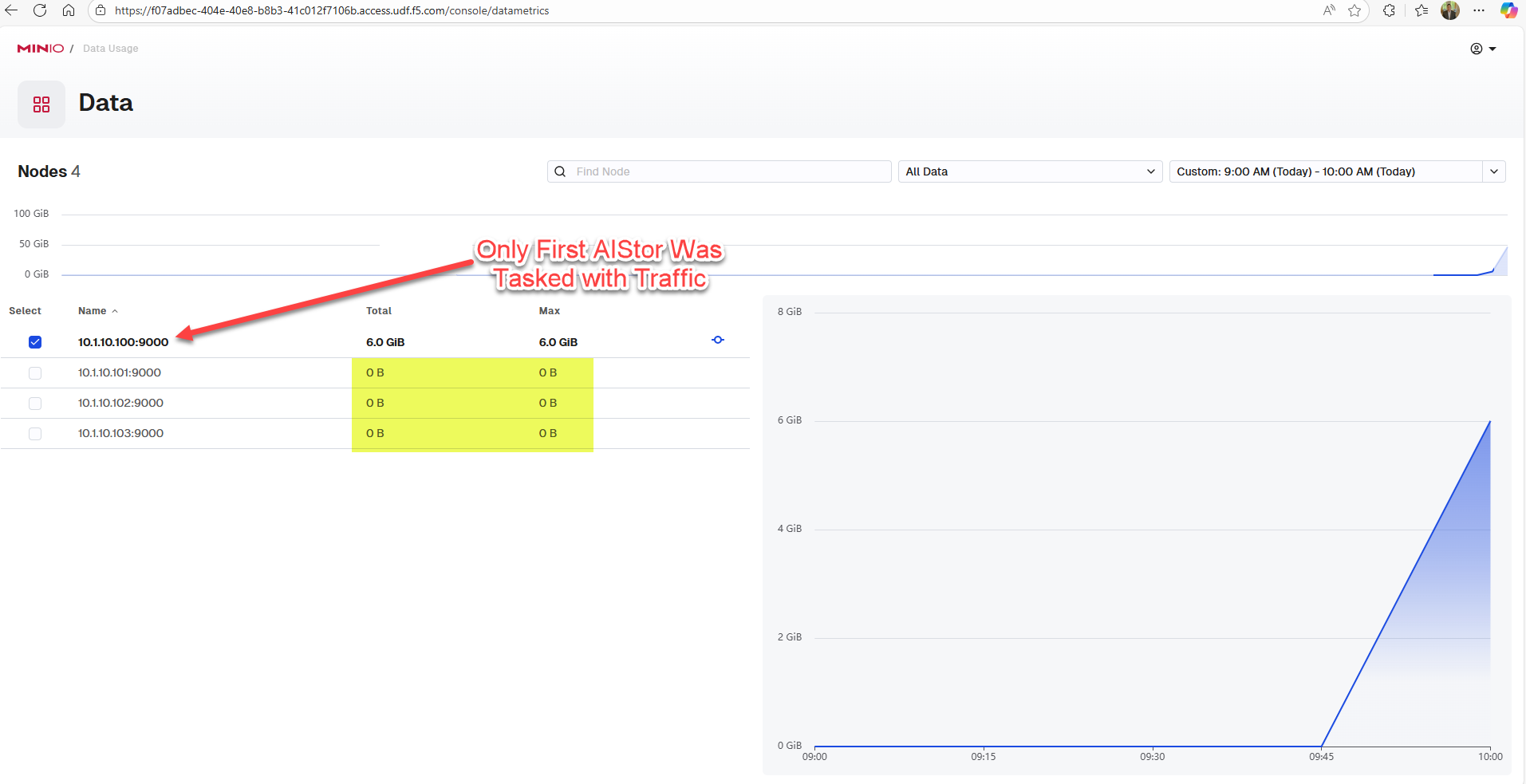
Why this matters: Clients that target a single node are brittleutilization is uneven and scalability suffers.
Task 3: Baseline: Steer (proxy) the Same Workload through BIG-IP
Note due to short run durations, summary analytics may not have appeared in the AIStor dashboard view yet. |
|
|
|
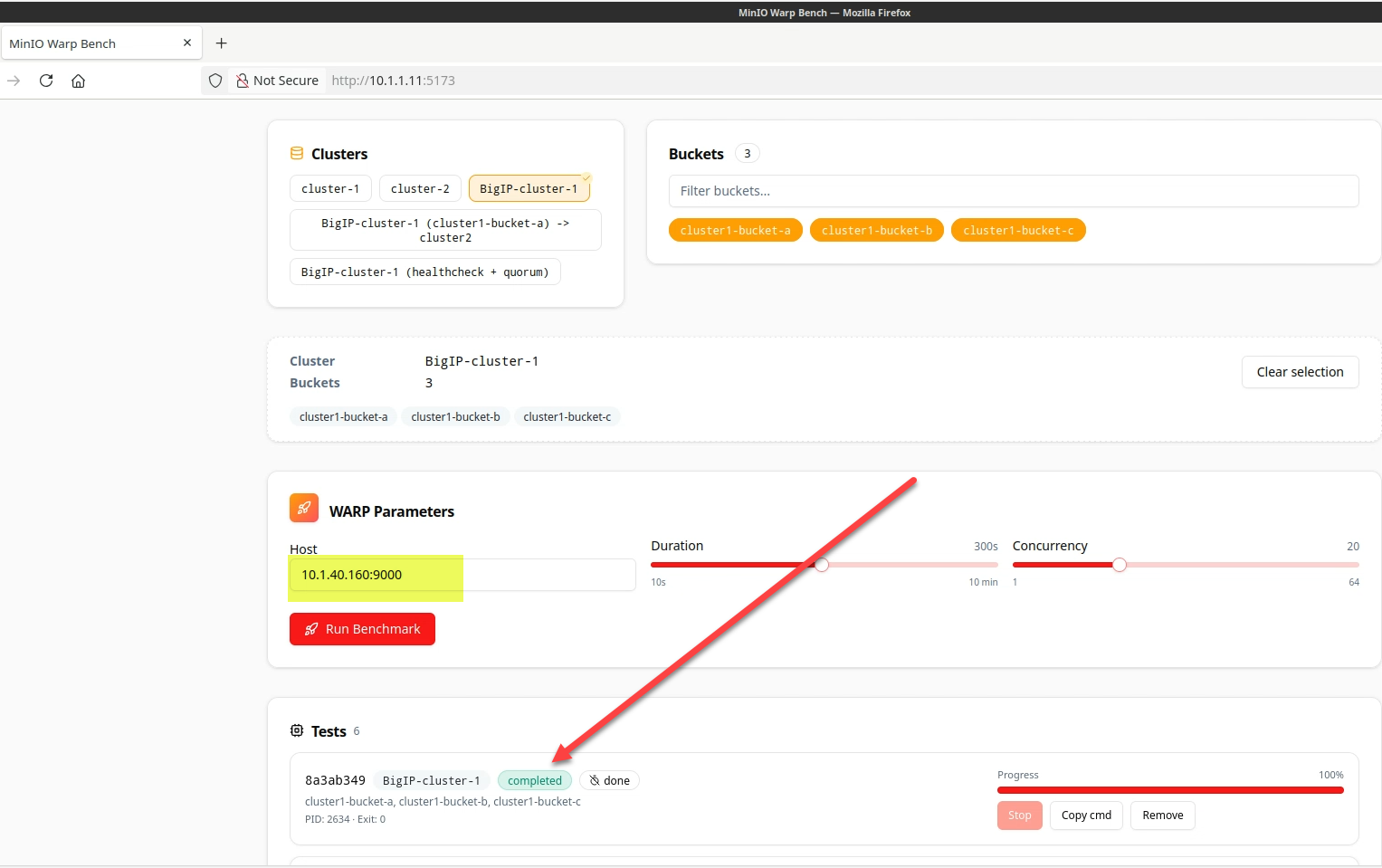
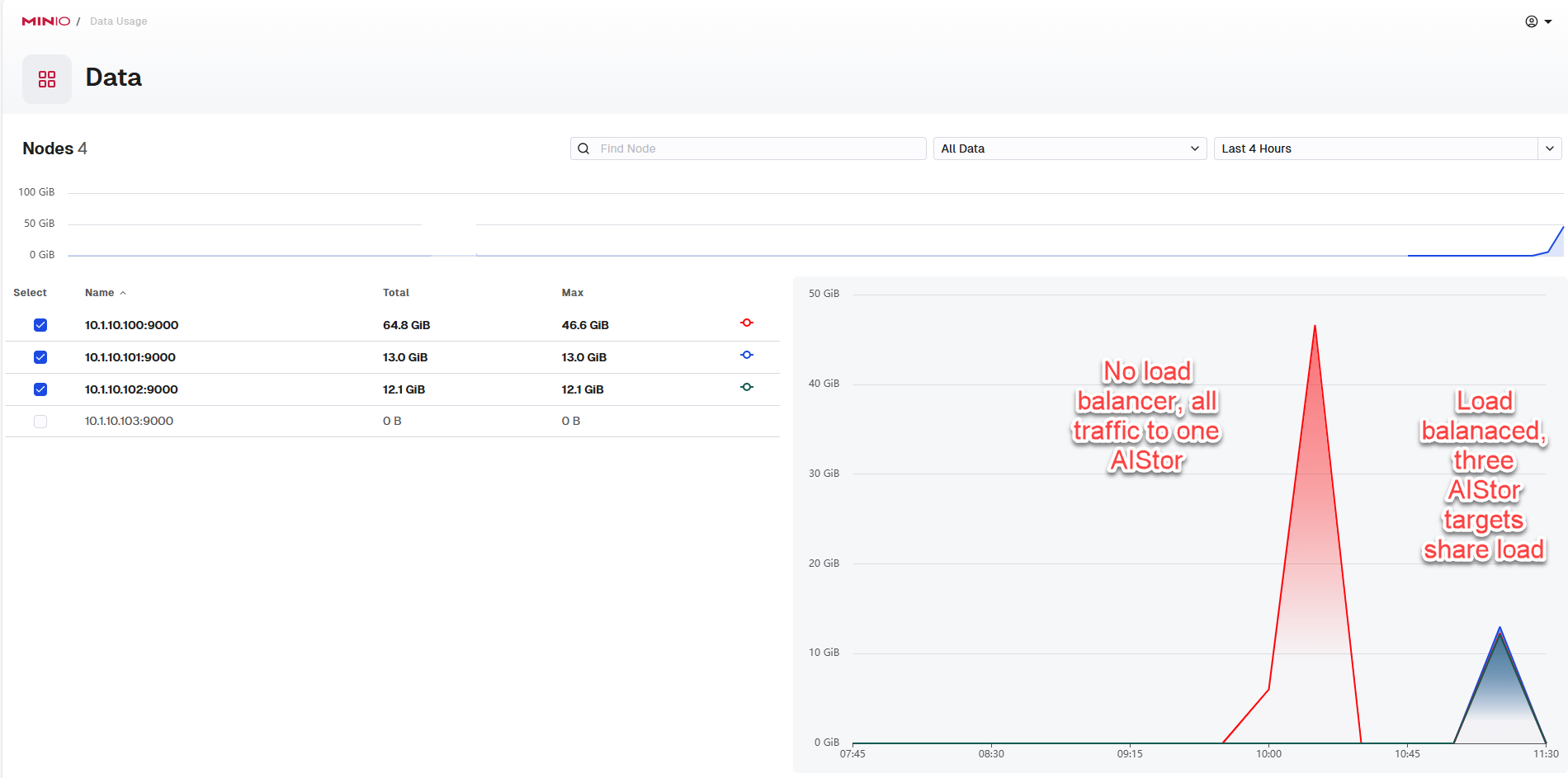
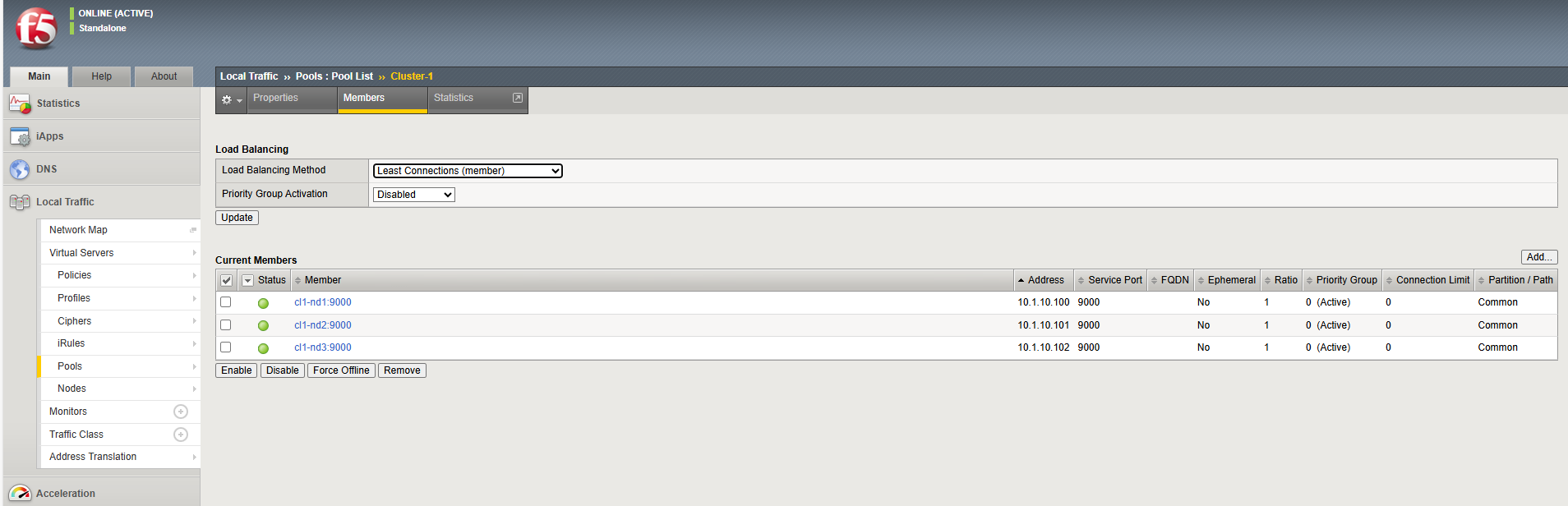
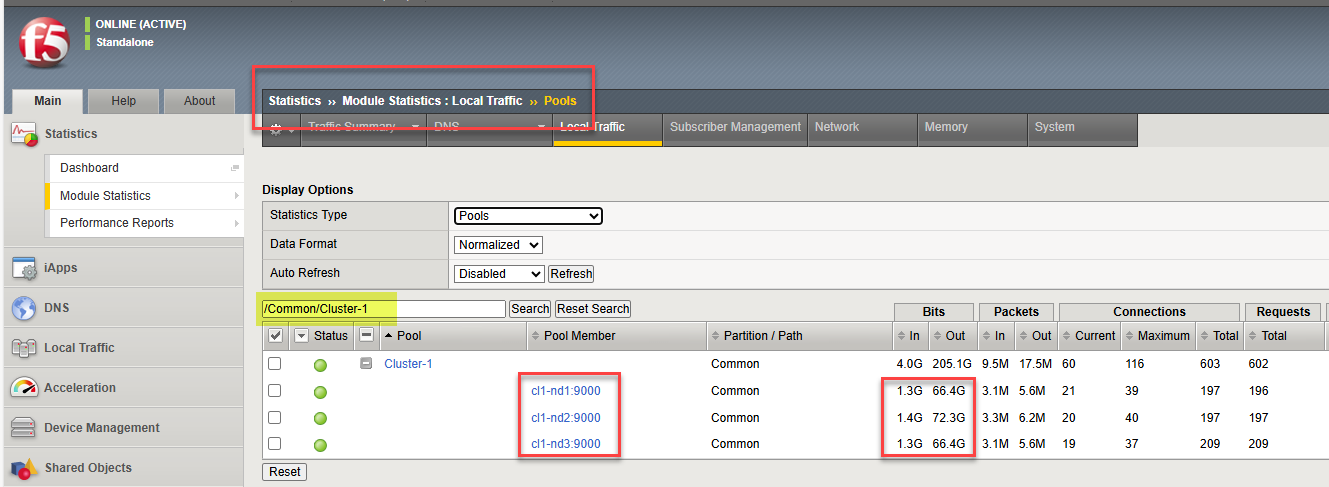
Expected outcome: Traffic is distributed across the three nodes behind the VIP.
Load‑balancing method: This pool is configured for Least Connections, recommended for S3‑style workloads to reduce request skew.
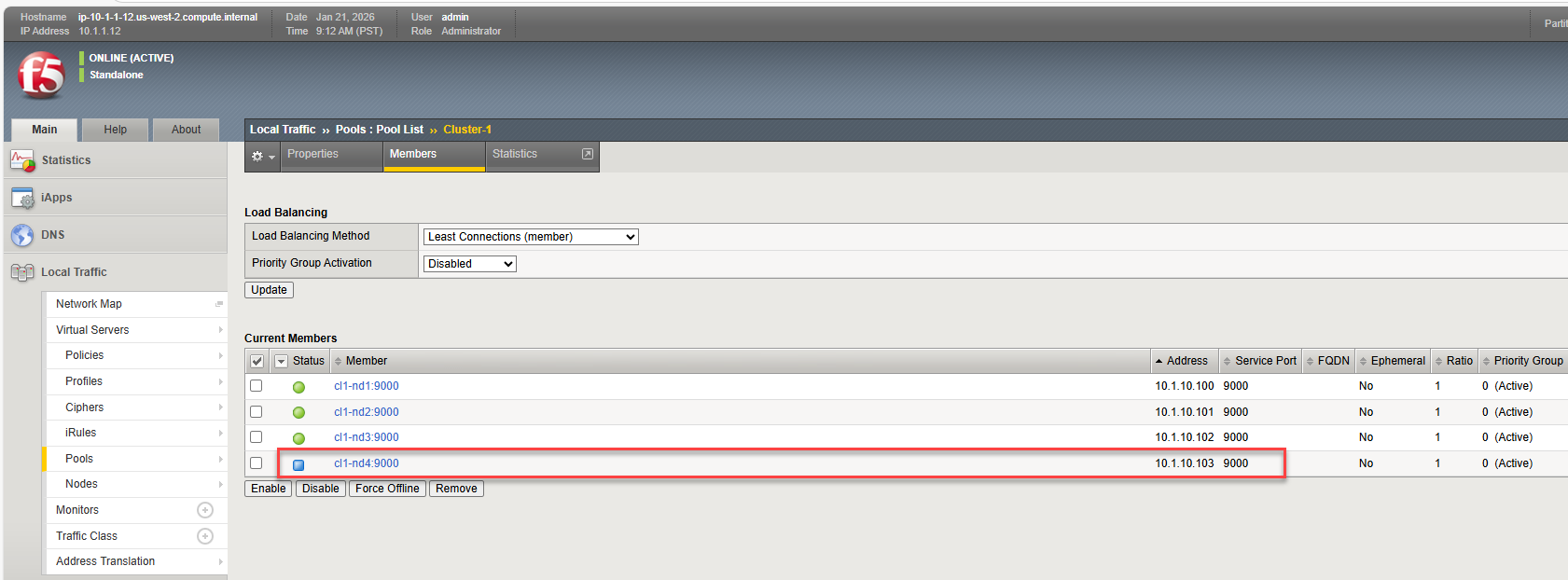
Task 4: Scale out easily: add the 4th MinIO AIStor node to the pool
|
|

|
|
|
|


Key Takeaway There were no client changes and S3 applications still continue to talk to the same VIP; topology changes are absorbed by BIG‑IP at the dataplane.
Task 5: Verify the load‑balancing method & pool health
The following steps will guide you through the rich, visual metrics presented for BIG-IP through the AST dashboards powered by Grafana. We will verify the load balancing method and pool health.
|
|

The charts indicate an even distribution for MinIO AIStor nodes, hot spots have been successfully avoided.
Validation
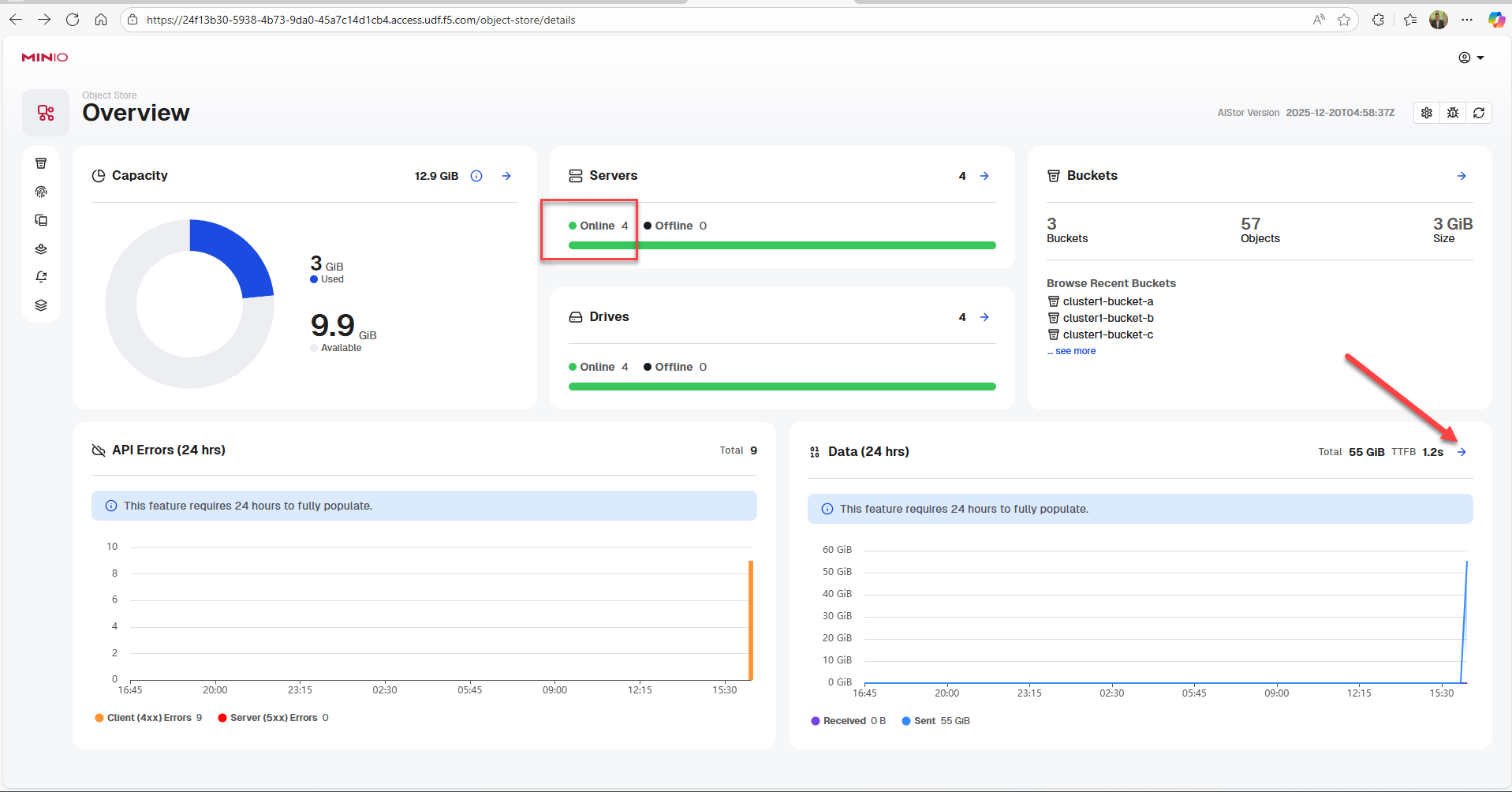
MinIO AIStor Console (Main Screen → Data -> arrow next to Time to First Byte): when populated with data points shows very close to even, per‑node traffic once proxied via VIP (some variability is expected / OK).
BIG‑IP Pool Stats: show all 4 members up with active connections.
End‑user impact: Client endpoint unchanged; backend scaling is transparent.
Troubleshooting
- WARP can't connect
-> Re‑check endpoint (10.1.10.100:9000 direct vs 10.1.40.160:9000 VIP). -> Ensure the http/https scheme matches your setup (WARP must use the correct protocol).
- MinIO AIStore UI Metrics don't update
-> the page isn't real‑time, hit "Refresh" with last 4 hours timerange, towards end of lab to see data
- A pool member is down (red)
-> Verify the MinIO node process. -> Review the pool's Monitor and node address/port.
- Skew remains after adding cl1‑nd4
-> Confirm the new member is enabled and passing its monitor. -> Ensure Least Connections is applied (not Round Robin).
Clean-Up (Optional)
Stop any running WARP tests.
If you temporarily disabled/enabled members, restore their original state.
Leave Cluster‑1 with 4 active members for Labs 2 and 3.
What You Learned - Value of BIG-IP LTM and AIStor
Decoupling Clients connect to one VIP; storage topology can evolve freely.
Efficiency Least Connections smooths throughput and reduces hotspots.
Elasticity Scale by adding/removing pool members without client changes.
Operational simplicity Traffic engineering lives at the dataplane, not in every client.
End of Lab 1: This concludes Lab 1. In this lab you ran high rate S3 loads against a single MinIO AIStor server, leaving other AIStor instances unused. You then adjusted the load generator to use a virtual server with a virtual IP address on the F5 BIG-IP. An origin pool corresponding to three AIStor instances allowed traffic to be spread, per the least connections approach, to all healthy nodes. A fourth AIStor instance was added to the pool, exercising all nodes equally and not requiring any client side adjustments, a major benefit in scenarios with hundreds or possibly thousands of clients. |
|
