F5 Application Delivery Controller Solutions > Post-quantum Crypto (PQC) and F5 Source | Edit on
Lab 2: BIG-IP Setup
BIG-IP has version 17.5.1.3.0.0.19 installed. In version 17.1, PQC for client-side SSL profiles was introduced, which we will explore in this lab. In version 17.5.1, PQC for server-side SSL profiles was added, and both client and server-side ciphers were updated to the NIST standards at the time of publication.
BIG-IP supports both Kyber and ML-KEM, in this lab we will demonstrate Kyber, though ML-KEM is more widely adopted.
In this section, you will primarily perform the following tasks:
Review BIG-IP cipher rules and cipher groups
Review BIG-IP client ssl profile
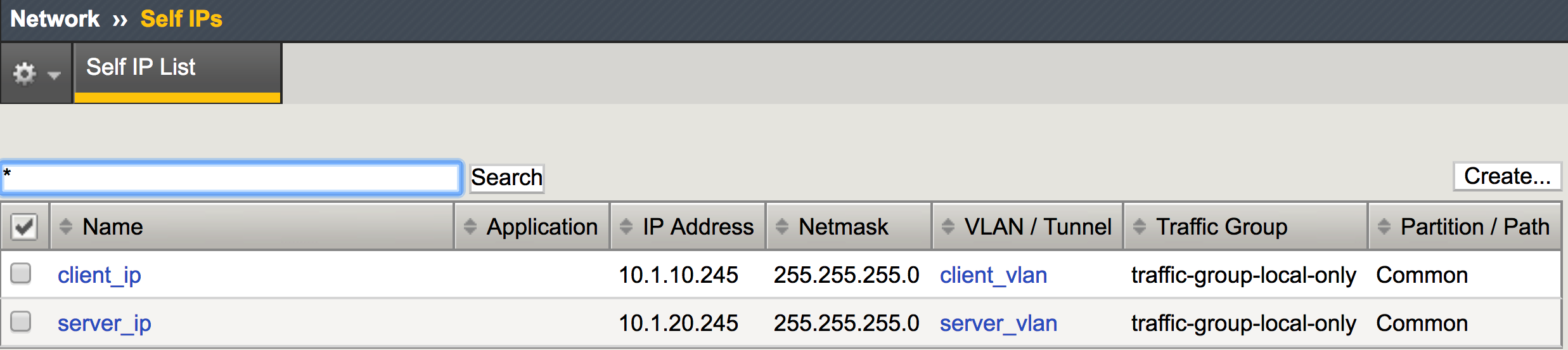
Verify the virtual server configuration
Note: We will not demonstrate server-side SSL PQC in this lab; however, the environment supports it, for exploration.
Log into the BIG-IP to verify access and configuration
From the Chrome browser, open the BIG-IP TMUI:
https://10.1.1.6User: admin | Password: admin


Post-quantum crypto configuration
BIG-IP utilizes SSL Profiles for client and server-side TLS negotiations. Within the SSL Profile, attached cipher groups manage the cipher rules for negotiation.
The BIG-IP Configuration has already been completed for the lab. If you would like to configure and familiarize yourself with a new SSL profile, please use the following knowledge article as a reference:
K000149577: Enable post-quantum cryptography in F5 BIG-IP TMOS
Navigate to BIG-IP cipher rules

The
TMSH_PQCPQC profile has been created for you using TMSH. Please review it using the TMUI.
Explore the TMSH_PQC rule, and verify the setup
Navigate to BIG-IP cipher groups
Explore the TMSH_PQC group, and verify the setup
Navigate to SSL Client profiles
Explore the TMSH_PQC client SSL profile, and verify the setup

Navigate to the BIG-IP virtual servers
Explore the pqc_vs virtual server, and verify the setup
BIG-IP Chrome PQC settings
The Chrome browser, on the Windows-client has experimental features that enable Kyber and ML-KEM. However, as mentioned earlier, these features have been removed from the current version of Chrome due to a security gap. In this section you will enable the required settings in chrome to implement PQC
Enable the security features in Chrome to use the Kyber settings and disable the ML-KEM settings
Open the Chrome browser and browse to
chrome://flags/Change the experimental settings to enable "TLS 1.3 post-quantum key agreement", and disable "Use ML-KEM in TLS 1.3", and relaunch the browser
Note: Use find (ctrl-f) to quickly locate the "tls" settings above
BIG-IP PQC Virtual Server Validation
With Chrome, check the version of TLS negotiation and the ciphers used.
Open Chrome and browse to
https://10.1.10.100the virtual server address on the BIG-IP with the PQC SSL Client profile attached
Proceed to the website
The loaded page is the NGINX default page

Open the Chrome browser developer tools
Scroll the developer tools to the left, exposing Privacy and security to show the TLS negotiation
View PQC Statistics on BIG-IP
Log into TMSH on BIG-IP using the
Web ShellNote: Do not disconnect or close your existing TMUI connection

View the
TMSH_PQCprofile statisticstmsh show ltm profile client-ssl TMSH_PQCNote: the protocol and DH group
View the
pqc_vsvirtual server statistics
tmsh show ltm virtual pqc_vs