F5 Application Delivery Controller Solutions > TMOS - Performance Tuning > Lab 1: Viewing Application Data Source | Edit on
Task 1: Review AVR HTTP Data
AVR is already provisioned with custom HTTP and TCP AVR profiles created and assigned to Virtual Servers. When AVR profiles are initially applied to Virtual Servers, it takes around 5 minutes for the data to appear in the logs. In the lab, the AVR profiles are already assigned and traffic is running in the background to pre-populate the logs.
Connect to TMUI of BIGIP01 using the following credentials:
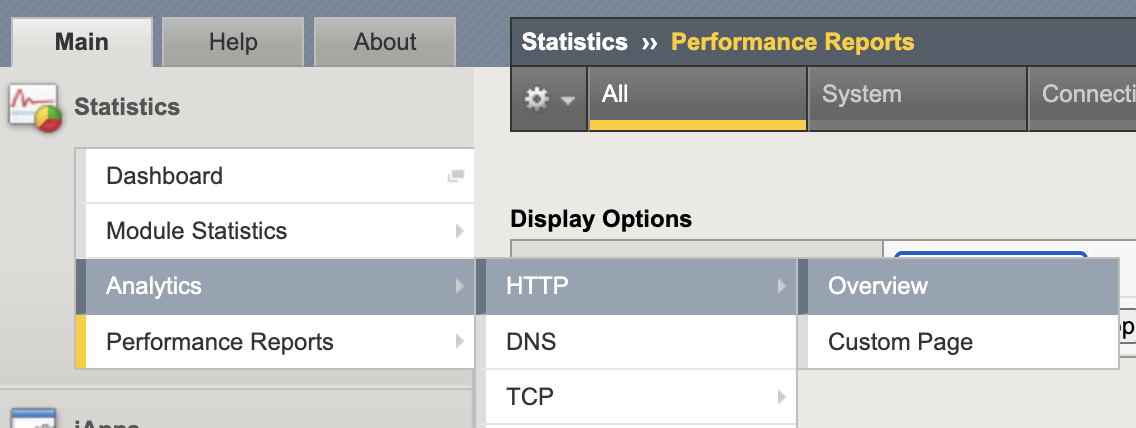
User: adminPassword: admin.F5demo.comFrom the left menu, select Statistics > Analytics > HTTP > Overview
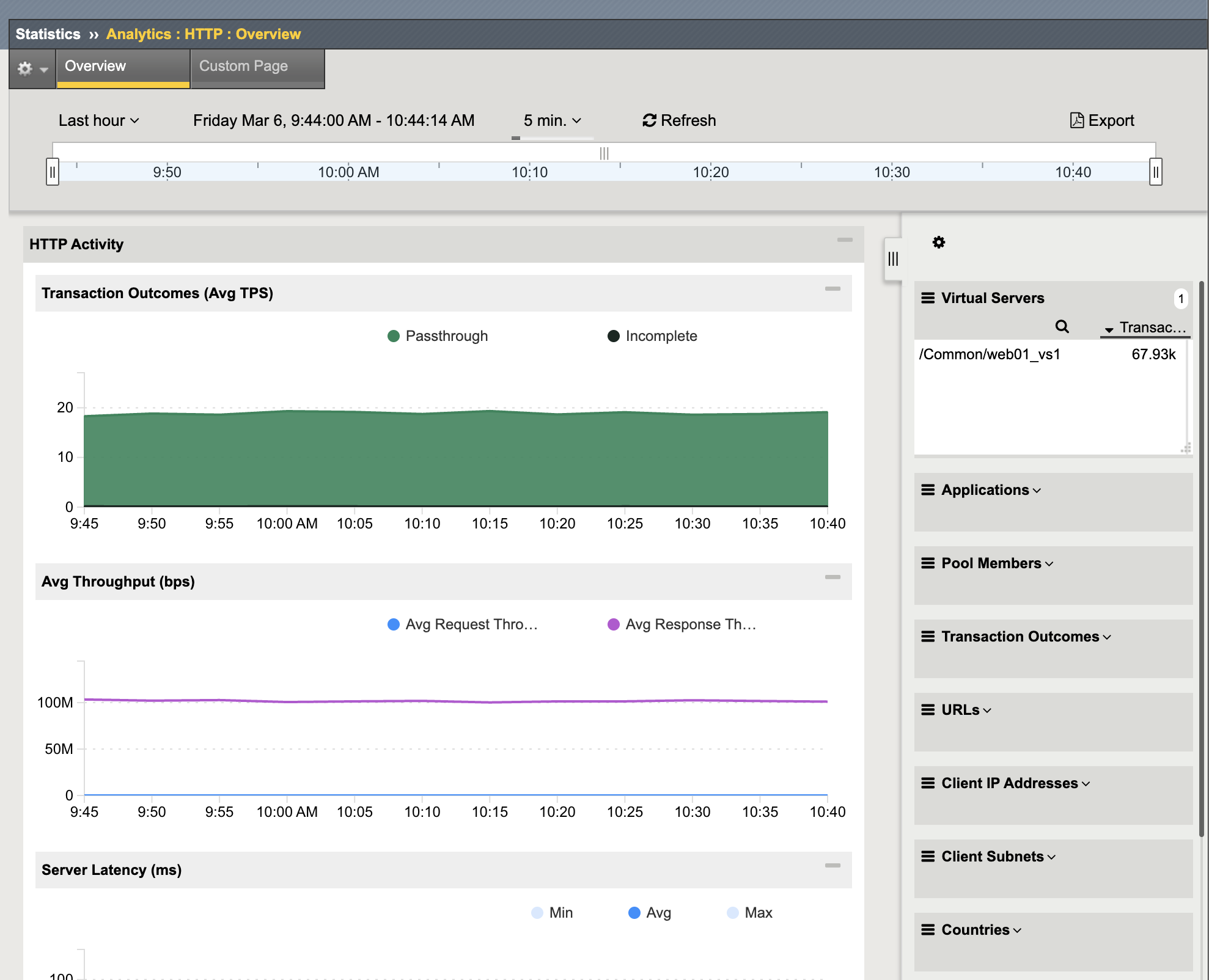
You will see the AVR overview graphs showing HTTP data flowing through the system. On the right side of the screen, there are filtering options that we will use later. By default, the view shows data from the last hour for all Virtual Servers with an attached HTTP AVR profile and refreshes every 5 minutes. Feel free to change the visible time frame using the dropdown near the top left. Since the lab systems have been running off and on for a few weeks, you will have data for the Last Week and Last Month but may not see much for the Last Day.
Reset the view to Last hour from the top left dropdown. Click the Response Code filter on the right side to expand the list show what codes are available. With the lab traffic you will have at least 200, 301, and 404 and response codes available. Use the filters to see what is happening beyond 200 responses. Click on 301 and the graphs will update showing just the data related to 301 response codes. Click on URLs above on the right to show the list of URLs resulting in 301 (redirects).
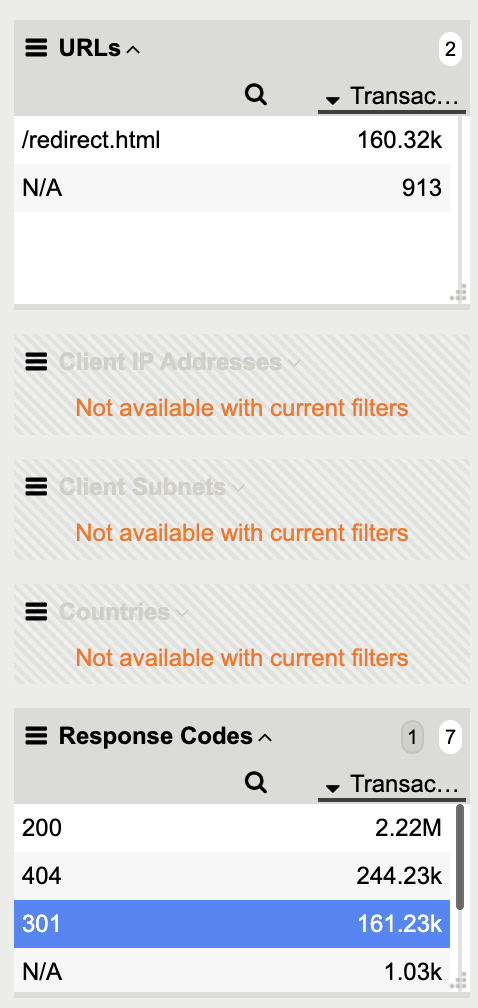
For lab, 301 responses are a result of redirect.html. Redirects may be necessary or could be left over from a previous application migration. You can take these results back to the application team to see if redirects are expected. It could be something as simple as clients requesting /login instead of /login/ that is causing the redirects. Unneccesary redirects add time to the client connections and uses resources on the BIG-IP and/or application servers.
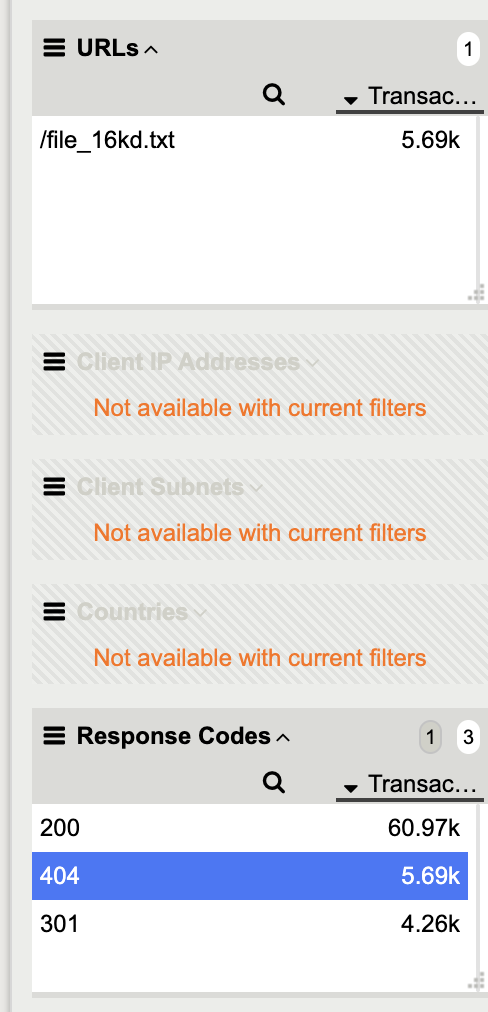
Go back to the Response Codes filter and click 301 to deselect it, then click on 404.
Look at the URLs filter to see what is causing the 404's - file_64kd.txt. In the lab this cause is simple, the URL should be /file_64kb.txt not /file_64kd.txt. In a production environment, you may see many other URLs resulting in 404s. They could be simple typos from the client or from bad links in the applications. The 404 filter may also show you evidence of someone scanning your application(s). The point of this is learn how to see what is happening with application traffic.
Optional AVR Profile Review
If you want to see where to create or view the HTTP AVR profiles, use the following steps:
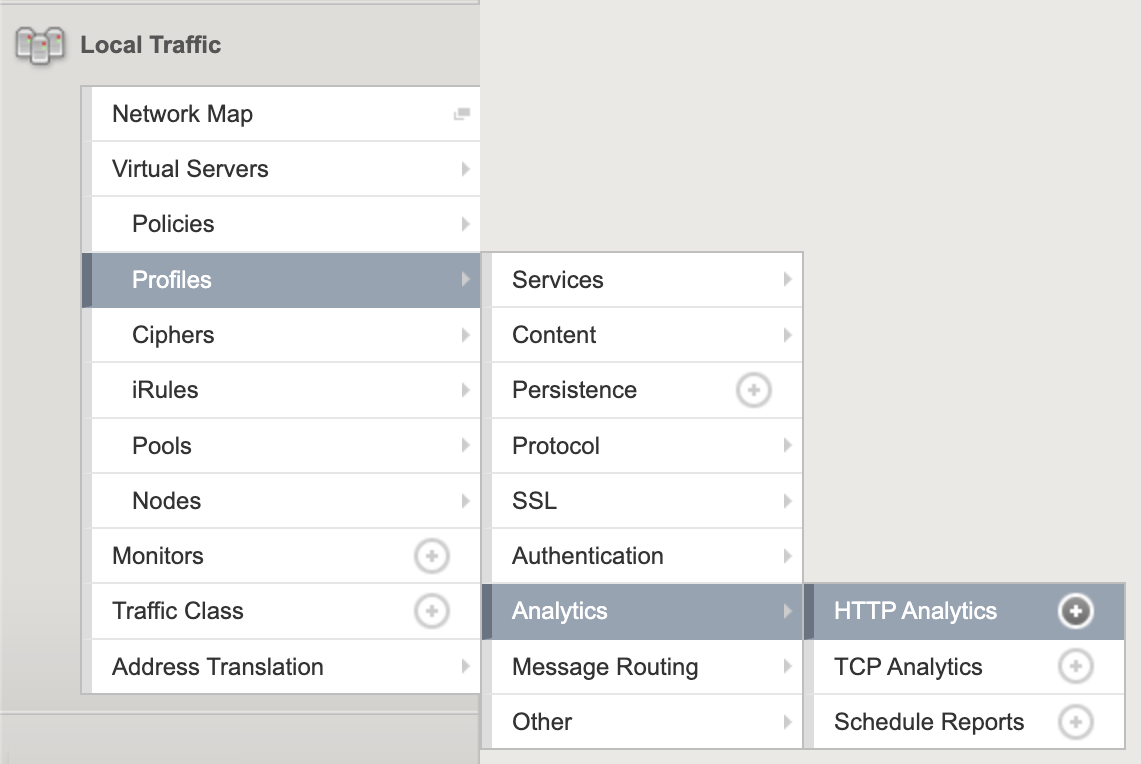
From the left menu, select Local Traffic > Profiles > Analytics > HTTP Analytics
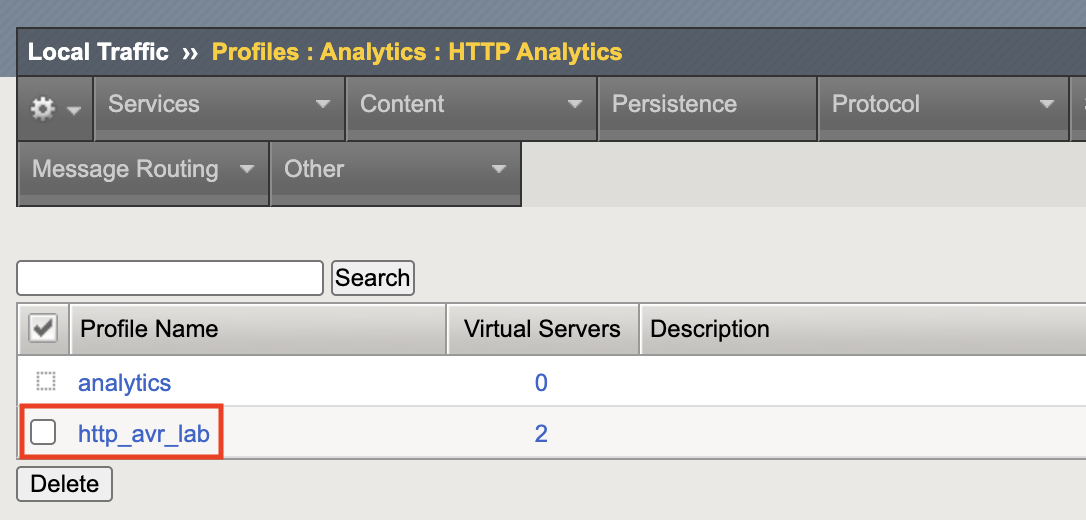
Click on http_avr_lab name from the list of profiles
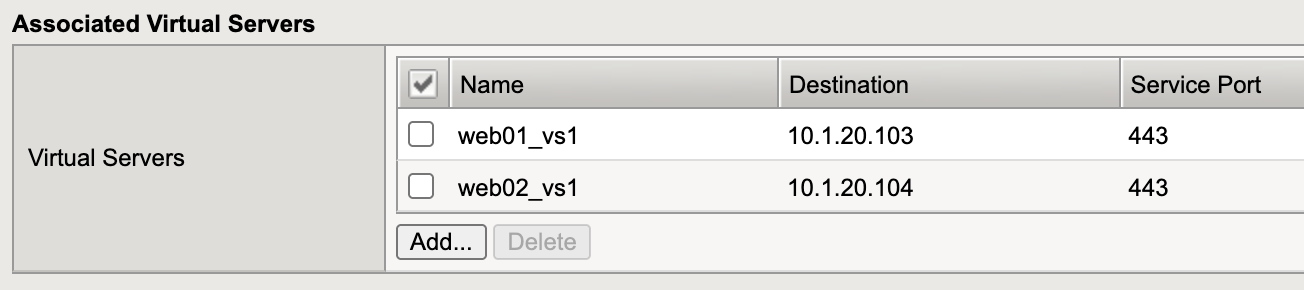
Review Associated Virtual Servers to see where the profile is assigned
Review Statistics Gathering Configuration to see the data collected by the HTTP AVR profile
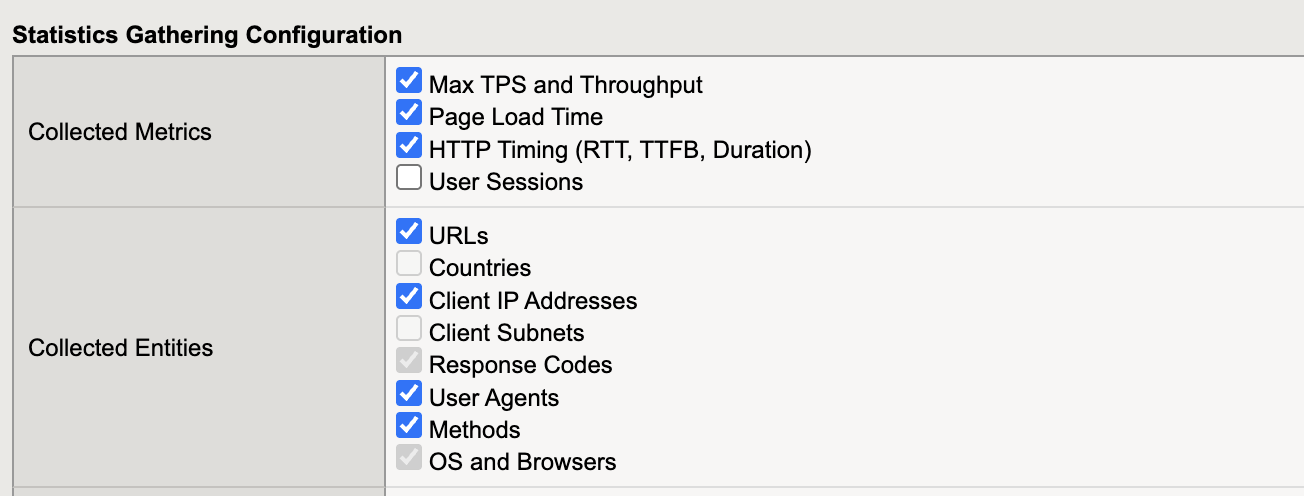
Not all data is being collected in the lab. For example, since we are using RFC 1918 adressing, collecting Countries is not needed. In a production environment, you may want to collect Countries data (geolocation).