F5 BIG-IQ Centralized Management Lab > BIG-IQ Test Drive Labs Source | Edit on
Lab 3.2: Application Service creation using AS3 through BIG-IQ GUI
Note
Estimated time to complete: 10 minutes
Lab environment access
If you have not yet visited the page Getting Started, please do so.
HTTPS Service using AS3 through GUI
- Now logout from the david session and login to BIG-IQ as paula.
- Click Create to create an Application Service and look for the template
AS3-F5-HTTPS-offload-lb-existing-cert-template-big-iq-default-v1 [AS3].
Warning
You will notice that the template is not available. If we want paula to deploy this template, we first need to have those templates assigned to her via an administrator.
| Application properties: |
|
| Select an Application Service Template: |
|
- Logout as paula and login to BIG-IQ as david. (if asked: Leave site? Select: Leave)
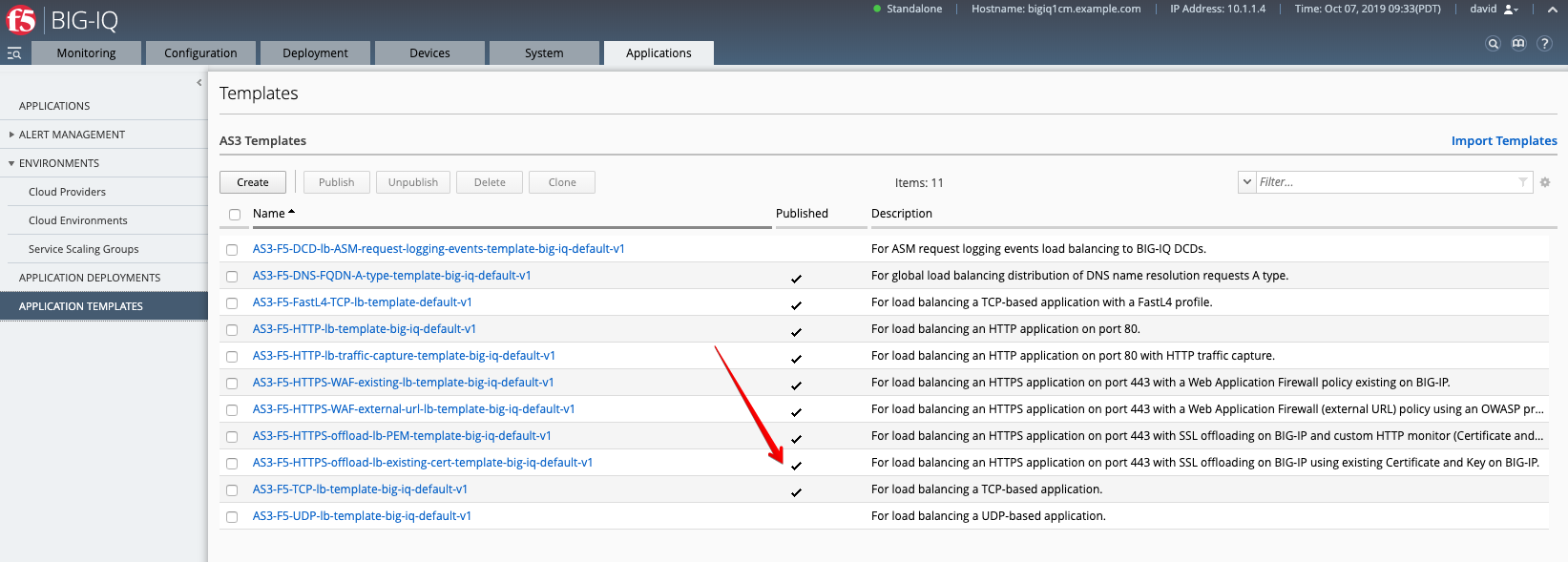
- Select Applications > Application Templates and notice the
Publishedtemplates. The template paula wants to use must be listed as aPublishedtemplate.
- Go to System > Role Management > Roles and select Application Roles under the CUSTOM ROLES section. Here you will see the collection of the Custom Application Roles.
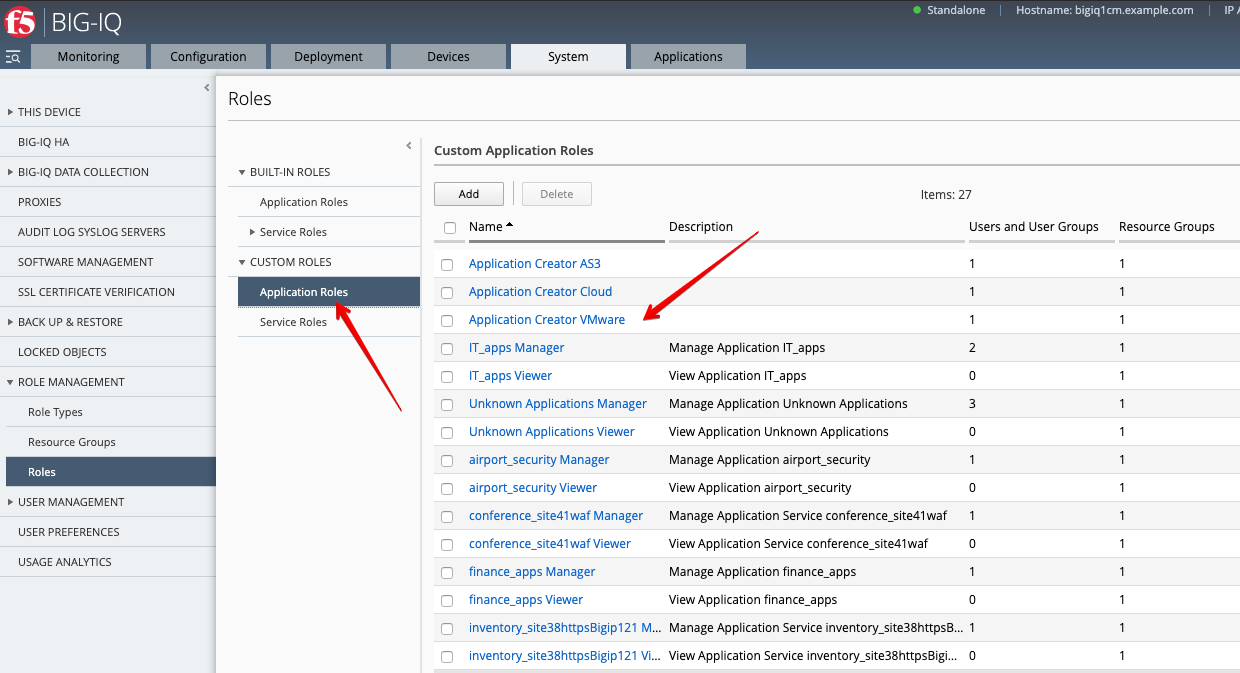
- User paula is assigned to the exiting
Application Creator VMwarecustom role. Select it and scroll down to AS3 Templates section. As you can see, paula does not have permission to deploy an AS3 application usingAS3-F5-HTTPS-offload-lb-existing-cert-template.
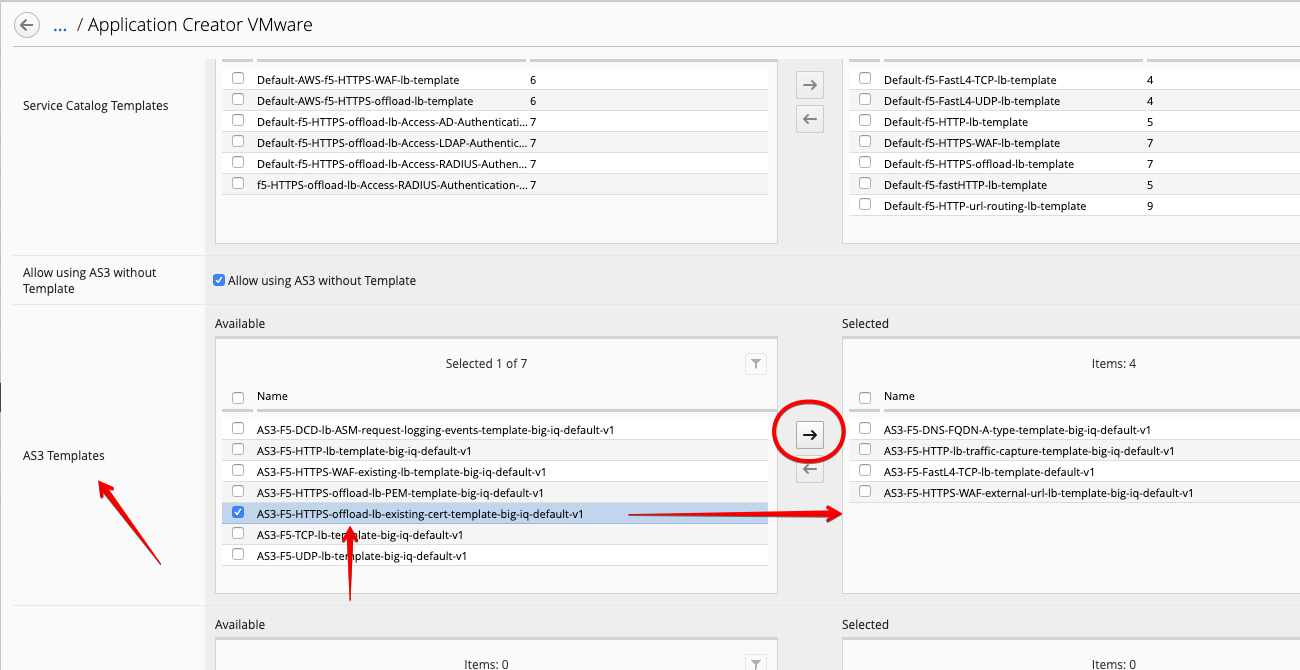
- Select
AS3-F5-HTTPS-offload-lb-existing-cert-template-big-iq-default-v1AS3 Template and click the arrow to get it in theSelectedsection. Then, click on Save & Close. - Logout as david and log back in as paula and click Create application.
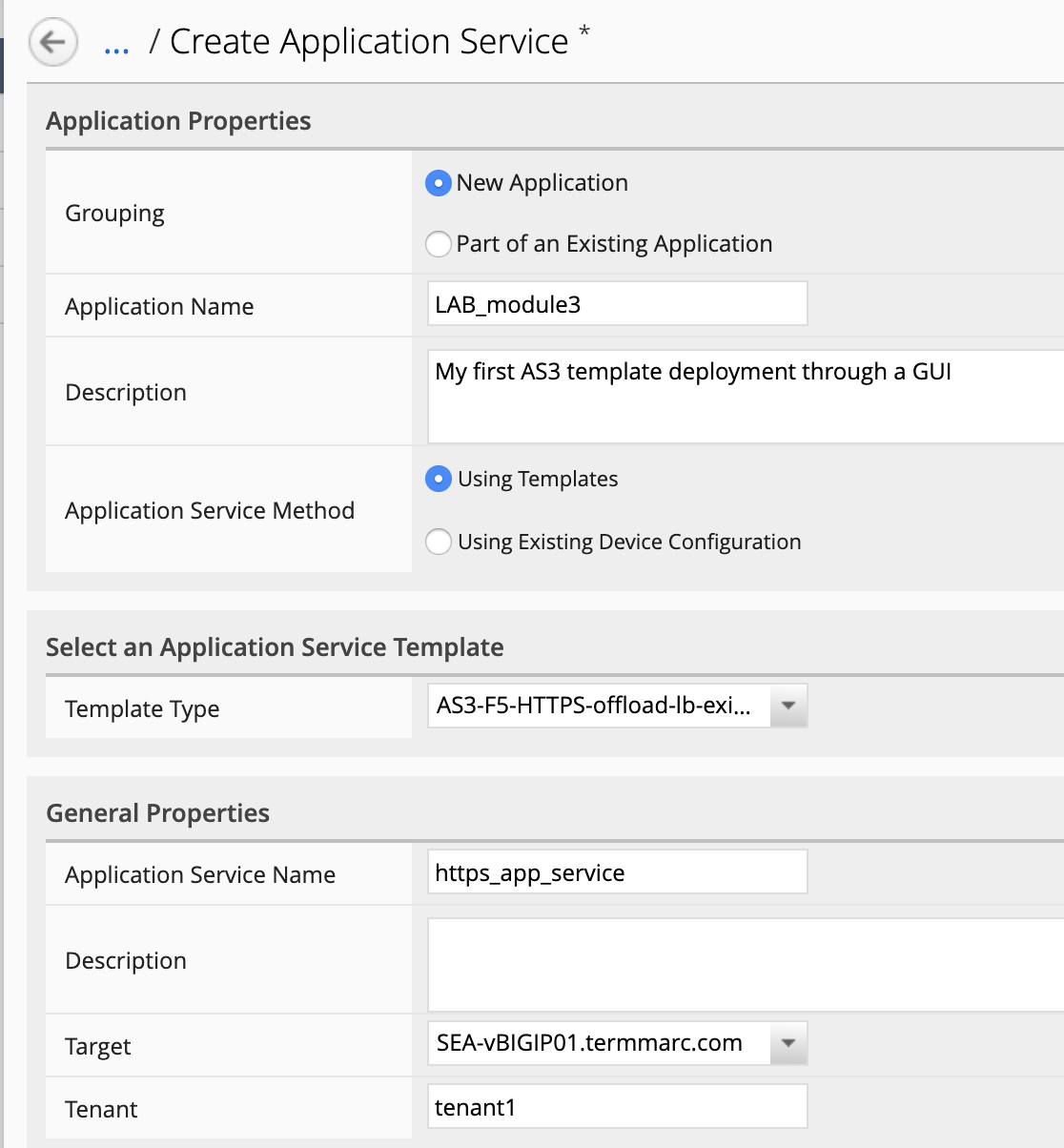
- Click Create to create an Application Service:
| Application properties: |
|
| Select an Application Service Template: |
|
| General Properties: |
|
| Pool |
|
| TLS_Server. Keep default. |
| Certificate. Keep default. |
| Service_HTTPS |
|
| Analytics_Profile. Keep default. |
Note
The AS3 naming convention for TLS Server and TLS Client differs from traditional BIG-IP terminology to better comply with industry usage, but may be slightly confusing for long-time BIG-IP users. The AS3 TLS_Server class is for connections arriving to the BIG-IP, which creates a “client SSL profile” object on the BIG-IP. The AS3 TLS_Client class if for connections leaving the BIG-IP, which creates a “server SSL profile” on the BIG-IP. See TLS_Server and TLS_Client in the Schema Reference for more information ([More Tips and Warning](https://clouddocs.f5.com/products/extensions/f5-appsvcs-extension/latest/userguide/tips-warnings.html)).
- Click on View Sample API Request in the right upper corner. This will display the full AS3 declaration generated by BIG-IQ user interface. Scroll through it, then click to close.
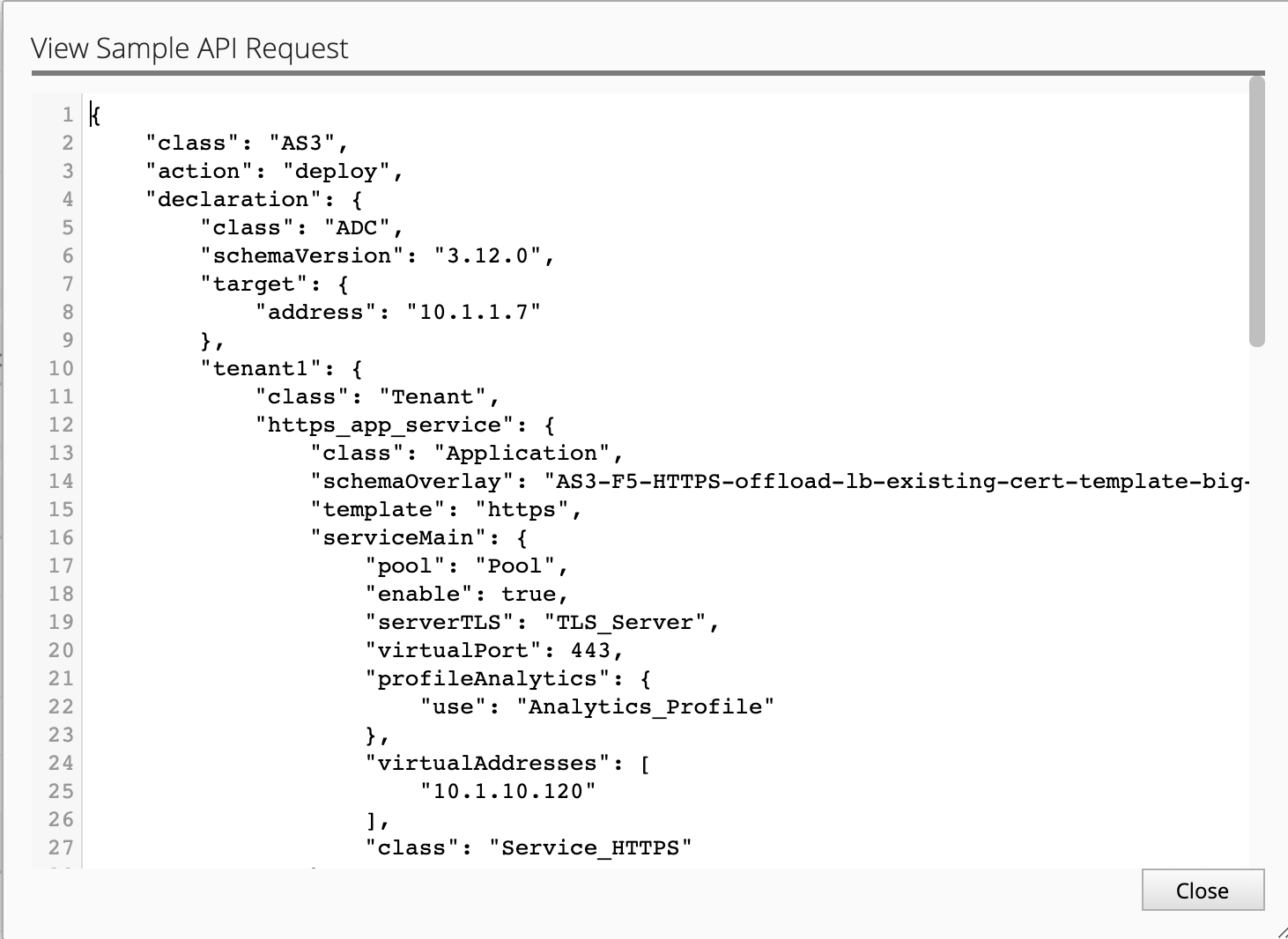
- Click Create. BIG-IQ is sending the AS3 declaration to SEA-vBIGIP01.termmarc.com and is creating the application service on the BIG-IQ dashboard, as well as a manager and a viewer roles associated to this app service.
- Check the application
LAB_module3has been created.
Note
If not visible, refresh the page. It can take few seconds for the application service to appears on the dashboard.
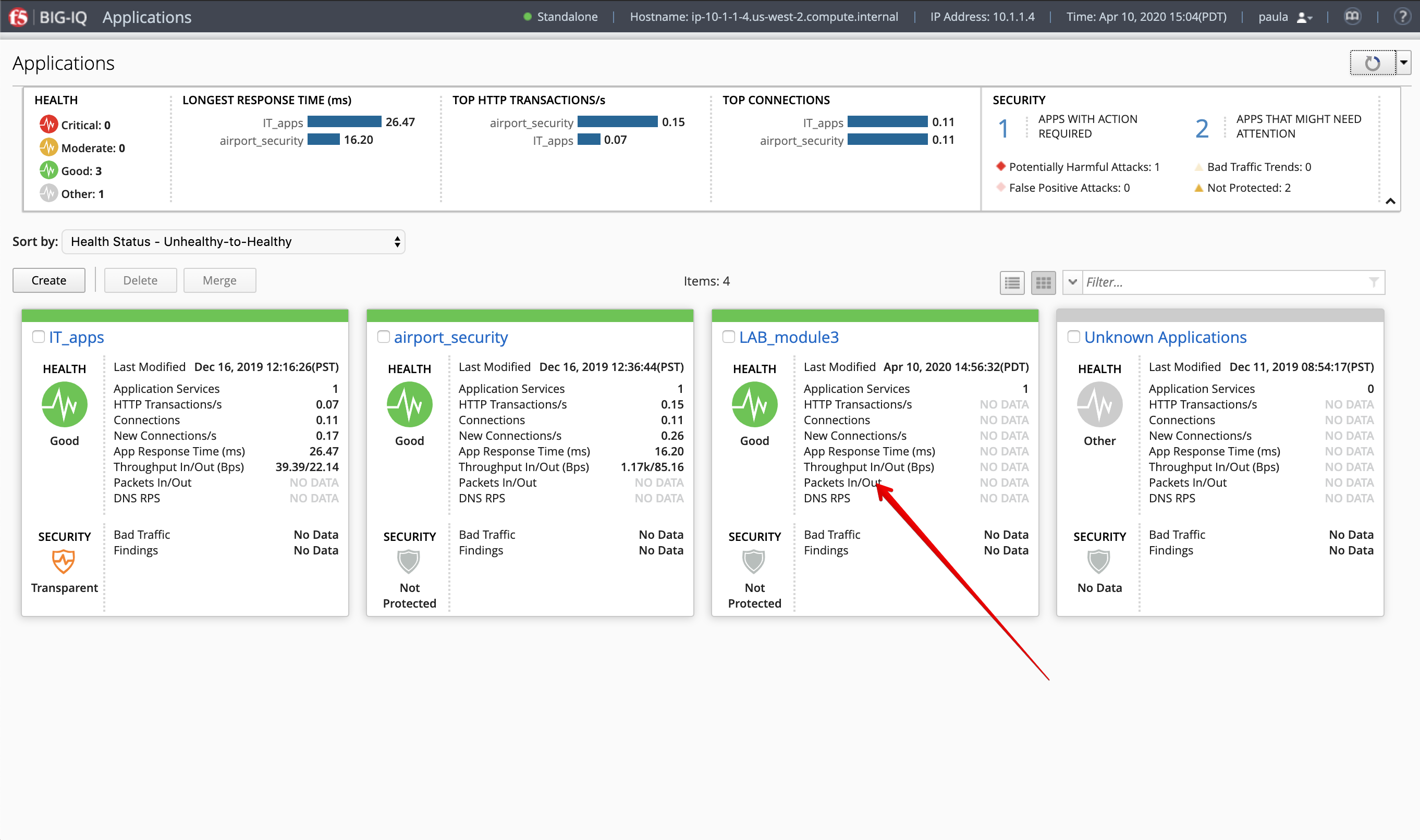
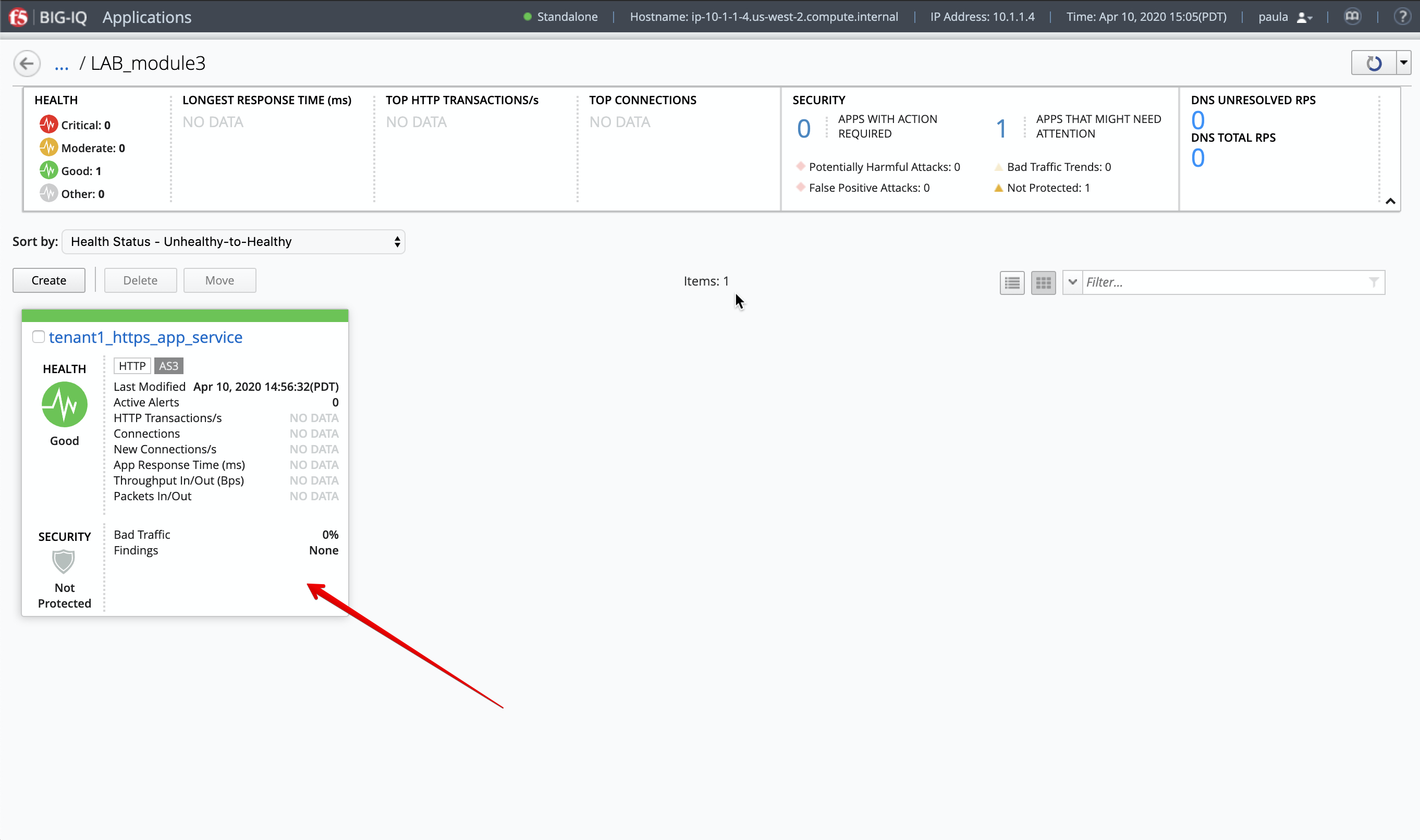
13. Select LAB_module3 Application. You will notice LAB_module3 acts as a group of Application Services where underneath
multiple services can be grouped. The next window will show you that a new Application Service has been created named tenant1_https_app_service.
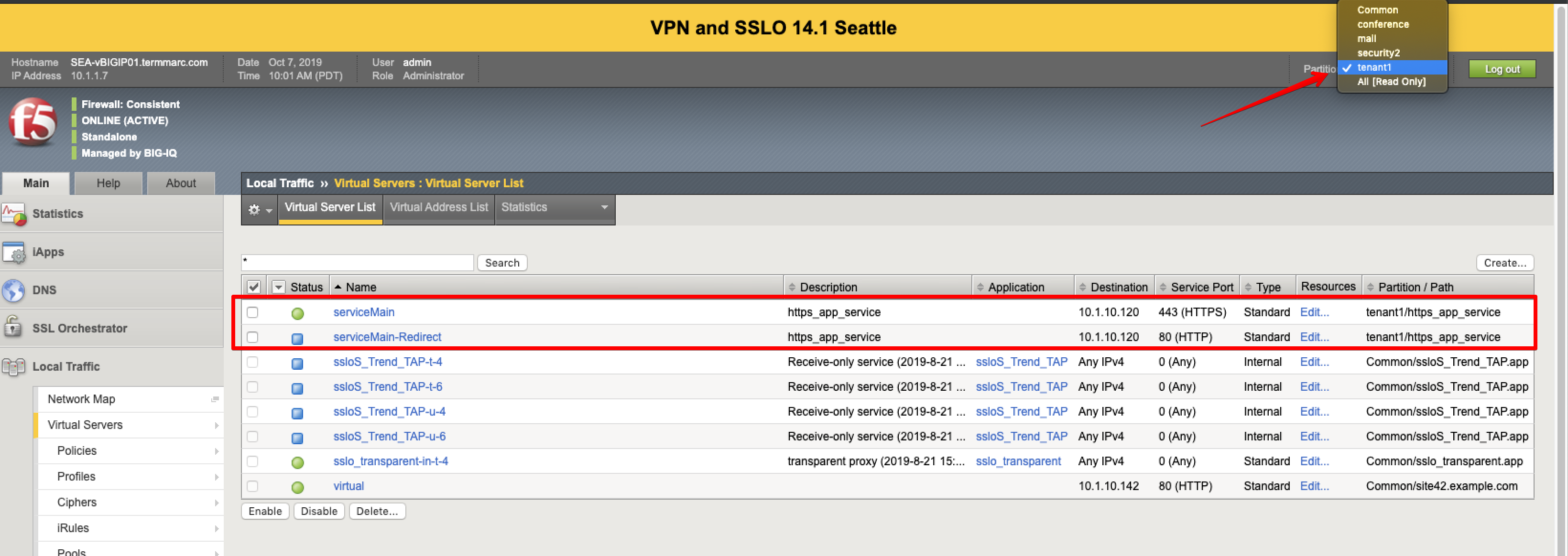
14. Now, let’s look on the BIG-IP and verify the application is correctly deployed in partition tenant1.
Login to SEA-vBIGIP01.termmarc.com BIG-IP from lab environment (admin/purple123). Select the partition tenant1 and look at the objects created on the BIG-IP.
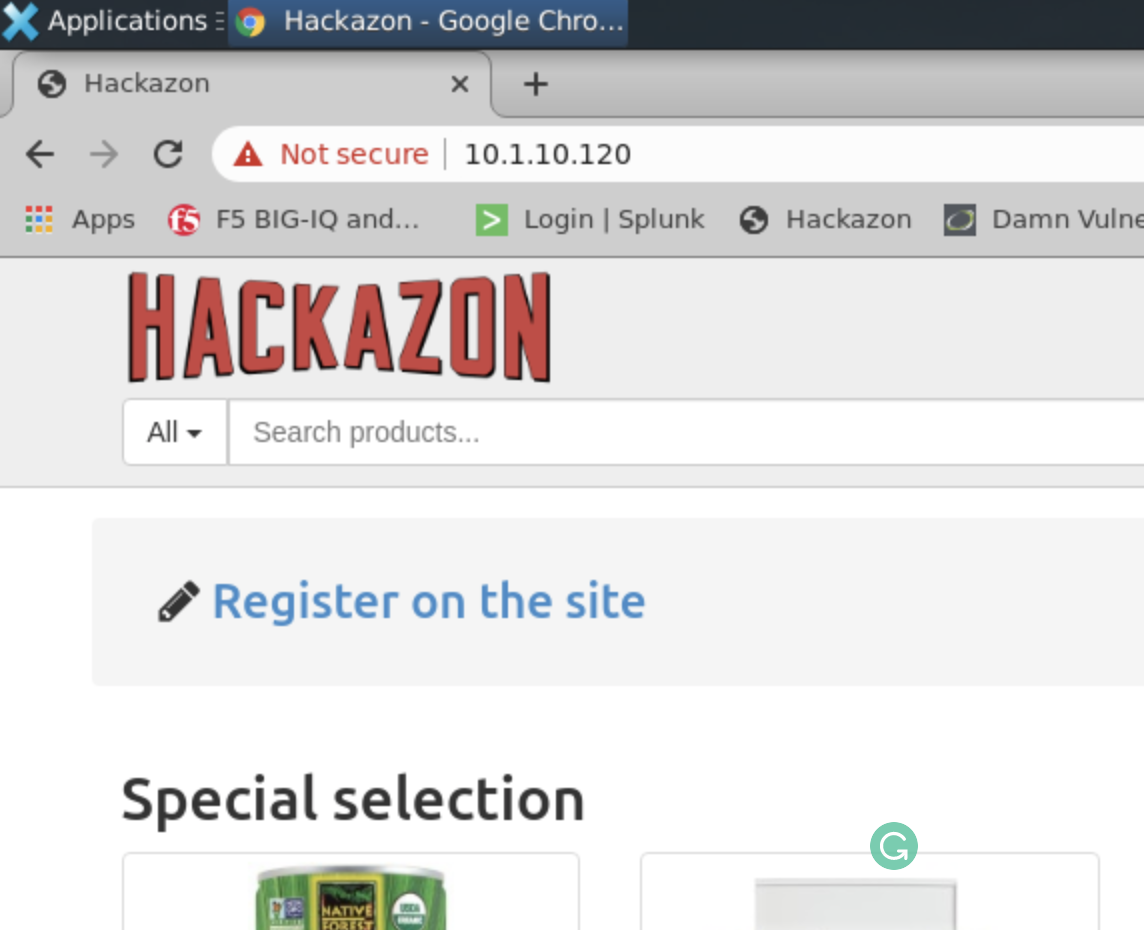
- You can test the HTTPS offload application service by opening Google Chrome browser on the Ubuntu Jumphost and type the Virtual Server IP address.
Navigate on the website https://10.1.10.120.
Note
Accept the private certificates.
- Back on the BIG-IQ as paula, select
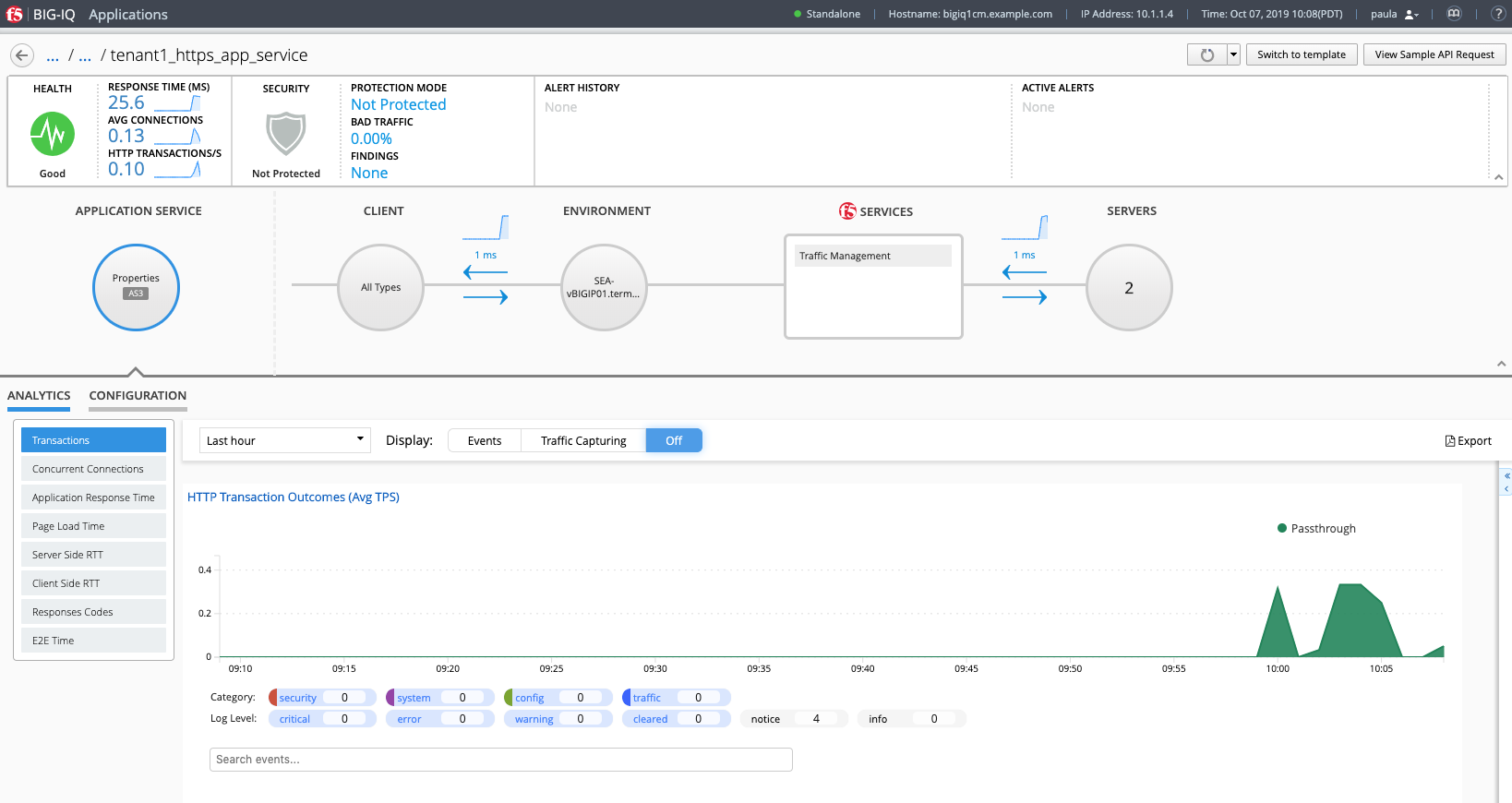
tenant1_https_app_serviceApplication Service and look HTTP traffic analytics.
Note
An HTTP traffic generator is running on the Jump host sending traffic through the application service.