F5 Application Delivery Controller Solutions > TMOS - Performance Tuning > Lab 3: Layer 7 LB for HTTP and UDP Source | Edit on
Task 1: Layer 7 LB for HTTP
By default, TMOS load balances HTTP traffic at layer 4. If a client connects to an HTTP Virtual Server and requests many files and resources through typical browsing through a web site, the load balancing decision is done during the initial TCP connection. All of the requests will go to a single pool member.
TCP connection load balancing may be fine for certain applications but being able to load balance per HTTP request can improve performance and control by spreading the requests, not just the TCP connections, across the pool members. The inbound HTTP requests may not be from invidual client end-points but coming from another system that aggregates requests from multiple clients into a single TCP connection before they hit the Virtual Server. CDNs may perform this tyoe of client request aggregation when verifing cached data. With TMOS, it is possible to load balance at the application layer (Layer 7 LB) by assigning a OneCOnnect profile to an HTTP Virtual Server.
Here is an example (need a graphic):
A live-streaming TV provider is front-ending their application with a CDN and has a back-end cache layer of 50 servers ahead of the video ingest servers. The CDN merges multiple client requests together on the way to the Virtual Server - Requests for channel A, B, C, D all within a single TCP stream. With L7 LB, TMOS can break out each request and send it to a specific pool member. Requests for specific channel content can be sent to a specifc pool member. This allows for more warm cache hits and a reduction in cache layer storage redundancy as all channel data doesn't have to be on each cache layer server.
From the BIGIP01 UI, go to Local Traffic > Pools > Pool List
Click on web02_pool
Click on Statistics from the top right of the pool menu

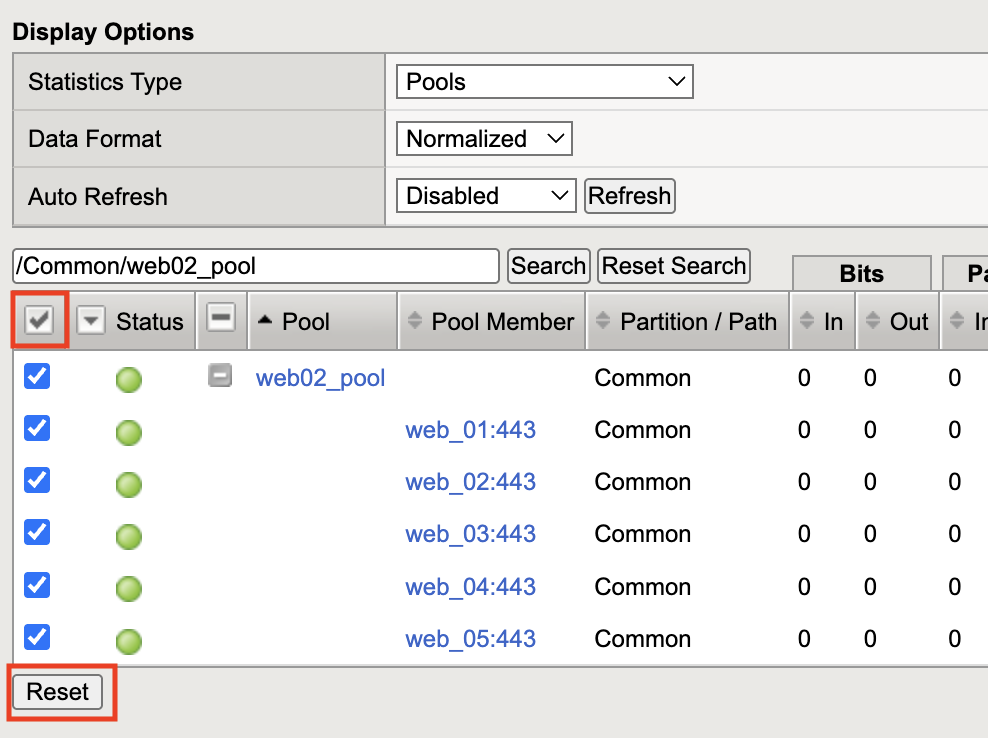
Clear any pool stats if they are not already all zeros. Click the check mark next to the Status dropdown on the left to select all pool members. Then clcik reset at the bottom to clear all of the stats.
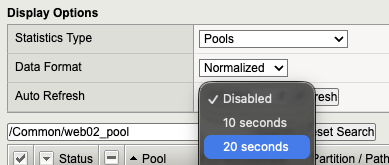
Click the Auto Refresh dropdown and set the time to 20 seconds
From the Ubuntu-Client Web Shell window, run the following command:
~/http_l7.sh
The script uses curl to request a list of 5 files 2 times from HTTPS Virtual Server web02_vs1 over a single TCP connection.
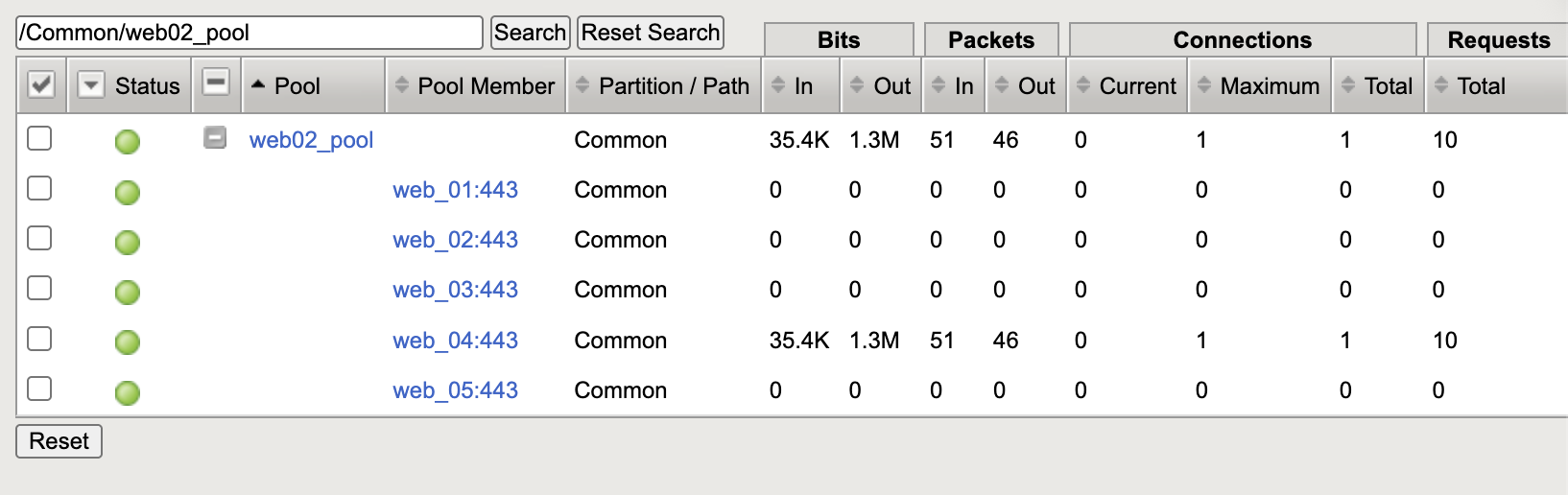
From BIGIP01 UI, check the pool stats. You should see all 10 requests have gone to a single server
Clear the pool stats again (see step 4 if needed)
Go to Local Traffic > Virtual Servers > Virtual Server List and click on Virtual Server web02_vs1
Go to the Acceleration section at the bottom of the Virtual Server properties and select lab_OneConnect for the OneConnect Profile. Click the Update button to save the changes
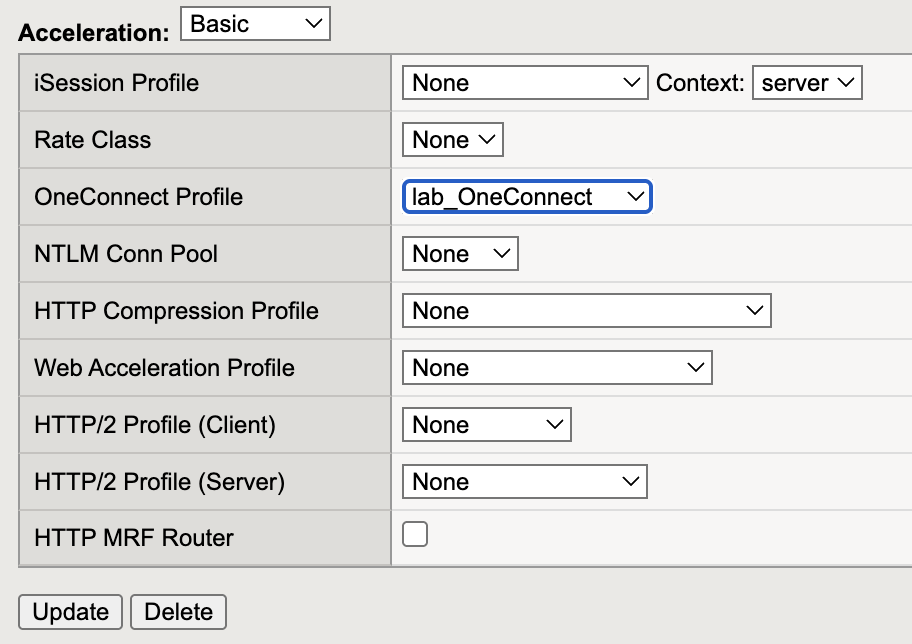
When a OneConnect profile is enabled for an HTTP virtual server, and an HTTP client sends multiple requests within a single connection, the BIG-IP system is able to process each HTTP request individually. See the following document for more information about the OneConnect profile and specifically the section on Content Switching.
From the Ubuntu-Client Web Shell window, run the following test command again:
~/http_l7.sh
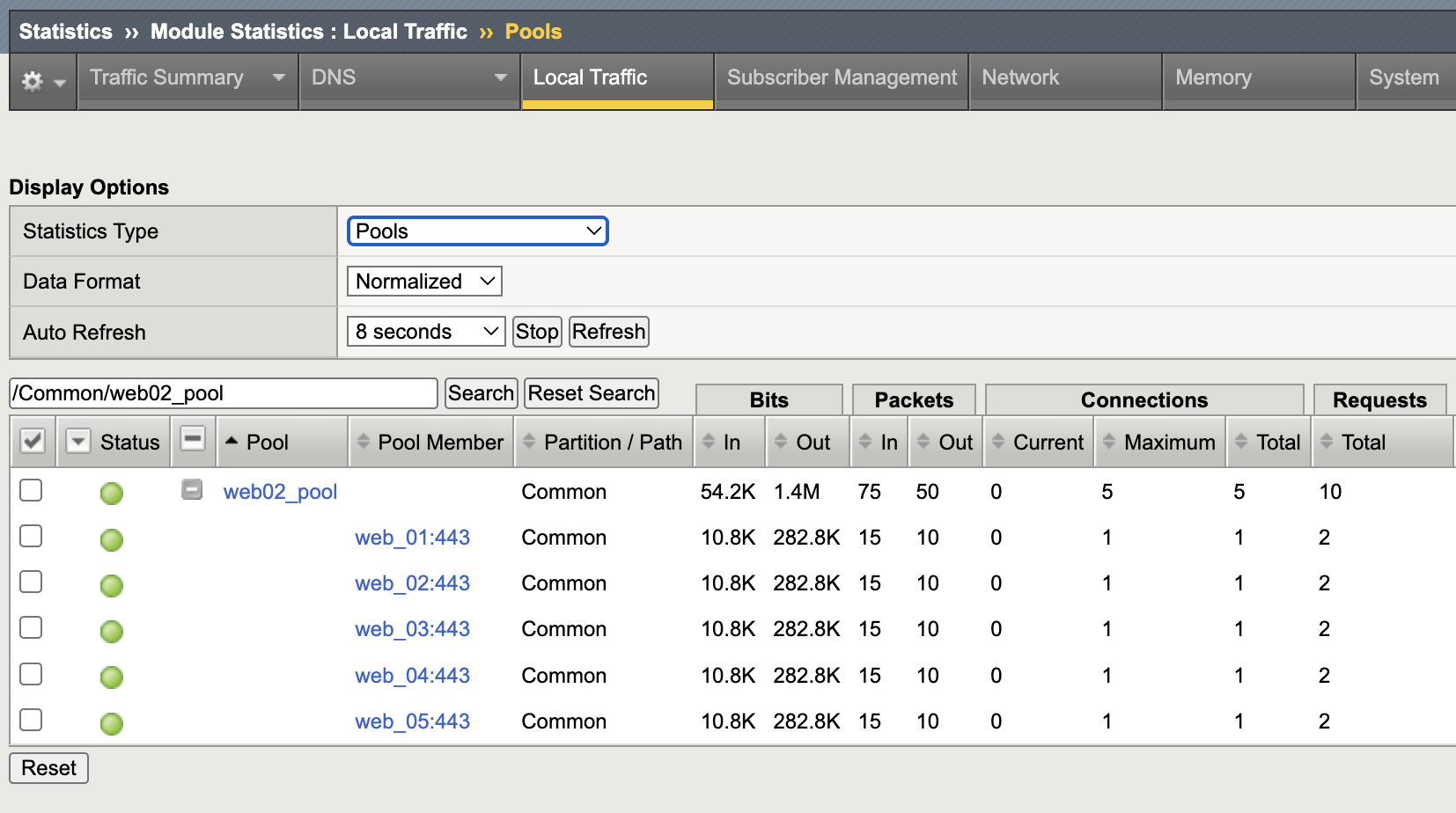
From BIGIP01 UI, check the pool stats again. You should see all 10 requests spread across the 5 pool members