F5 Application Delivery Controller Solutions > BIG-IP Security Essentials > Core Layer – Privilege, Survivability, and System Integrity > <no title> Source | Edit on
Partitions and RBAC
Objective
This lab demonstrates basic role based access control using partitions. Role based access control allows different users to have different privileges to different objects in the system depending on their group (role). This is useful for giving certain teams access to certain applications, or allowing users to view or edit only the portions of the configuration that are relevant to their job.
Lab
Estimatied completion time: 10-12 minutes.
Login to the BIG-IP
If you are not already logged in, locate BIGIP-01 in the UDF Lab environment.
Select Access -> TMUI to connect to the management interface.
Login as admin. If you need the password, it can be found under the system details in UDF.
Create a Partition
Navigate to System -> Users -> Partition List.
Click Create in the upper right corner.
Name the partition App01
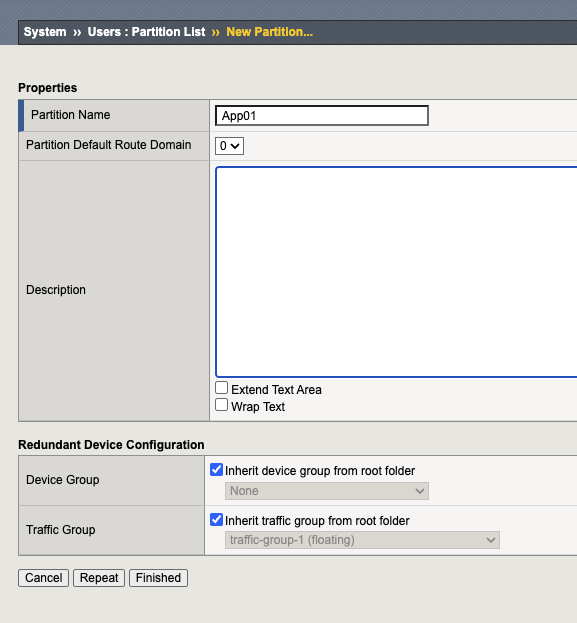
Click Finished.
Add Users
Navigate to System -> Users -> User List.
Click Create.
Name the user App01Admin and choose any password you can remember for the next few steps.
Select the role Manager and assign it to the partition you just created (App01).
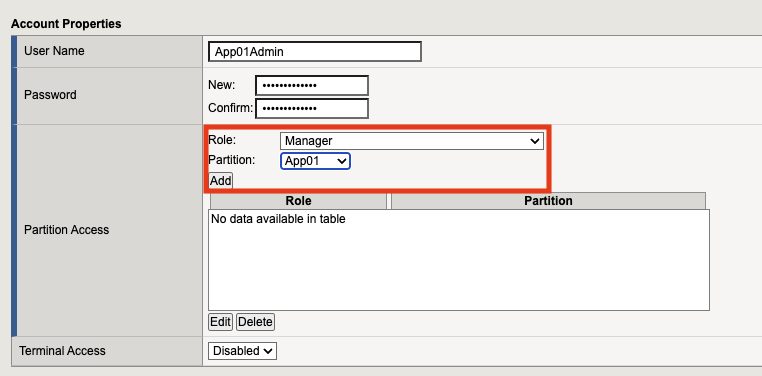
Click Add. Ensure that the role and partition are displayed in the partition access box below, then click Finished.
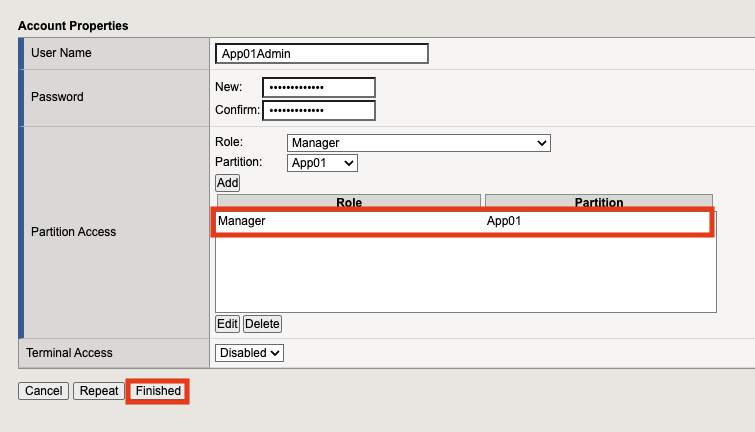
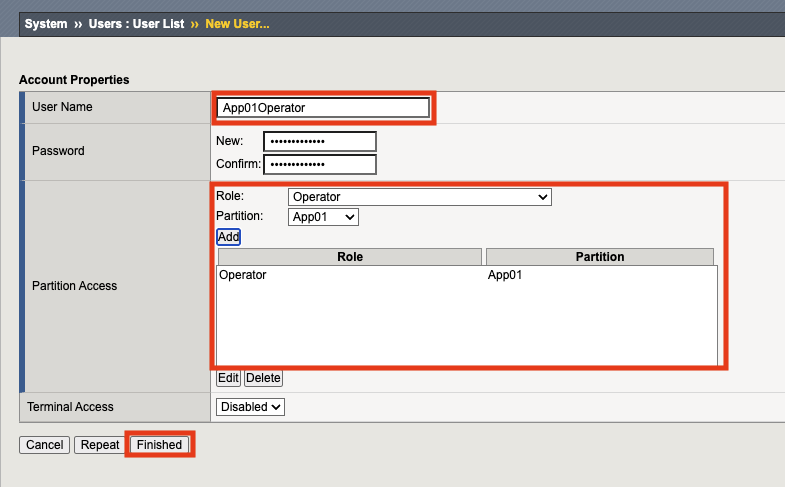
Create another user by clicking Create again.
Name the user App01Operator and assign a passowrd.
Select the role Operator. Assign the role to the partition App01 then click Finished.
Explore & Create Objects
Logout of the TMUI and lock back in as App01Admin.
Since it's your first time logging in, you'll regrettably be asked to change your password. While this can be an annoyance, this is the default behavior and an important security control. Again, choose a password you can remember.
If you've done everything correctly so far, you'll notice that your user is locked to the App01 Partition.

Navigate to Local Traffic -> Virtual Servers.
Click any of the Virtual Servers in the list.
You'll notice that all of the options are greyed out and you cannot make changes. This is because these objects are in the common partition which is owned by box level administrators and you do not have sufficient privilege with your current account.
Navigate to Local Traffic -> Pools.
Click Create.
Name the pool App01Pool and select the http health monitor.
Add a node with the IP Address 10.1.20.100 on port 80 (don't forget to click add) and another with the IP address 10.1.20.101 also on port 80.
It should look like this:
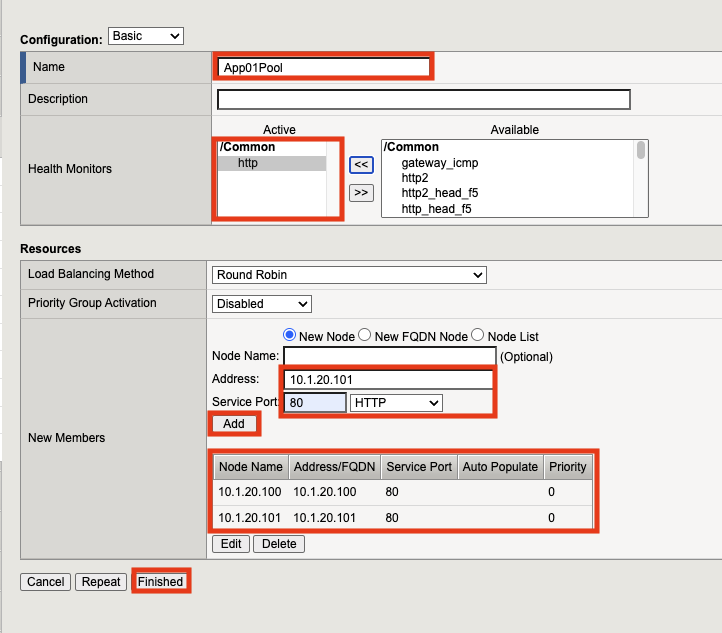
If it looks correct, click Finished.
Return to the virtual server list.
Click Create.
Configure the following virtual server settings:
Setting
Value
Name
App01
Destination IP Address
10.1.10.75
Port
80
HTTP Profile (Client)
http
Source Address Translation
Auto Map
Default Pool
App01Pool
Click Finished.
You'll notice that the Virtual Server was created in the App01 Partition rather than Common like the others.
Test Limited Access
Log out of the TMUI and login as App01Operator.
Change your password one more time.
Navigate to Local Traffic -> Virtual Servers.
Attempt to edit App01. You'll notice that you are now unable to.
Navigate to Local Traffic -> Pools.
Click on App01Pool. You'll notice that this dialog is also greyed out:
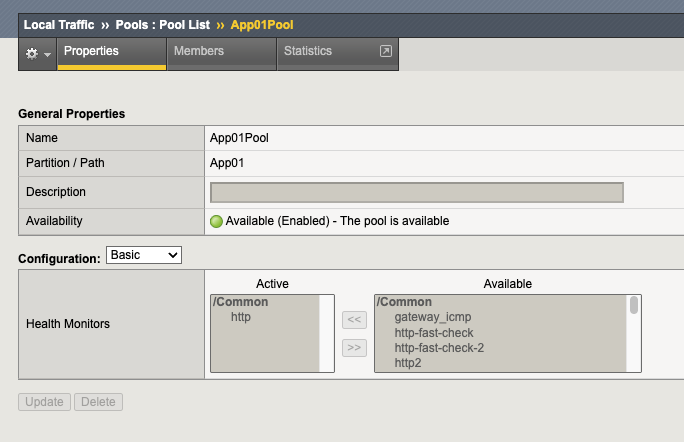
Click on the Members tab. Even though all other options are greyed out, you'll notice that you have the ability to enable and disable pool members:
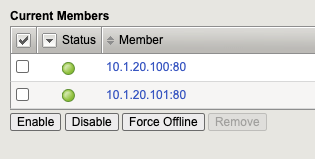
The operator role allows read access to allowed partitions and basic actions like enabling and disabling pool members and nodes.
For more details on roles and their permissions, see below.
More Information about User Roles
Note
For completeness, the table below summarizes the available user roles on the BIG-IP system.
User role |
Write access |
Read access |
No access |
|---|---|---|---|
Administrator |
All objects on the system. |
All objects on the system. |
Not applicable. |
Resource Administrator |
Most objects on the system, as well as their own password. |
Most objects on the system, including the list of user accounts. |
User account properties and some command-line interface commands, such as those used to edit TMSH scripts. |
User Manager |
All user accounts in the user manager's assigned partitions. |
Most objects in assigned partitions plus Common. |
ARP entries, archives, SNMP configurations displayed in the BIG-IP Configuration utility, logs, the advanced shell, and support tools. |
Manager |
Virtual servers, pool members, nodes, profiles, monitors, and iRules in assigned partitions. Users with a Manager role can also change their own password. |
Most objects in assigned partitions plus Common. |
Other user accounts, ARP entries, archives, SNMP configurations displayed in the BIG-IP Configuration utility, logs, the advanced shell, and support tools. |
Certificate Manager |
All digital certificates and FIPS operations in assigned partitions, as well as their own password. |
Most objects in assigned partitions plus Common. |
Other user accounts, ARP entries, archives, SNMP configurations displayed in the BIG-IP Configuration utility, logs, the advanced shell, and support tools. |
iRule Manager |
iRules in assigned partitions, as well as their own password. |
Most objects in assigned partitions plus Common. |
Other user accounts, ARP entries, archives, SNMP configurations displayed in the BIG-IP Configuration utility, logs, the advanced shell, and support tools. |
Application Editor |
Nodes, pools, pool members, and monitors in assigned partitions, as well as their own password. |
Most objects in assigned partitions plus Common. |
Other user accounts, ARP entries, archives, SNMP configurations displayed in the BIG-IP Configuration utility, logs, the advanced shell, and support tools. |
Acceleration Policy Editor |
All Application Acceleration Manager™ policy objects and profiles on the system, as well as their own password. |
Most objects on the system. |
Other user accounts, ARP entries, archives, SNMP configurations displayed in the BIG-IP Configuration utility, logs, and support tools. |
Firewall Manager |
All firewall rules and supporting objects in assigned partitions, as well as their own password. To modify global and management port rules, Firewall Managers must have partition Common assigned to their accounts. |
Most objects in assigned partitions plus Common. |
Other user accounts, ARP entries, archives, SNMP configurations displayed in the BIG-IP Configuration utility, logs, and support tools. |
Application Security Administrator |
All Application Security Manager™ security policy objects on the system, as well as their own password. |
Most objects in assigned partitions plus Common. |
Other user accounts, ARP entries, archives, SNMP configurations displayed in the BIG-IP Configuration utility, logs, and support tools. |
Application Security Editor |
Application Security Manager™ objects in assigned partitions, as well as their own password. |
Most objects in assigned partitions plus Common. |
Other user accounts, ARP entries, archives, SNMP configurations displayed in the BIG-IP Configuration utility, logs, and support tools. |
Application Security Operations Administrator |
Application Security Manager™ objects in assigned partitions. Also, partial write-access on LTM virtual servers: Associate and disassociate Logging, DoS, and Bot profiles, associate and disassociate ASM policies, and modify the list of LTM policies associated with a virtual server. Users with this role can also change their own passwords. |
Most objects in assigned partitions plus Common, including virtual server lists and LTM policy lists. |
Virtual server and LTM policy creation/deletion, other user accounts, ARP entries, archives, SNMP configurations displayed in the BIG-IP Configuration utility, logs, and support tools. |
Fraud Protection Manager |
Fraud Protection Service objects in assigned partitions, as well as their own password. |
Most objects in assigned partitions plus Common. |
Other user accounts, ARP entries, archives, SNMP configurations displayed in the BIG-IP Configuration utility, logs, the advanced shell, and support tools. |
Operator |
Nodes and pool members in assigned partitions (enable and disable only), as well as their own password. |
Most objects in assigned partitions plus Common. |
Other user accounts, ARP entries, archives, SNMP configurations, logs, the advanced shell, and support tools. |
Auditor |
Their own user account password. |
Most objects on the system, in all partitions. |
ARP entries, archives, the advanced shell, and support tools. |
Log Manager |
System log configuration options, including remote logging, log filters, destinations, and publishers. |
Most objects on the system, in all partitions, including APM log settings. |
ARP entries, archives, the advanced shell, and support tools. |
Guest |
Their own user account password. |
Most objects in assigned partitions plus Common. |
Other user accounts, ARP entries, archives, SNMP configurations displayed in the BIG-IP Configuration utility, logs, the advanced shell, and support tools. |
No Access |
None. |
None. |
None. |
Note
If you'd like to learn more about user roles, see this article