F5 Application Delivery Controller Solutions > BIG-IP Security Essentials > Core Layer – Privilege, Survivability, and System Integrity > <no title> Source | Edit on
Audit Logging & Controls
Objective
In this lab you will examine the audit capabilities of the F5 BIG-IP platform. Audit controls allow administrators to review changes that have been made to the system, and determine what users have made those changes. This can help to uncover mistakes or unauthorized changes to the configuration.
Lab
Estimatied completion time: 10-12 minutes.
Login to the BIG-IP
If you are not already logged in, locate BIGIP-01 in the UDF Lab environment.
Select Access -> TMUI to connect to the management interface.
Login as admin. If you need the password, it can be found under the system details in UDF.
Review the Audit Logs
Ensure you are logged into the BIG-IP's TMUI as admin. If you're still logged in as App01Operator from the last lab, the log menu will not appear.
Navigate to System -> Logs.
Hover over the Audit tab, then click List
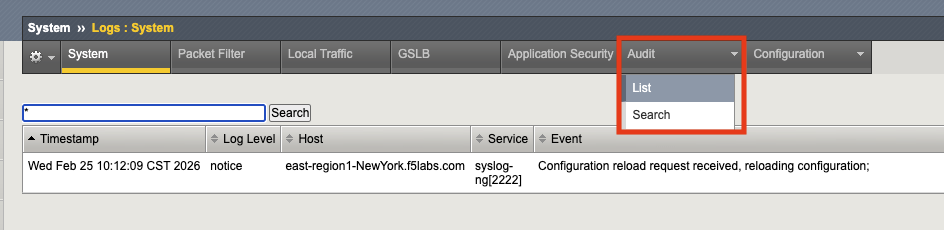
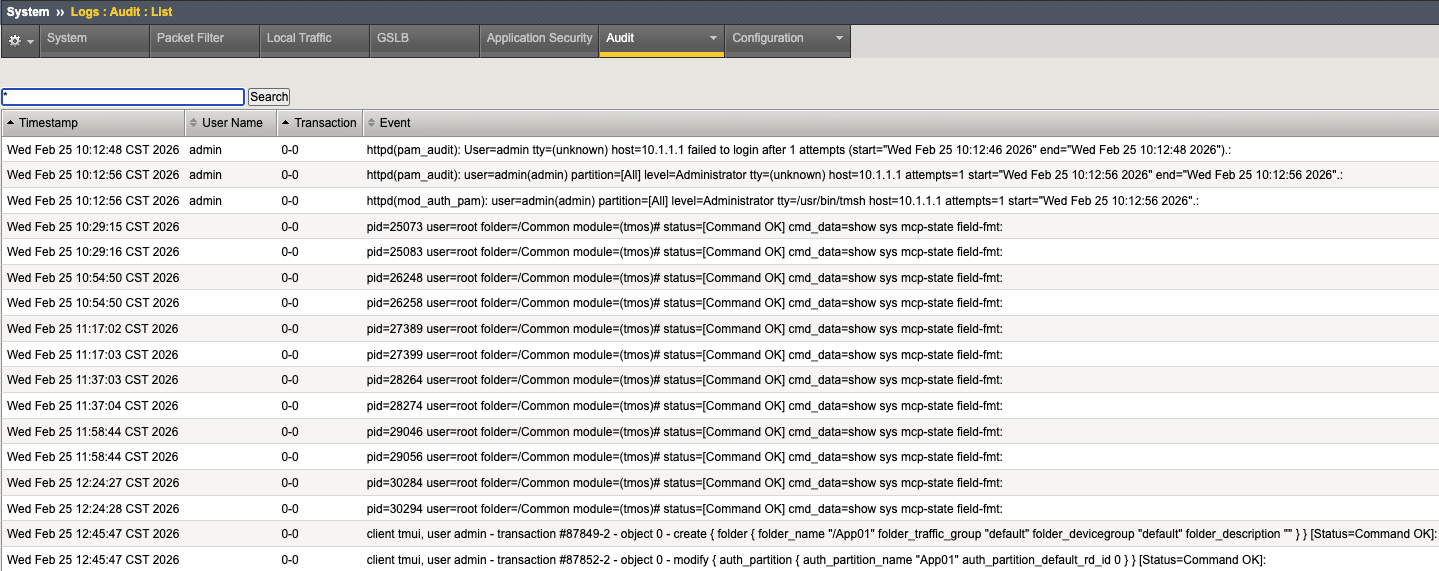
You should be greeted with a screen similar to this:
Note
If the audit trail is large, you may also see a warning like this:

For more information on reviewing logs from the shell, see K16197
If you scroll through the logs, you should be able to see the actions you took in the previous labs. Some examples below:


See what else you can find. You may notice that many of the the audit trail events are represented as TMSH commands.
Search the Audit Logs
Hover over the Audit tab and click Search.
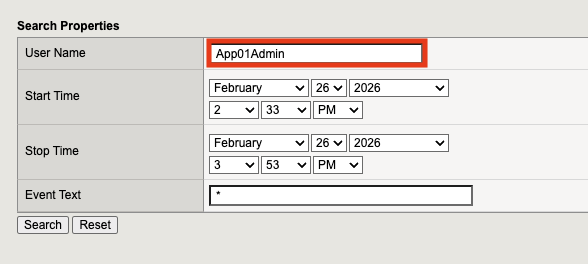
Replace the asterisk in the User Name field with App01Admin:
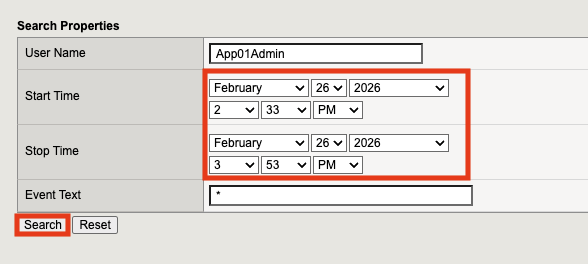
The search criteria will automatically be populated with the current date and time. Be sure to adjust accordingly so that you can see events from the prior lab then click Search
Important
Double check the time zone that the BIG-IP is set to. As of this writing, the lab was configured in PST. The time zone is visible at the top of the screen.
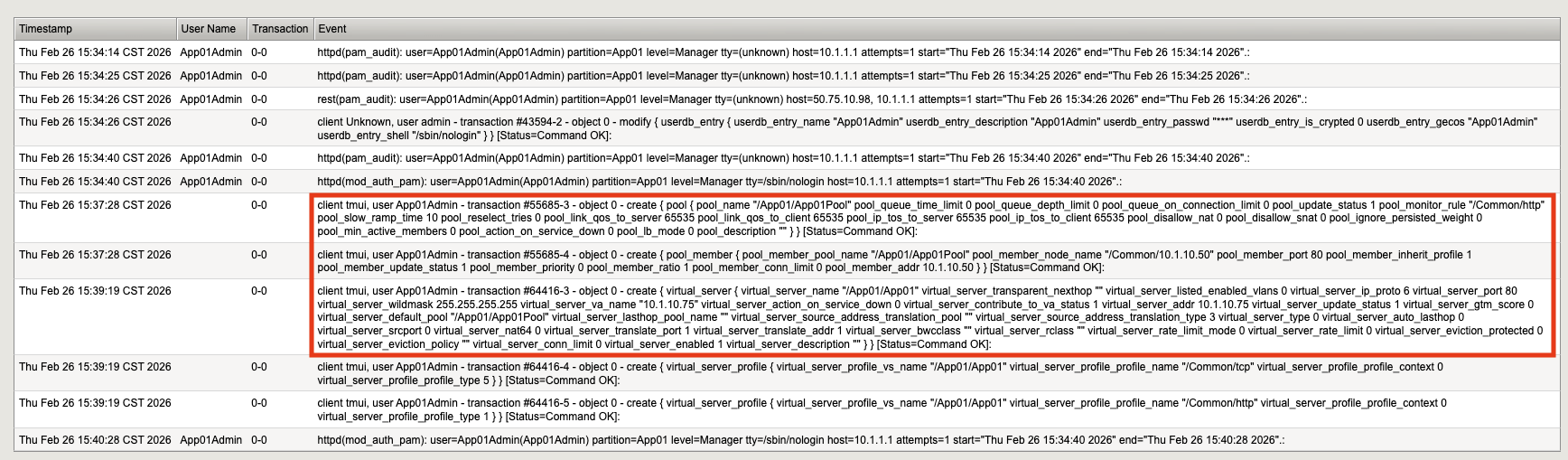
You'll notice that you don't see any of the object creation events in the audit log:

Important
This is because the TMUI is executing commands on behalf of the user and the username is not logged in the User Name field.
Return to the search box and replace the username with an asterisk, then replace the event text with *App01Admin*. Click Search again.
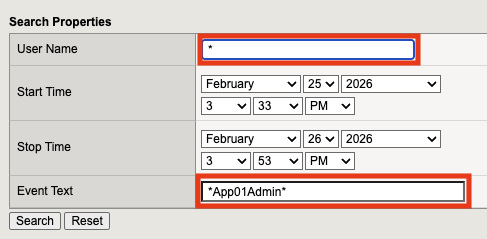
You should now see your pool, pool member, and virtual server creation events:
Note
For more information on logging, see K15521451