F5 BIG-IP SSL Orchestrator Training Lab > All SSL Orchestrator Lab Guides > SSLO 101: Introduction to SSL Visibility with SSL Orchestrator (AppWorld 2026 | 2 hours) > 4. Lab 2: Enable Selective Decryption and Inspection Source | Edit on
4.2. Edit the Existing Topology
If not already there, navigate to the SSL Orchestrator > Configuration page. The previously deployed Topology will be listed (named sslo_l3_outbound).
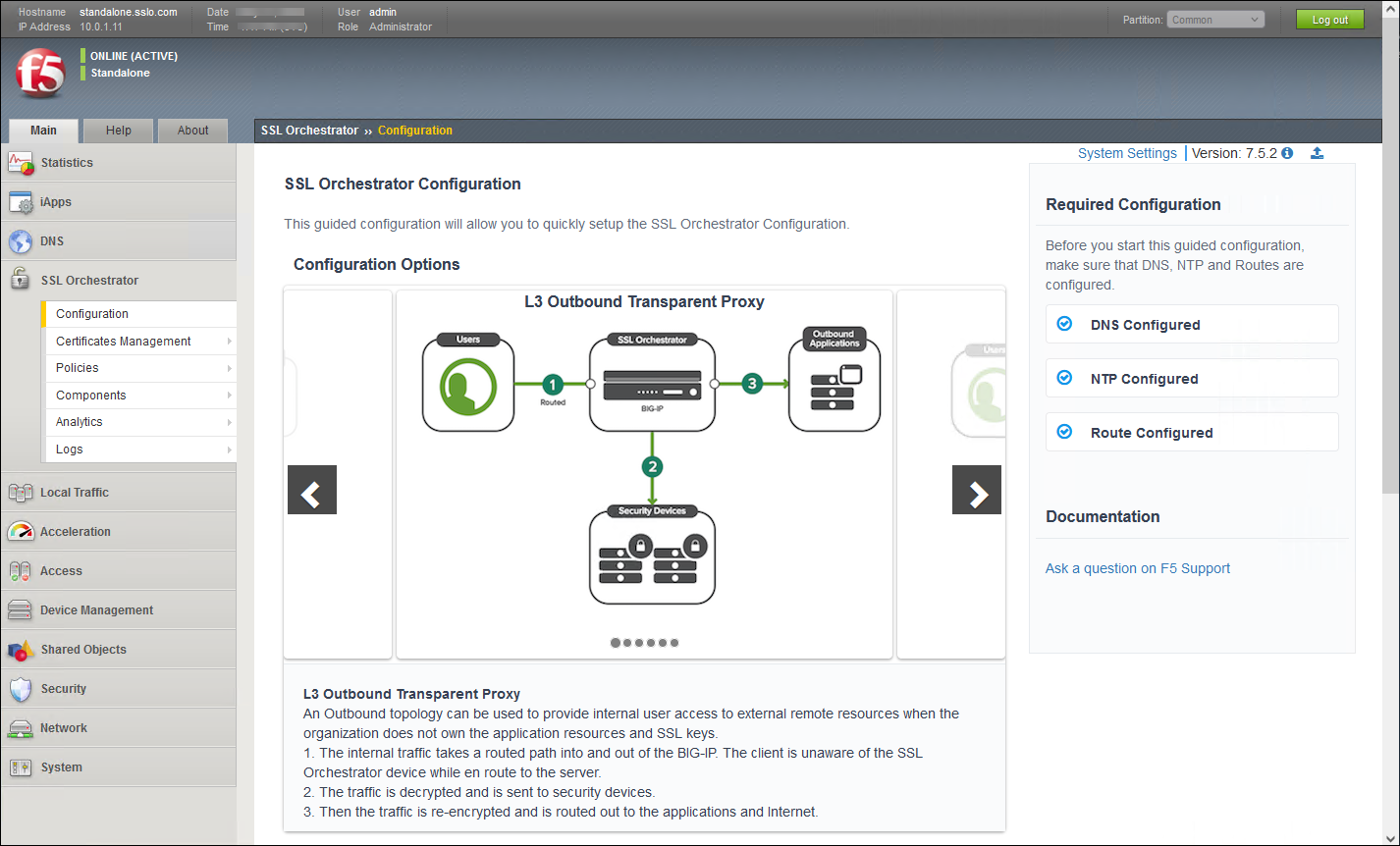
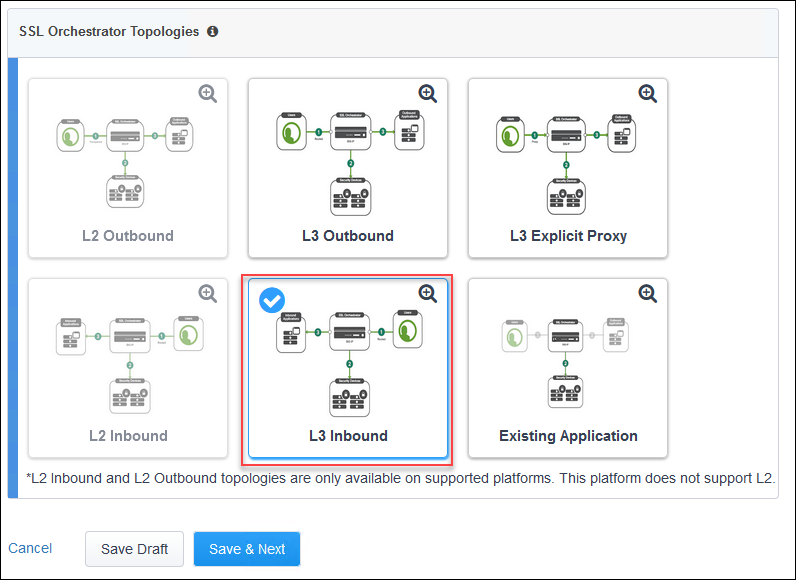
Click on the Topology name to edit it using the Guided Configuration UI.
4.2.1. Create a TAP Service
Now, you will create a TAP service for a Wireshark instance.
To edit the Services, click on the Service icon at the top (or click on the pencil icon to the right of the Service menu item).
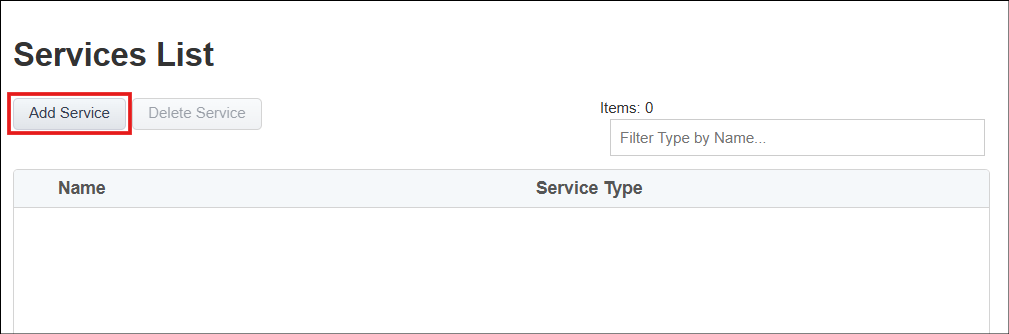
Click on the Add Service button to create a new Service.
The Services List page is used to define security services that SSL Orchestrator can steer traffic to. To simplify the service configuration, common product integration templates are provided in a service catalog which is grouped by service type:
Inline Layer 2 (e.g., L2 IPS)
Inline Layer 3 (e.g., NGFW)
Inline HTTP (e.g., web proxy/URL filter)
ICAP (e.g., Antivirus, DLP)
Receive-only Tap (e.g., forensic monitoring)
F5 on-box module (e.g., Advanced WAF).
The service catalog also provides "generic" security service options. Depending on your computer's screen resolution, it may be necessary to scroll down to see additional services.
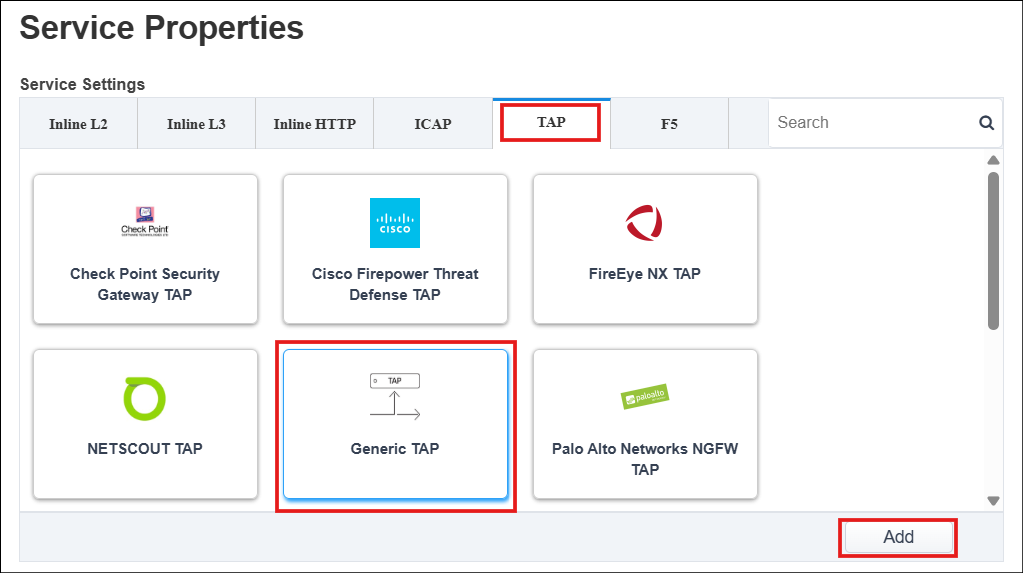
Click on the TAP tab to view the available templates.
Select the Generic TAP service from the catalog and click the Add button (or simply double-click on the Generic TAP service).
Enter
wiresharkin the Name field.Enter
12:12:12:12:12:13in the MAC Address field. This tap service is directly connected to a BIG-IP interface, so the MAC address does not matter and can be arbitrarily defined. For a tap service that is not directly connected to the BIG-IP (but still on the same switch VLAN), enter the device's real MAC address.Click on the Create New radio button under VLAN and enter
wstap_inas the Name.Select Interface 1.3.
Enter
1001in the VLAN Tag field.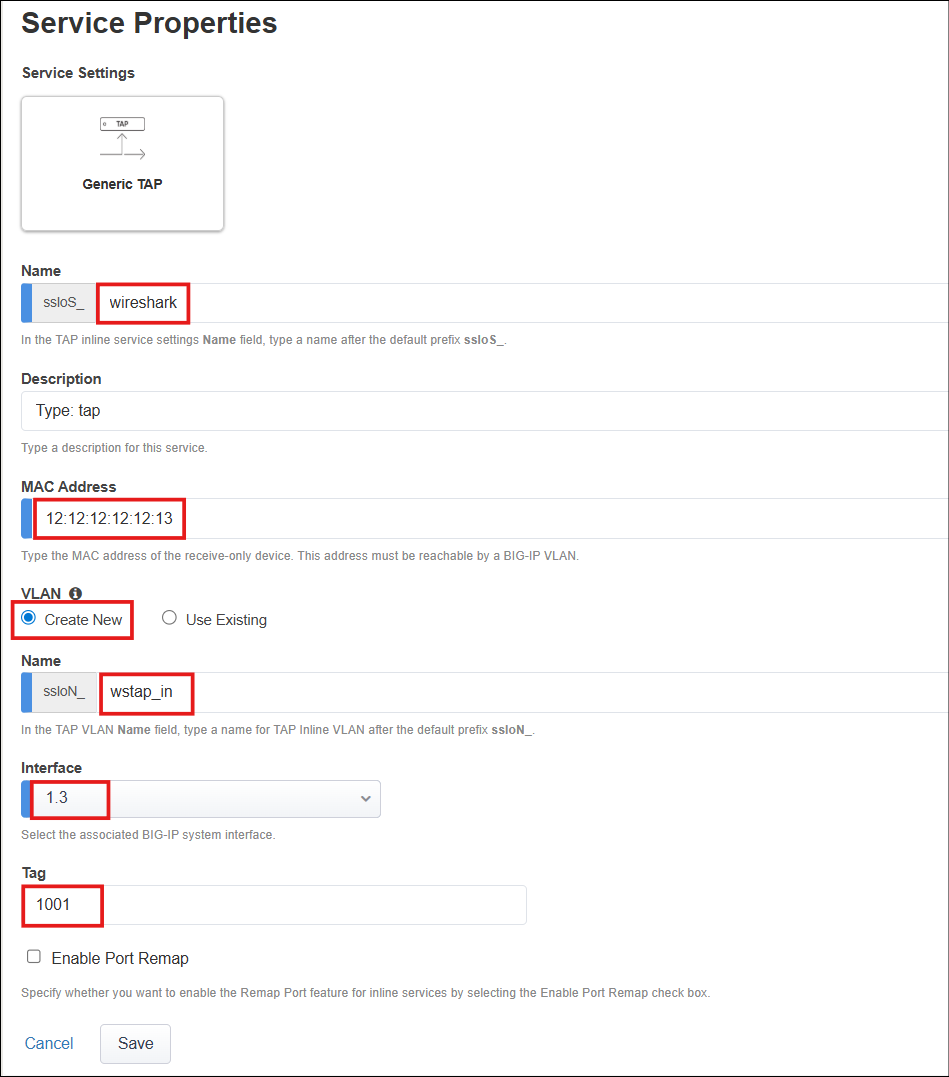
The Enable Port Remap option allows SSL Orchestrator to remap the port of HTTPS traffic flowing to this service. For this lab, leave the option disabled (unchecked).
Click on the Save button to return to the Services list.
Attention
A yellow "pending changes to deploy" notification banner will appear below the Guided Configuration workflow path. As tempting as it may be, DO NOT click on the Deploy button until instructed to (later on).

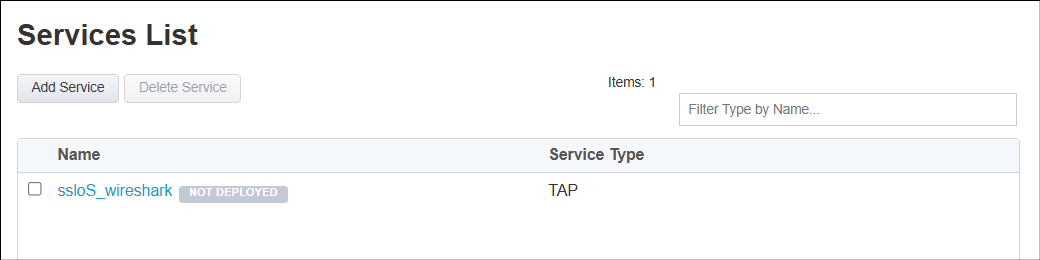
Click on the Save & Next button to continue.
4.2.2. Create a Service Chain
You will now add the Wireshark TAP service to a Service Chain.
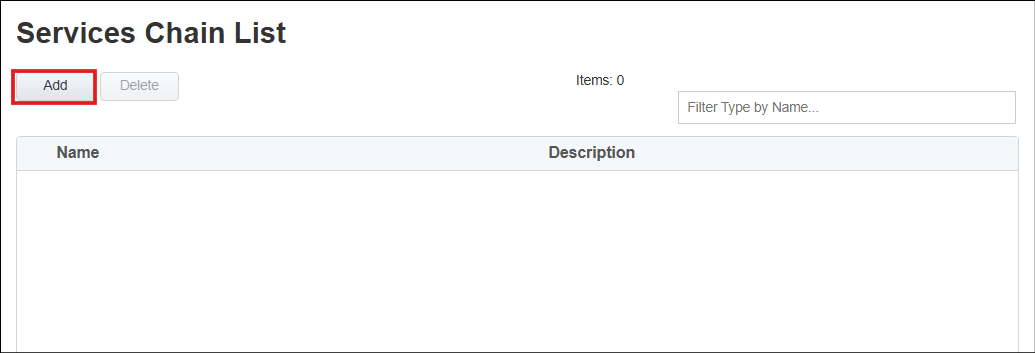
Click on the Add button to create a new Service Chain.
Enter
tap_onlyin the Name field.Double-click on the ssloS_wireshark service to move it from the Services Available column to the Selected Service Chain Order column.
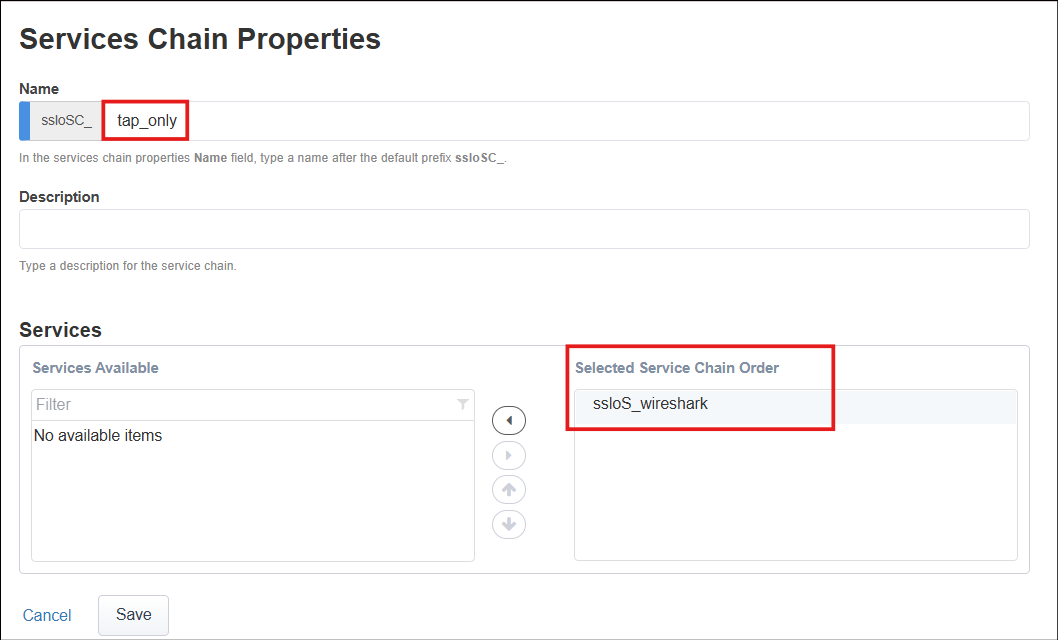
Click on the Save button to return to the list of Service Chains.
Attention
The yellow "pending changes to deploy" notification banner will continue to appear below the Guided Configuration workflow path. Ignore it until instructed to deploy the configuration changes.
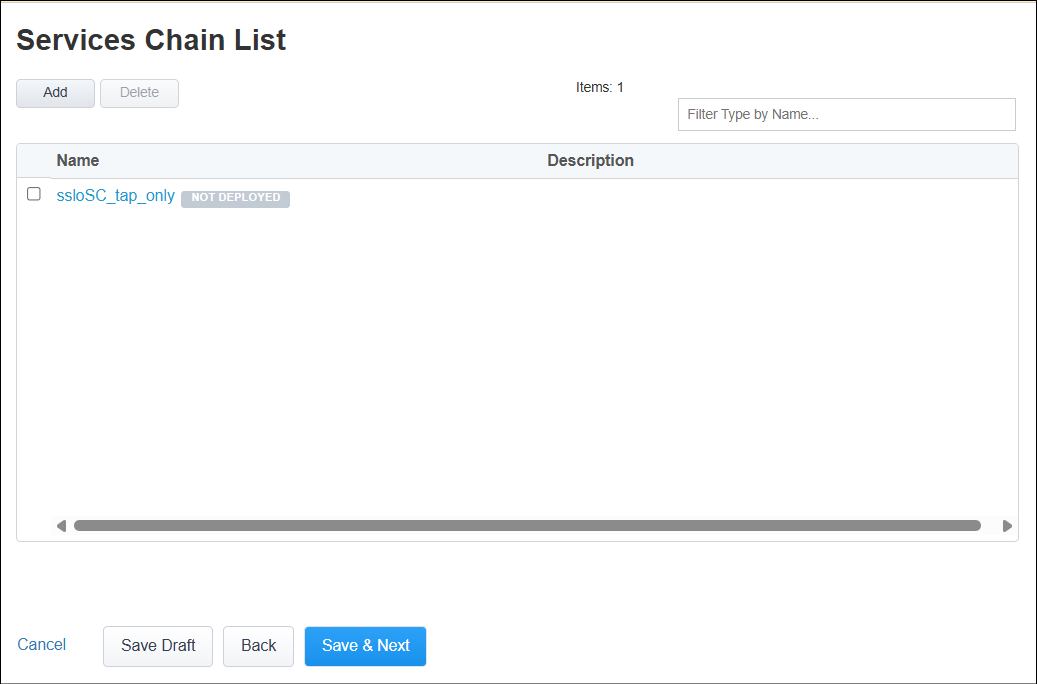
Click on the Save & Next button to continue.
4.2.3. Edit the Security Policy
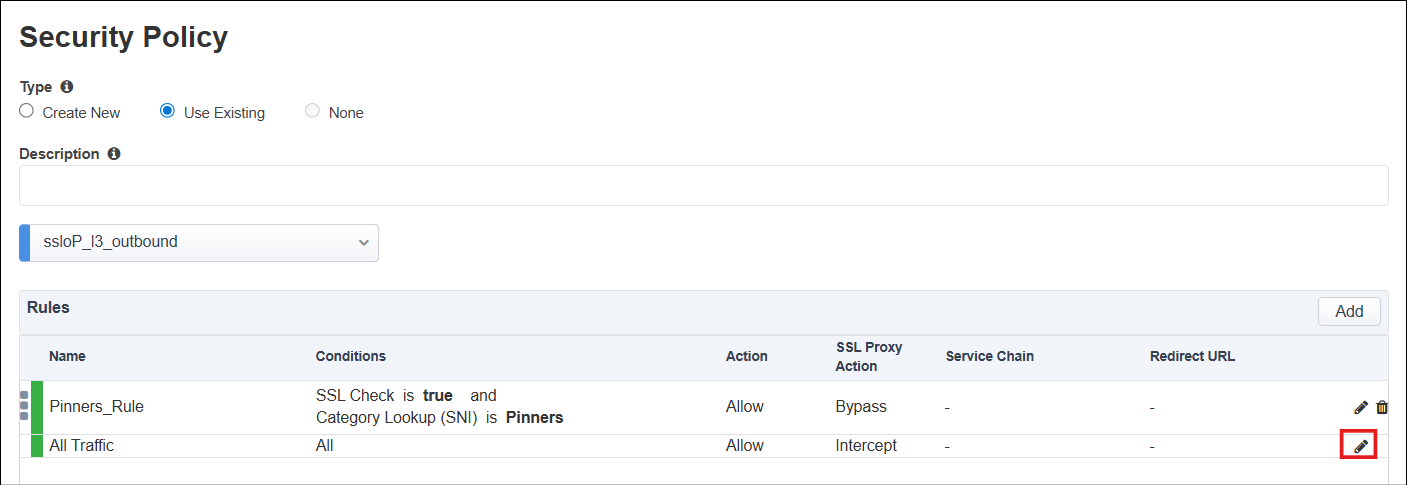
You must associate the tap_only Service Chain with Security Policy rules in order to send traffic to Wireshark.
Click on the Edit (pencil) icon for the All Traffic rule.
Set Service Chain to tap_only. Recall that this Service Chain contains the wireshark TAP Service.
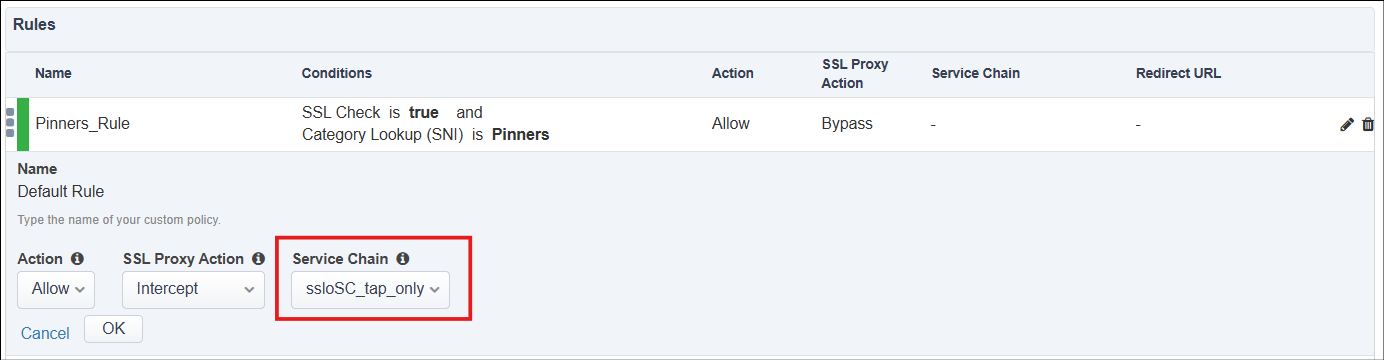
Click on the OK button to continue.
Your Security Policy rules should now look like the following:
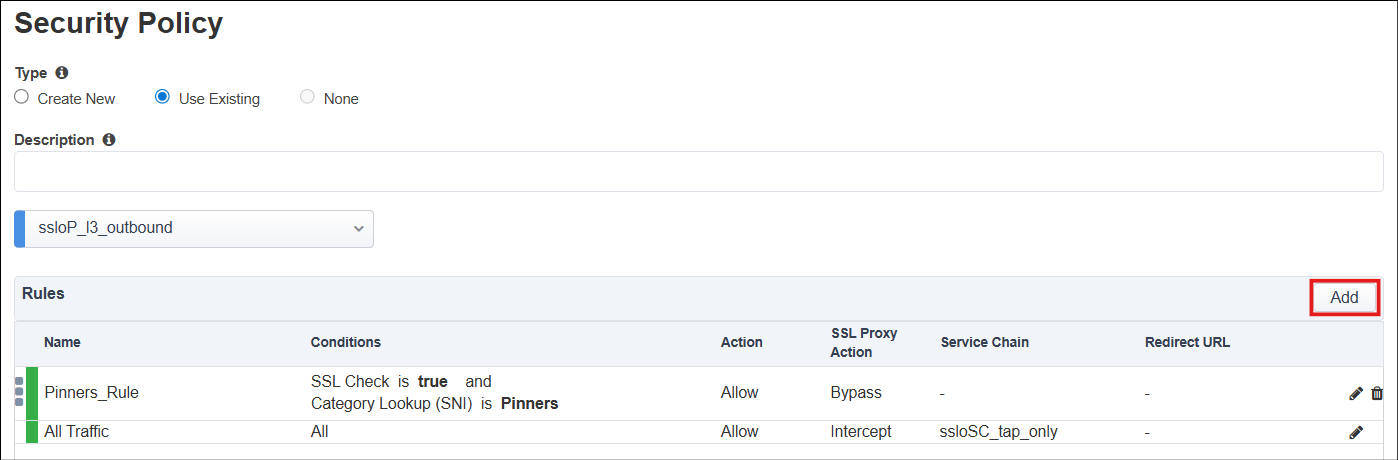
Click on the Add button to create a new rule. This rule will be used to bypass decryption for web sites categorized as Financial Data and Services or Health and Medicine.
Enter
urlf_bypassin the Name field.Select Category Lookup (All) from the Conditions drop-down list and then add the Financial Data and Services and Health and Medicine URL categories. Start typing the category name to narrow the list.
Note
The Category Lookup (All) condition provides categorization for TLS SNI, HTTP Connect and HTTP Host information.
Select ssloSC_tap_only from the Service Chain drop-down list.
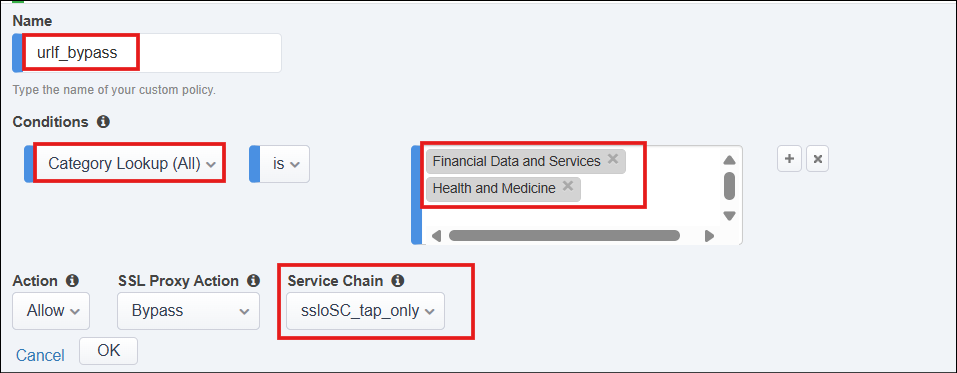
The SSL Proxy Action is already set to Bypass, so there is no need to select it.
Click on the OK button to return to the Security Policy list.
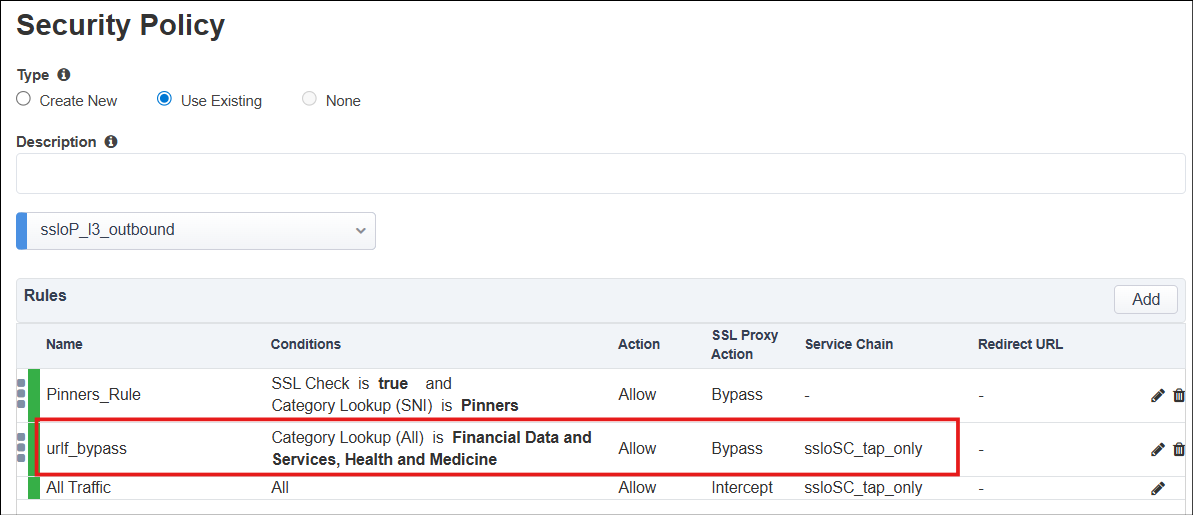
Click on the Save & Next button to continue.
In a moment, the yellow notification banner will re-appear below the Guided Configuration workflow path. All of the necessary changes have been made, so now you can click on the Deploy button to apply them. You do not need to continue through the entire workflow before deploying.

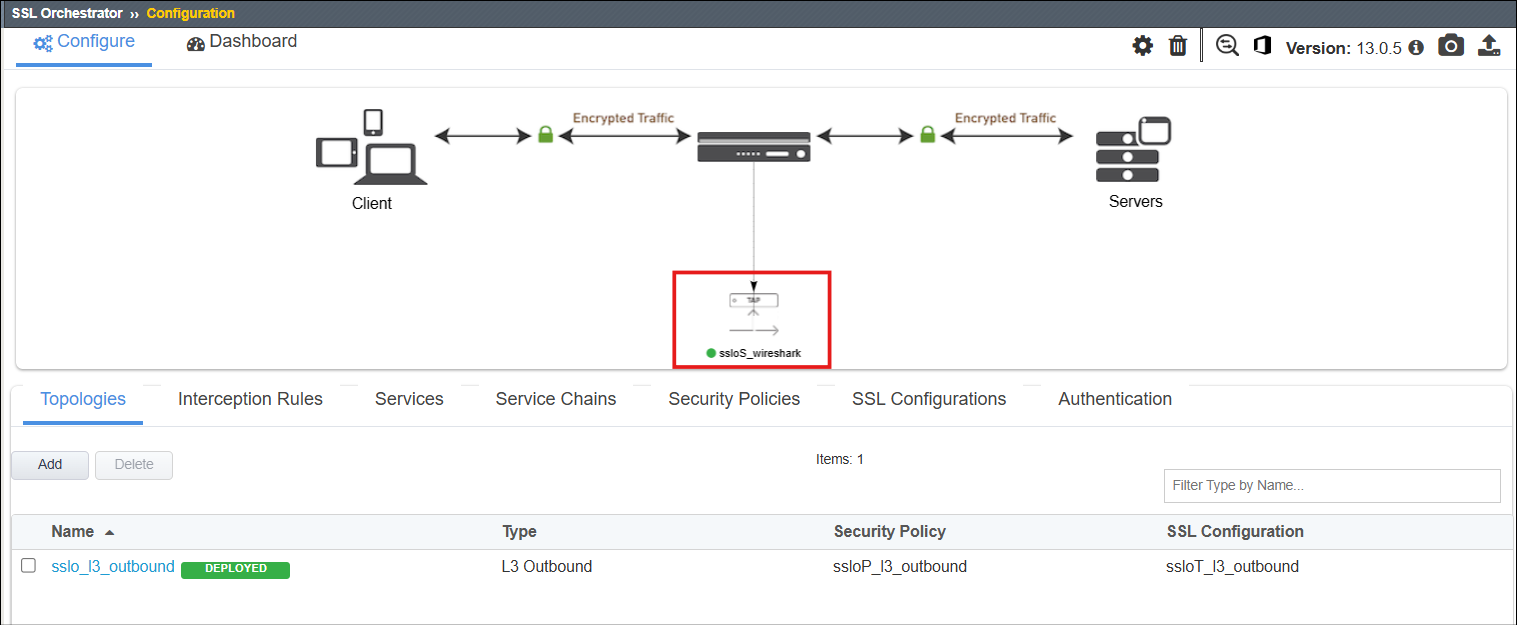
Click on the OK button when the deployment has completed and you will return to the Topologies list. Note that the Wireshark TAP service is now represented in the SSL Orchestrator configuration diagram.