F5 Application Delivery Controller Solutions > BIG-IP Security Essentials > Core Layer – Privilege, Survivability, and System Integrity > <no title> Source | Edit on
Working with iHealth
Objective
In this lab you will examine the some of the security auditing capabilities of iHealth. iHealth is a free (for F5 customers) diagnostic application that aids in the troubleshooting and performance analysis of F5's BIG-IP platform. It is frequently used by F5 support for debugging, but is also a fantastic tool for F5 administrators.
Lab
Estimatied completion time: 10-15 minutes.
Login to the BIG-IP
If you are not already logged in, locate BIGIP-01 in the UDF Lab environment.
Select Access -> TMUI to connect to the management interface.
Login as admin. If you need the password, it can be found under the system details in UDF.
Create a Qkview
Ensure you are logged into the TMUI as admin.
Navigate to System -> Support.
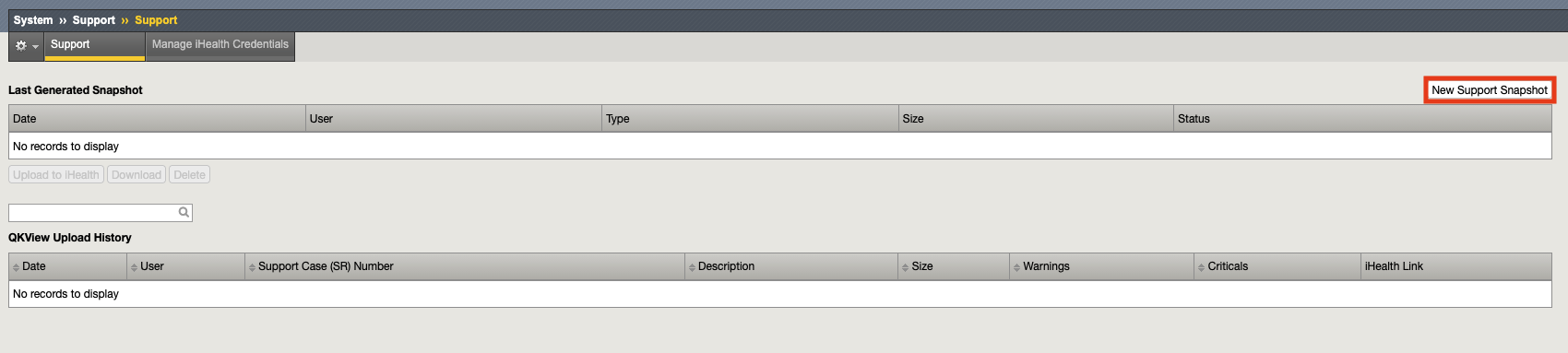
Click New Support Snapshot in the upper right-hand corner.
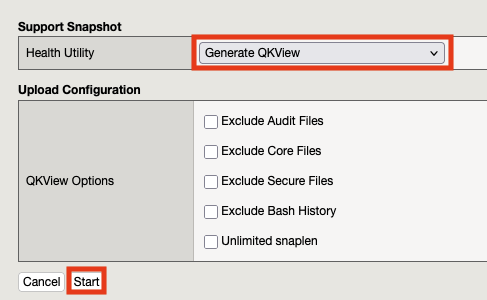
Select Generate Qkview and click Start.
Note
While you can normally input your iHealth credentials to upload the Qkview directly to iHealth, for security reasons we don't recommend doing so in this lab.
Wait for the qkview to be created. This may take a few minutes.

When complete, download the qkview to your system by clicking Download in the dialog:

Upload a Qkview
From your web browser, navigate to https://ihealth.f5.com
Since you are logged into UDF already, you most likely will not have to log in again. If you do, the same account that got you access to UDF (your myf5 account) should also get you into iHealth.
Click Upload.

Click Choose to select the qkview file you downloaded in the previous step. Type AppWorld ADC Lab into the description field and click Upload QKView(s).

Note
Only the QKView file is required. The Description and F5 Support Case (SR) fields are not required.
The QKView will begin to upload then process. This may take a few minutes:


Analyze a QKView
Once the QKView is availabile, go ahead and click on its description:

Important
Depending on when this lab is run and when the blueprint was last updated, the hostname and even the BIG-IP version may be different. Ensure you're looking for the QKView with the description you entered during the upload step.
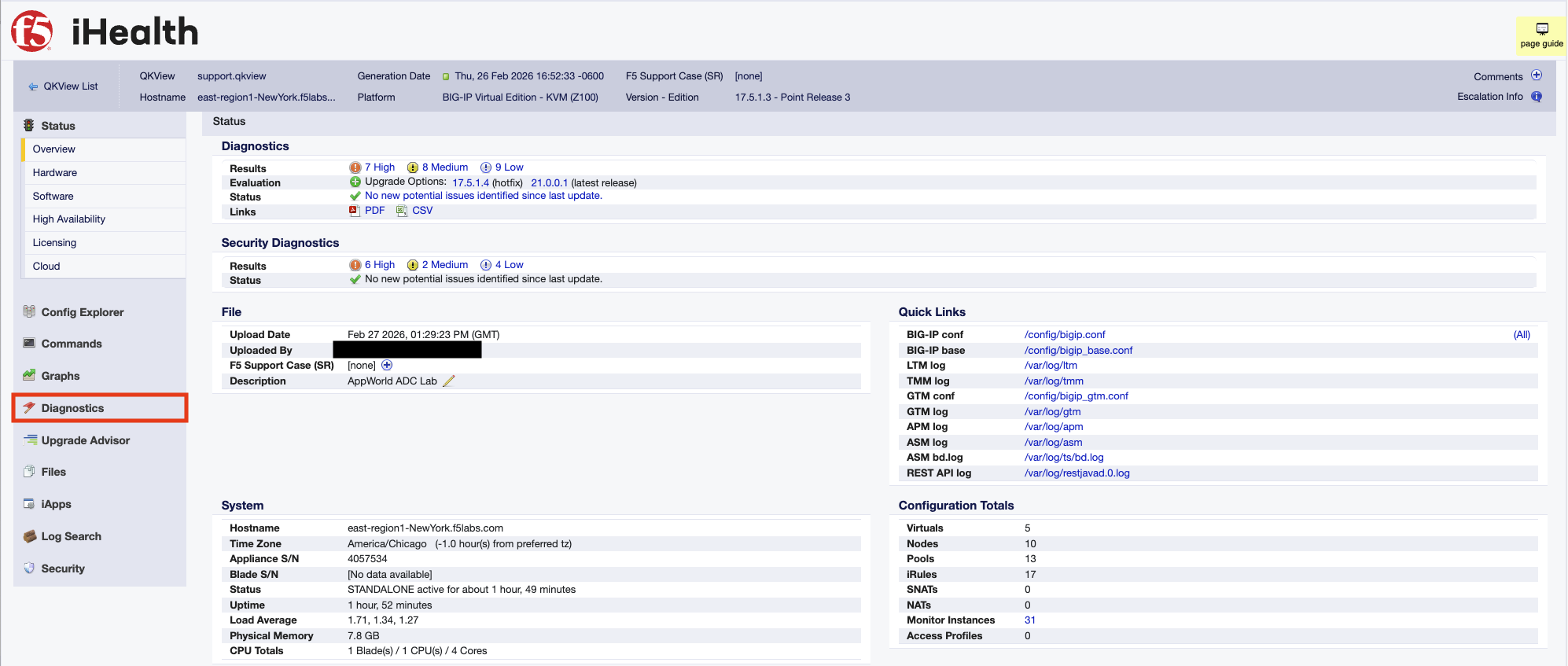
You should be greeted by a screen that looks like the one below. Familiarize yourself with the information avaiable on the main screen, then click Diagnostics in the menu to the left.
Important
As with the last step, any screenshots from this point forward may not be exactly the same as what you are seeing as you work through the lab. This is because the findings, heuristics, and BIG-IP versions will change over time. Take all screenshots as examples only unless otherwise noted.
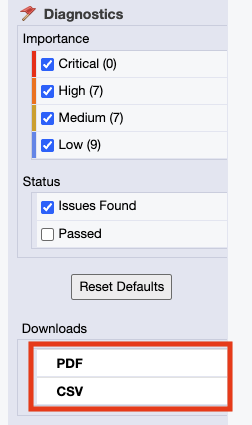
The diagnostic tab is perhaps one of the most important and useful functions of iHealth. It is also one of the easiest to use. This menu presents you with a list of configuration and security issues (including CVEs) that apply specifically to the system that the QKView came from. The menu on the left allows you to show or hide alerts based on their criticality.
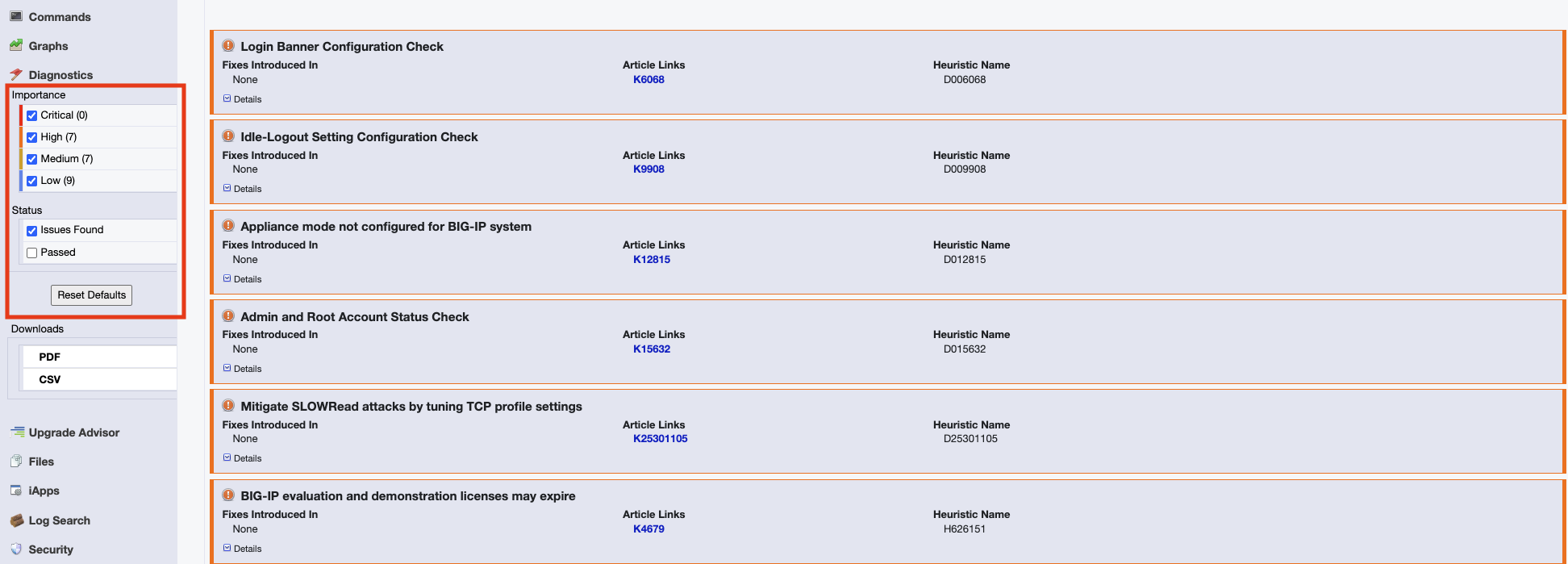
Below the filter menu, you'll see that there is also a download menu. It allows these alerts to be exported as either a PDF or a CSV. Feel free to explore this option if you're interested.
Note
iHealth also has a REST API that allows much of this to be automated. More information on that can be found on F5 CloudDocs
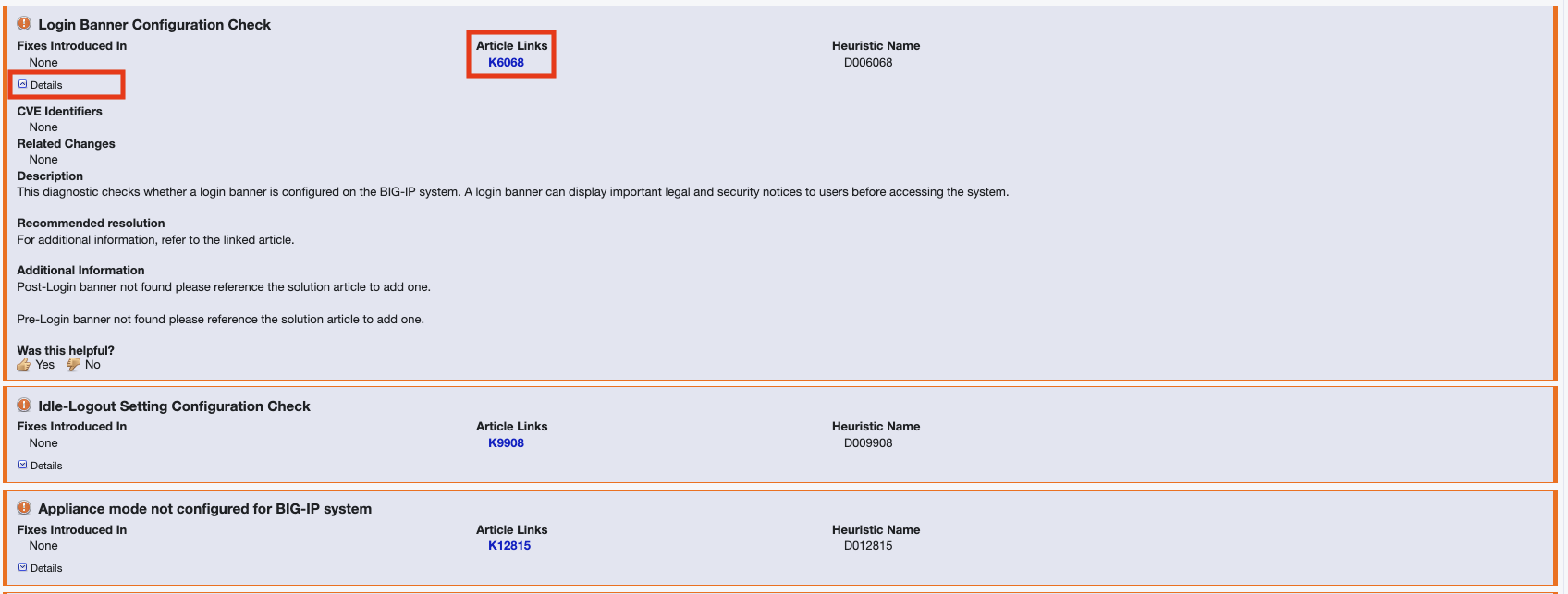
Take a look through the detected issues. Select one and expand it by clicking the details button. This provides further information about the issue, as well as links to impacted objects in the configuration (if applicable). Any relevant knowledge base articles are also linked to each alert.
Navigate to Security -> Overview.
Important
As noted in the menu, this feature is in beta and may be buggy or otherwise not appropriate for production use. Double-check any insights it provides before taking action.
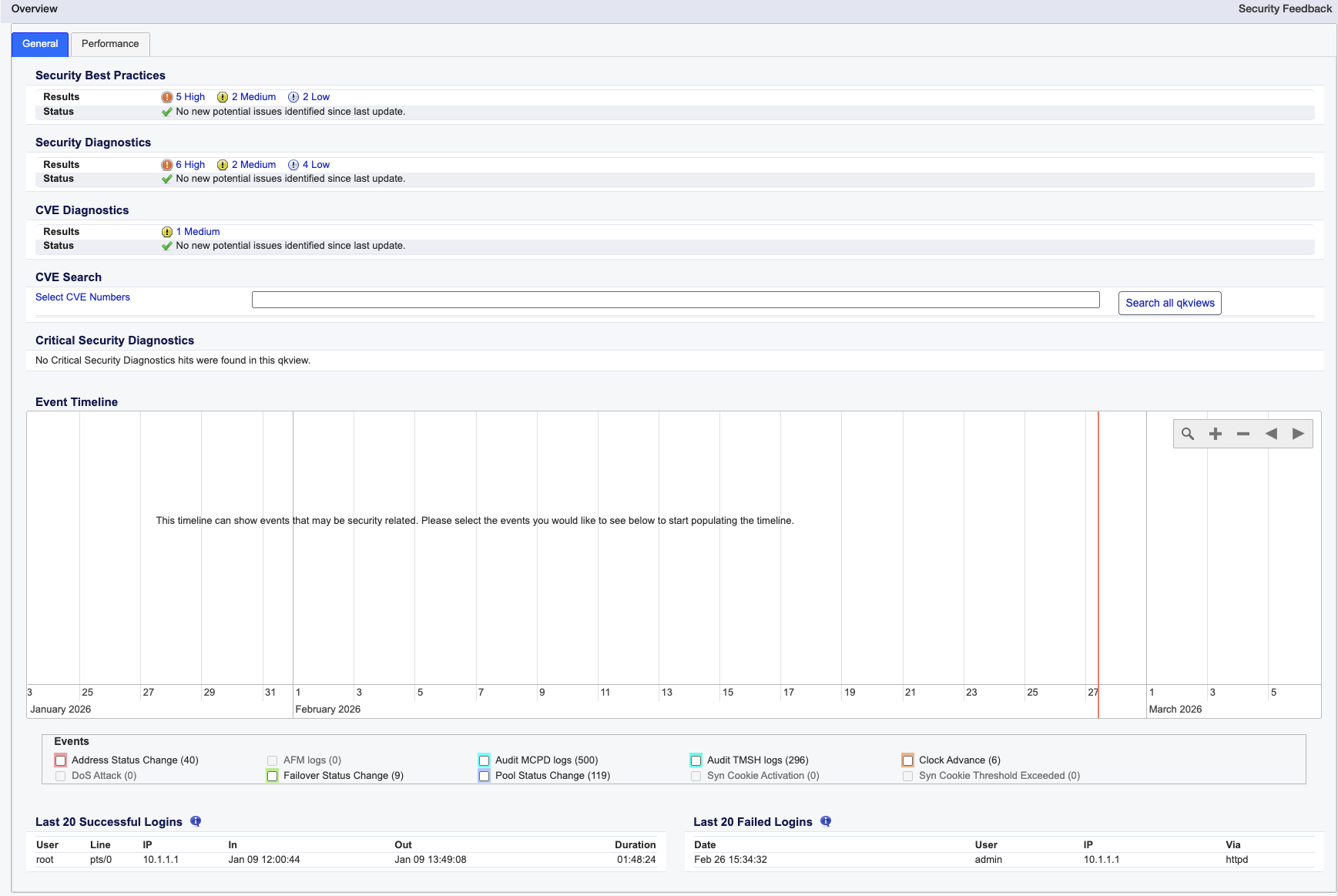
This screen summarizes the security posture of the system in question. It summarizes applicable CVEs, failed logins, and even DoS attacks against the system.
This concludes the iHealth lab.