NGINX Modern Apps > Class 18 - Mastering cloud-native app delivery: Unlocking advanced capabilities and use cases with F5’s ADCaaS (NGINXaaS) Source | Edit on
Module 5: Protecting Applications with the NGINXaaS Web Application Firewall (WAF)
Overview
Welcome to Lab 5. In this module of “Mastering cloud-native app delivery,” we focus on protecting an application using the NGINX WAF. You will deploy the NGINX WAF and then run several layer-7 attacks, observing how the WAF protects the OWASP Juice Shop application.
🏗️ Pre-provisioned Infrastructure
The following resources are prepared for this lab:
- Ubuntu VM: Running OWASP Juice Shop in a Docker container on Port 3000.
- You must have your Nginx for Azure instance running.
- Your Nginx for Azure instance must be running with the “plan:standardv3” SKU.
- You must have selected “Enable F5 WAF for NGINX” when creating the
Nginx for Azure instance. (If you forgot to do this when provisioning
your NGINXaaS instance, you can go to the NGINXaaS Overview page, then
Settings>F5 WAF for NGINX, and clickEnable.)
🚀 Lab Exercises
Task 1: Test Application Vulnerabilities
Prior to configuring the WAF policy, run some common L7 HTTP vulnerability attacks and observe their effect.
- Open another tab in your browser (Chrome shown), navigate to the newly configured Load Balancer configuration: http://juiceshop.example.com, to confirm it is functional.
- Some samples of malicious URIs are listed below. Paste each into your browser and observe the results.
http://juiceshop.example.com/?cmd=cat%20/etc/passwd
http://juiceshop.example.com/cart?search=aaa'><script>prompt('Please+enter+your+password');</script>
http://juiceshop.example.com/product?code=echo%20shell_exec(%27/sbin/ifconfig%20eth0%27);
The Juice Shop application will appear for each request, but they will generate security event data. Since these URIs have the potential of exposing vulnerabilities on some applications, we want to block requests like these.
Understanding NGINX WAF Configuration
F5 WAF for NGINX ships with two reference policies, both with a default enforcement mode set to Blocking:
- The default policy which is identical to the base template and provides OWASP Top 10 and Bot security protection out of the box.
- The strict policy contains more restrictive criteria for blocking traffic than the default policy. It is meant to be used for protecting sensitive applications that require more security but with higher risk of false positives.
For this lab, we will only implement the default policy as this will be sufficient to show how the NGINX WAF can protect your application from the most common attacks. If your environment requires more restrictive filters, the strict policy may be a good solution. However, in real-world production environments, these are merely starting points. Additional customizations can be performed according to the needs of the applications F5 WAF NGINX protects.
For a list of additional options that can be use to further customize your NGINX WAF policies, see the “Supported security policy features” and “Additional policy features” tables at https://docs.nginx.com/waf/policies/configuration/#supported-security-policy-features
Task 2: Adding an NGINX WAF Policy
Create the Nginx for Azure configuration needed for the new WAF-protected version of juiceshop.example.com.
Using the Nginx for Azure Console, enable WAF by adding the following line to /etc/nginx/nginx.conf:
load_module modules/ngx_http_app_protect_module.so;in nginx.conf.app_protect_enforcer_address 127.0.0.1:50000;in the http context.
The nginx.conf file should now look like this:
# Nginx 4 Azure - Default - Updated Nginx.conf
user nginx;
worker_processes auto;
worker_rlimit_nofile 8192;
pid /run/nginx/nginx.pid;

load_module modules/ngx_http_app_protect_module.so;

events {
    worker_connections 4000;
    }

error_log /var/log/nginx/error.log error;

http {
    include /etc/nginx/mime.types;
    app_protect_enforcer_address 127.0.0.1:50000;
    ...
When complete, click Submit.
Next, add the following lines to /etc/nginx/conf.d/juiceshop.conf, within the server context:
app_protect_enable on;
app_protect_policy_file "/etc/app_protect/conf/NginxDefaultPolicy.json";
app_protect_security_log_enable on;
app_protect_security_log "/etc/app_protect/conf/log_all.json" syslog:server=127.0.0.1:5140;
The juiceshop.conf file should now look like this:
# Nginx 4 Azure - Juiceshop Nginx HTTP
# WAF for Juiceshop

server {
    listen 80;      # Listening on port 80 on all IP addresses on this machine

    server_name juiceshop.example.com;   # Set hostname to match in request
    status_zone juiceshop;

    # REMOVE access_log  /var/log/nginx/juiceshop.log main;
    # REMOVE access_log  /var/log/nginx/juiceshop.example.com.log main_ext;
    # REMOVE error_log   /var/log/nginx/juiceshop.example.com_error.log info;

    # NGINX WAF CONFIGURATION
    app_protect_enable on;
    app_protect_policy_file "/etc/app_protect/conf/NginxDefaultPolicy.json";
    app_protect_security_log_enable on;
    app_protect_security_log "/etc/app_protect/conf/log_all.json" syslog:server=127.0.0.1:5140;
    # END OF NGINX WAF CONFIGURATION

   location / {
       # This matches the 'zone=limitone' we just defined in rate-limit.conf
       limit_req zone=limit100;  #burst=110;       # Set  Limit and burst here

       proxy_pass http://juiceshop_backend;
       proxy_set_header Host $host;
       proxy_set_header X-Real-IP $remote_addr;
       add_header X-Ratelimit-Status $limit_req_status;   # Add a custom status header
   }
}
Click Submit.
The default policy enforces violations by Violation Rating, the F5 WAF for NGINX computed assessment of the risk of the request based on the triggered violations.
- 0: No violation
- 1-2: False positive
- 3: Needs examination
- 4-5: Threat
The default policy enables most of the violations and signature sets with Alarm turned ON, but not Block.
These violations and signatures, when detected in a request, affect the violation rating. By default, if the violation rating is calculated to be malicious (4-5) the request will be blocked by the VIOL_RATING_THREAT violation.
This is true even if the other violations and signatures detected in that request have the Block flag turned OFF. It is the VIOL_RATING_THREAT violation having the Block flag turned ON that caused the blocking, but indirectly the combination of all the other violations and signatures in Alarm caused the request to be blocked.
By default, other requests which have a lower violation rating are not blocked, except for some specific violations described below. This is to minimize false positives. However, you can change the default behavior.
For more information on configuring WAF capability in NGINX, see https://docs.nginx.com/waf/policies/configuration/
Task 3: Test the Newly-added NGINX WAF Policy
Now, test out the newly-deployed default WAF policy.
- Open another tab in your browser (Chrome shown), navigate to the newly configured Load Balancer configuration: http://juiceshop.example.com, to confirm it is functional.
- Paste each of the previous malicious URI strings into your browser and observe the results.
http://juiceshop.example.com/?cmd=cat%20/etc/passwd
http://juiceshop.example.com/cart?search=aaa'><script>prompt('Please+enter+your+password');</script>
http://juiceshop.example.com/product?code=echo%20shell_exec(%27/sbin/ifconfig%20eth0%27);
Expected Results
If you applied the WAF policy correctly, each request should result in a page that indicates the URL was rejected.
| Web Browser |
|---|
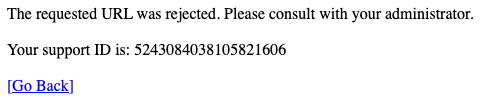 |
Note: The web application firewall is blocking these requests to protect the application. The block page can be customized to provide additional information.
Congratulations! You have now completed the NGINXaaS for Azure workshop!