F5 BIG-IP SSL Orchestrator Training Lab > All SSL Orchestrator Lab Guides > SSLO 101: Introduction to SSL Visibility with SSL Orchestrator (AppWorld 2026 | 2 hours) > 5. Lab 3: Configure Additional Inspection Services Source | Edit on
5.3. Create a New Service Chain
You will create a new Service Chain that contains all three Services. However, instead of stepping through the Guided Configuration wizard, you will go directly to the Service Chains object list to create it.
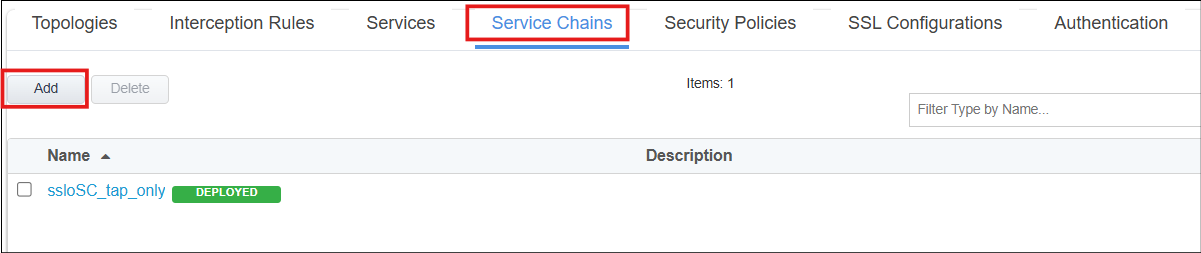
Click on the Service Chains tab.
Click on the Add button to create a new Service Chain.
Enter
malware_scanin the Name field.In the Services Available list, double-click on ssloS_wireshark to add it to the Selected Service Chain Order list.
In the Services Available list, double-click on ssloS_CLAM_AV to add it to the Selected Service Chain Order list.
In the Services Available list, double-click on ssloS_FEYE to add it to the Selected Service Chain Order list.
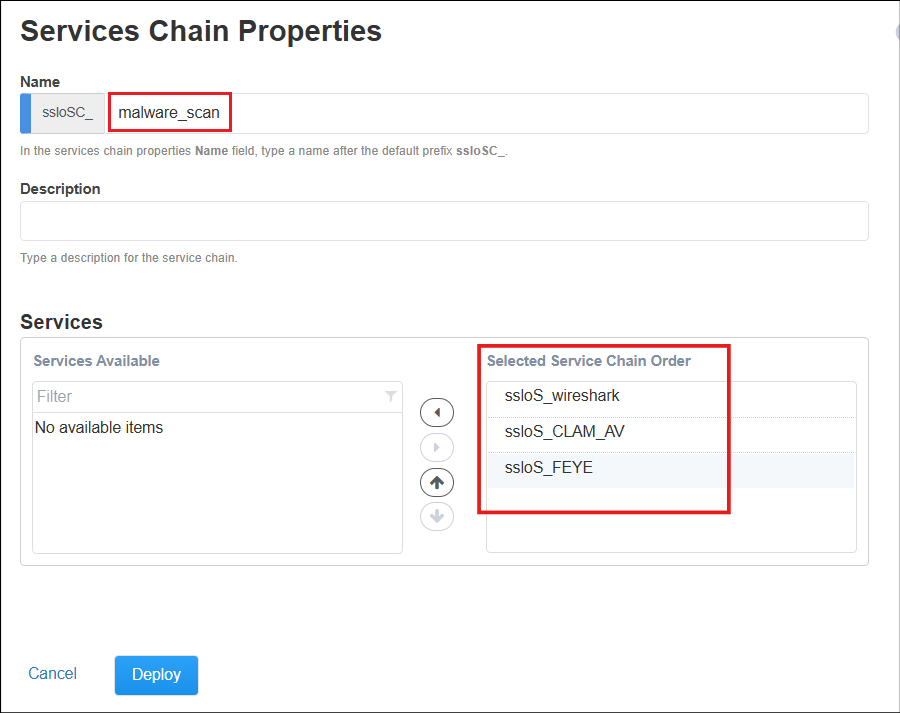
Click on the Deploy button.
When the deployment completes, click on the OK button to return to the SSL Orchestrator > Configuration page.
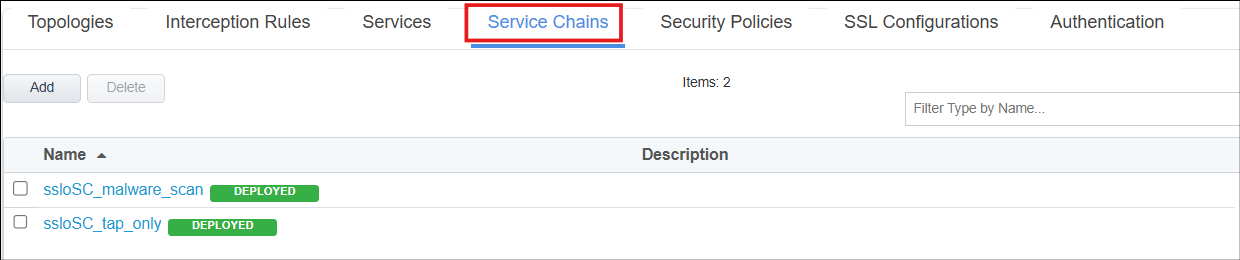
Click on the Service Chains tab to view the newly created item.