F5 BIG-IP SSL Orchestrator Training Lab > All SSL Orchestrator Lab Guides > SSLO 203: F5 BIG-IP SSL Orchestrator: Plug, play, automate (AppWorld 2026 | 2 hours) > 2. Lab 1: Outbound Transparent Forward Proxy with User Coaching Source | Edit on
2.2. Deploy User Coaching Objects
2.2.1. User Coaching Script
User coaching functionality is a Service Extension for SSL Orchestrator. An installation script automates the creation of the configuration objects needed to implement this functionality.
- The script creates the following objects:
F5_UC Inspection Service - the user coaching Service Extension to interact with decrypted traffic flows.
Internal Virtual Service to act as the target for the User Coaching Service.
User coaching iRule - injects the user blocking and coaching prompts, as well as optional logging.
TLS fingerprinting iRule - determines if a user has already completed the user coaching flow.
user-coaching-html iFile - contains the user coaching HTML template.
user-blocking-html iFile - contains the user blocking HTML template.
2.2.2. Quick Prerequisite check
After your lab is spun up, we need to ensure the SSL Orchestrator Module is ready to configure.
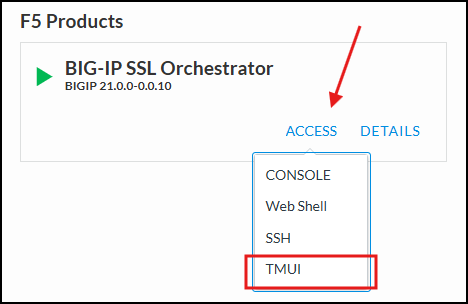
From the UDF Deployment tab, access the TMUI of the BIG-IP SSL Orchestrator resource and login as the admin user with the password admin.
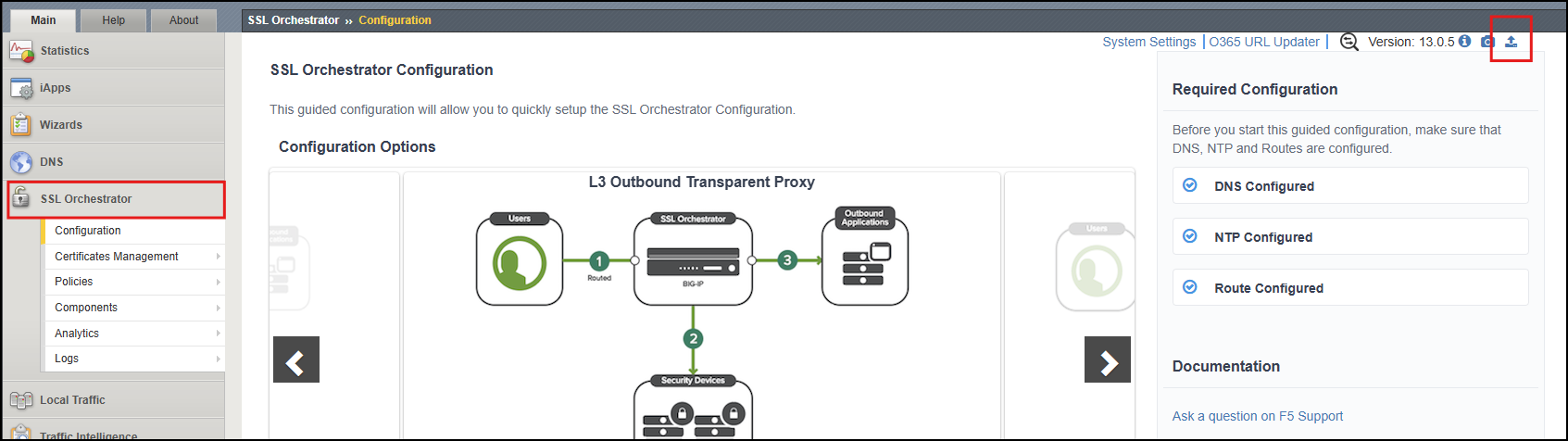
Click on SSL Orchestrator and check the top right icons. If there is a red icon in the top right, click it and follow the prompts to fully initialize the module.
2.2.3. Download the Installation Script
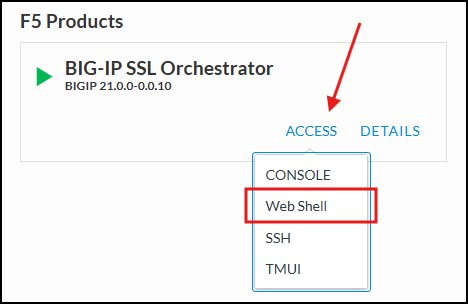
From the UDF Deployment tab, access the Web Shell of the BIG-IP SSL Orchestrator resource. This will open a new browser tab with an SSH session (logged in as the root user).
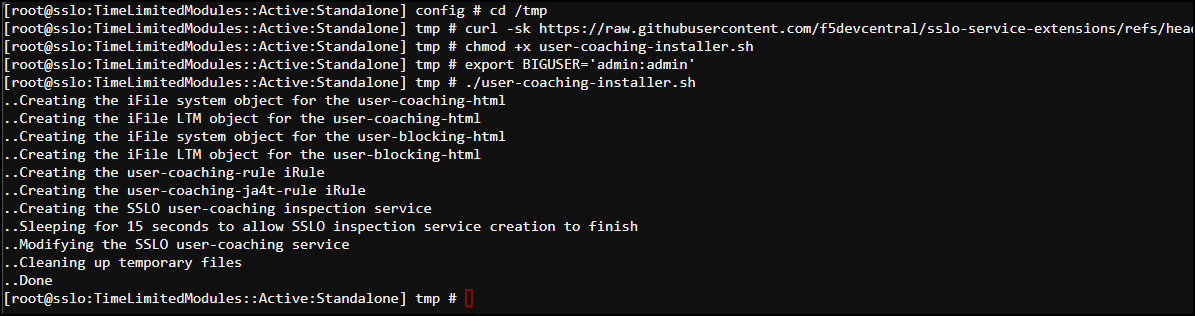
Change Directory to the /tmp directory:
cd /tmp
Download the installation script:
curl -sk https://raw.githubusercontent.com/f5devcentral/sslo-service-extensions/refs/heads/main/user-coaching/user-coaching-installer.sh -o user-coaching-installer.sh
Tip
Click the copy icon in the URL text box above and paste it into the BIG-IP SSL Orchestrator - Web Shell session. If your local machine is Windows, press the <CTRL>-<SHIFT>-V combination to paste.
2.2.4. Run the Installation Script
Make the installation script executable:
chmod +x user-coaching-installer.sh
Create a BASH environment variable containing the BIG-IP username and password:
export BIGUSER='admin:admin'
Run the installation script to create all of the User Coaching objects:
./user-coaching-installer.sh
2.2.5. Verify Object Creation
From the UDF Deployment tab, access the TMUI of the BIG-IP SSL Orchestrator resource. This will open a new browser tab with a GUI session (login as the admin user with the password admin).
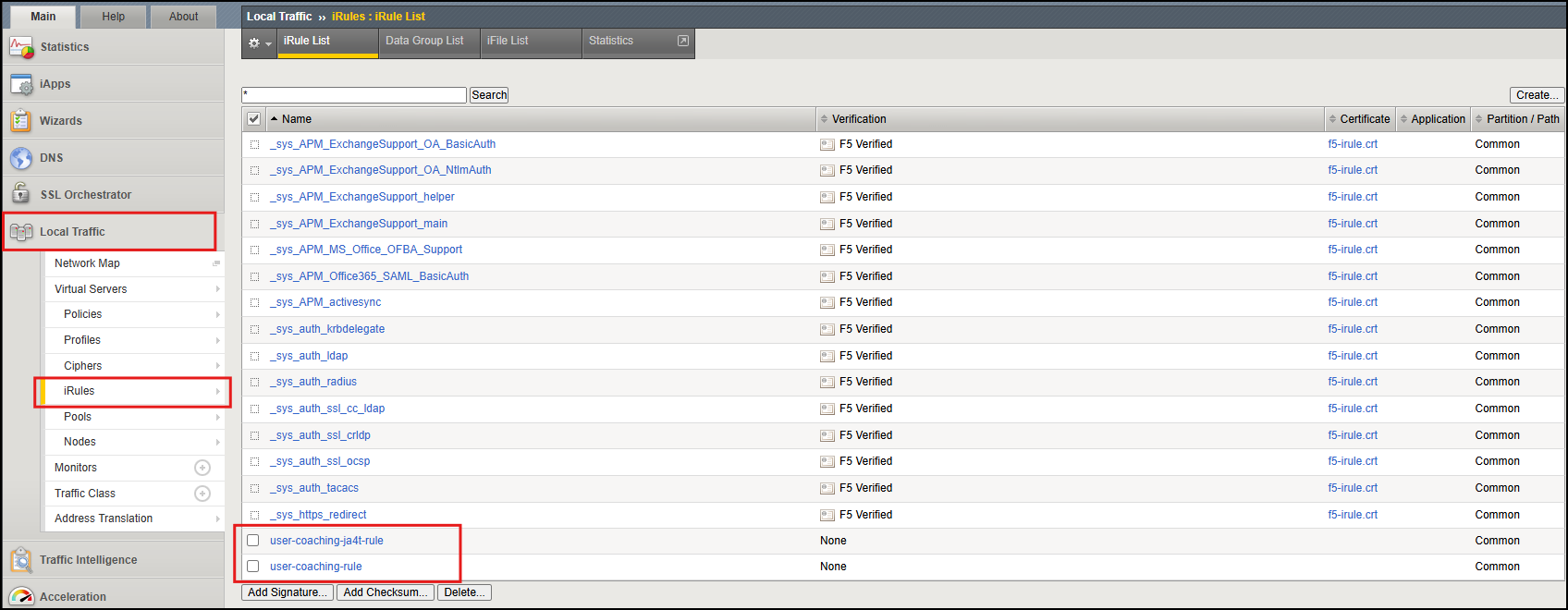
Navigate to Local Traffic > iRules and verify that the following iRules are present.
user-coaching-ja4t-rule
user-coaching-rule
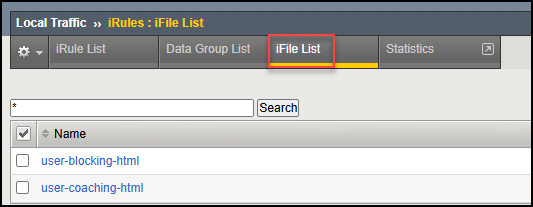
Click on the iFile List tab and verify that the user-coaching-html and user-blocking-html iFiles are present.
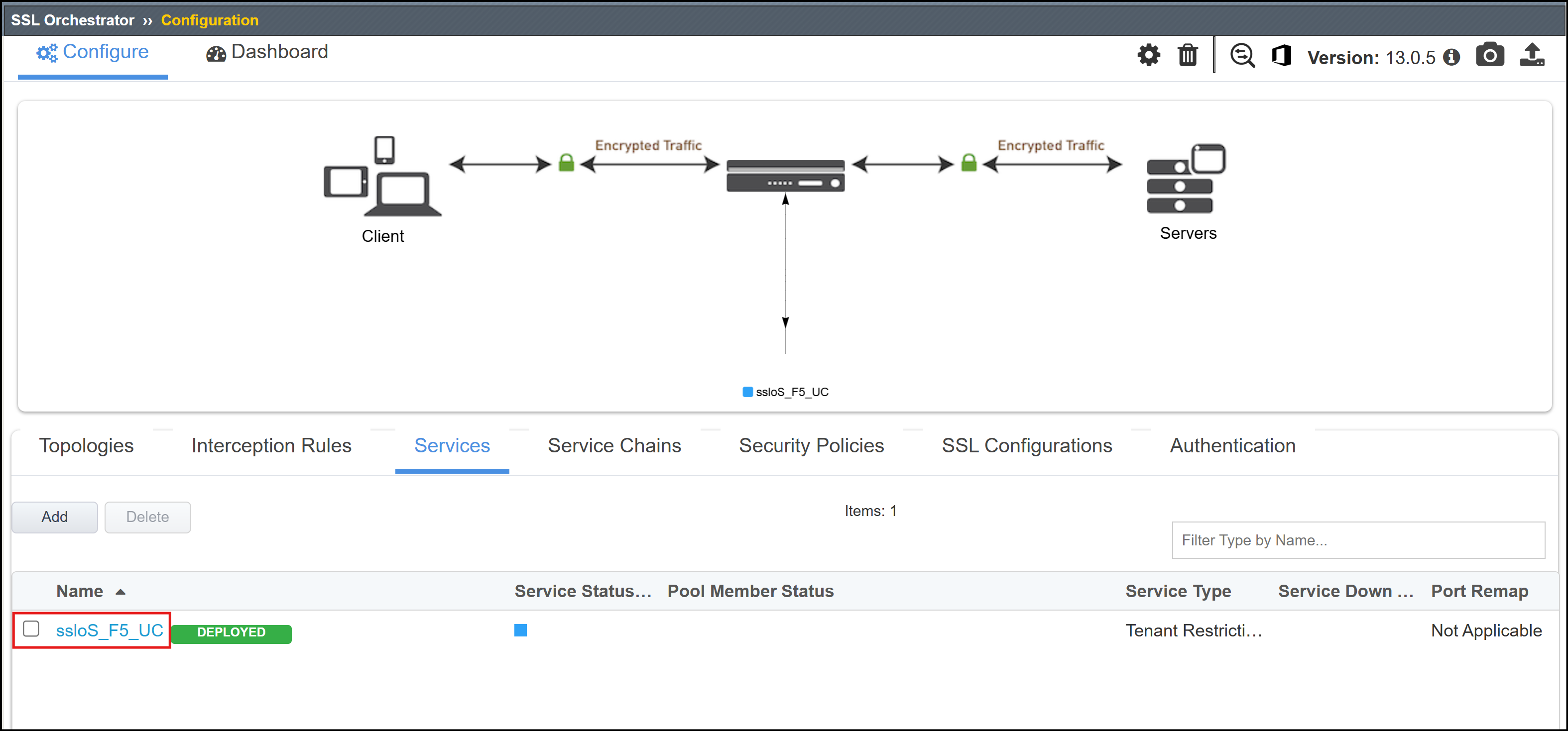
Navigate to SSL Orchestrator > Configuration. In the diagram, you should see the ssloS_F5_UC Inspection Service icon.
Click on the Services tab and verify that the ssloS_F5_UC Inspection Service is present.
This completes the installation of the configuration objects needed to support the user coaching function. In a later step, you will add the resulting ssloS_F5_UC inspection Service to a decrypted traffic Service Chain and add the user-coaching-ja4t-rule iRule to the L3 Outbound Topology's Interception Rule.