F5 BIG-IP SSL Orchestrator Training Lab > All SSL Orchestrator Lab Guides > SSLO 203: F5 BIG-IP SSL Orchestrator: Plug, play, automate (AppWorld 2026 | 2 hours) > 2. Lab 1: Outbound Transparent Forward Proxy with User Coaching Source | Edit on
2.5. Implement User Coaching with Default Cookie Persistence Method
You will now enable and test the user coaching functionality. This will produce a prompt in the web browser when a user attempts to connect to a risky AI web site. With the cookie method, the user will be prompted on every new browser session since the persistence is based on cookies that expire when the browser is closed.
2.5.1. Add User Coaching Inspection Service to a Service Chain
Create a new Service Chain that contains the user coaching service (ssloS_F5_UC).
Click on the Service Chains tab.
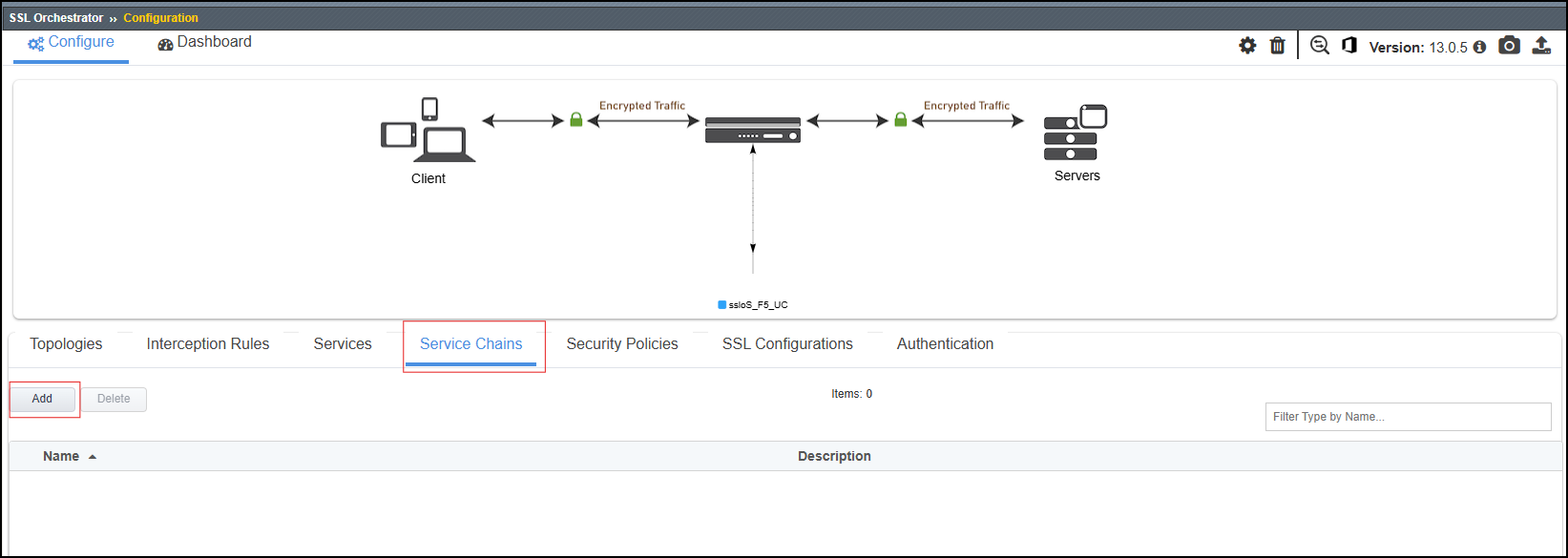
From the Service Chain List, click on the Add button.
Enter
combined_chainin the Name field.Double-click on the ssloS_F5_UC Service to add it to the Service Chain.
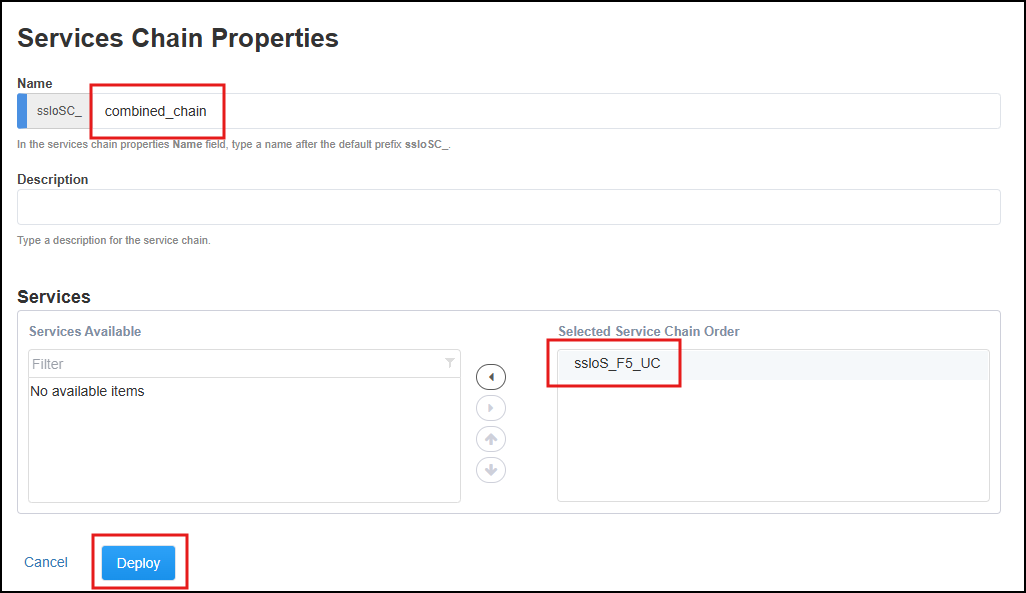
Click on the Deploy button.
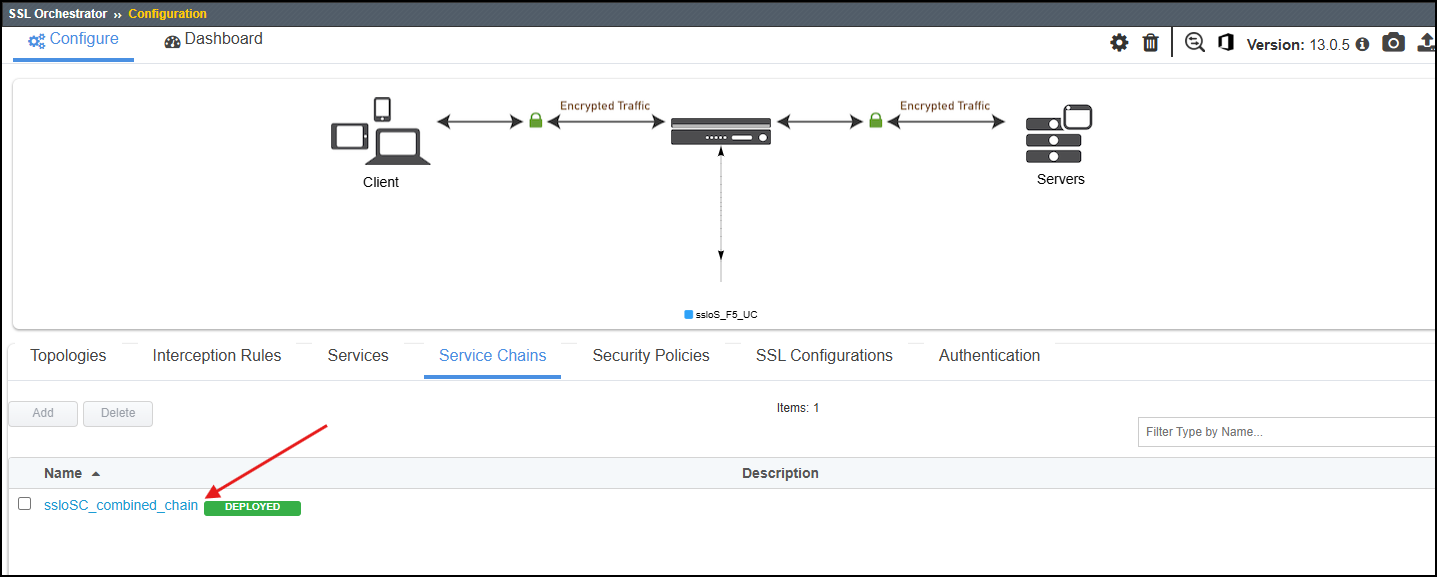
When the deployment has completed, click on the OK button to close the dialog box and return to the Topologies list.
Click on the Service Chains tab to confirm that the new Service Chain was created.
2.5.2. Update the Security Policy
The final step is to update the Security Policy to use the new Service Chain.
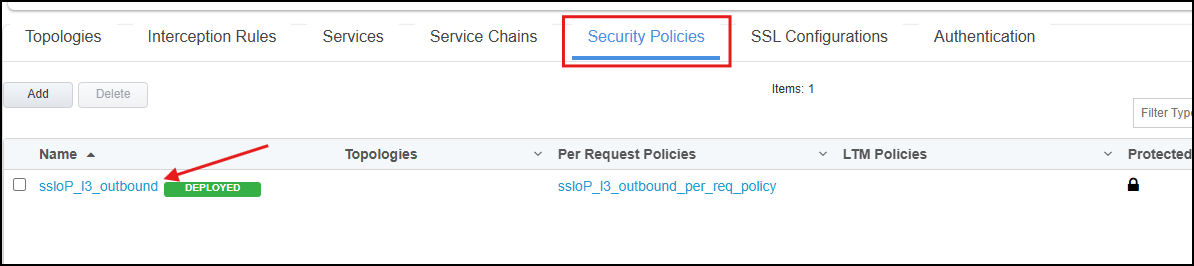
Click on the Security Policies tab to view the list of policies.
Click on the ssloP_l3_outbound policy to edit it.
Click on the Edit (pencil) icon for the All Traffic rule.

Ensure SSL Proxy Action is set to Intercept.
Set Service Chain to ssloSC_combined_chain.
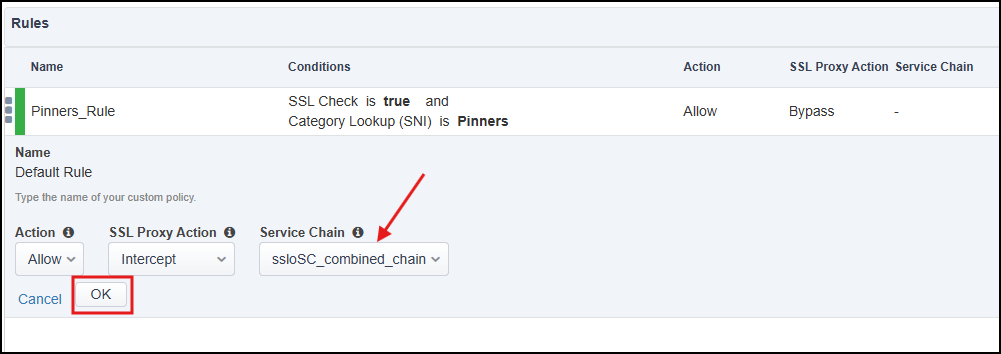
Click on the OK button to exit edit mode.
Your Security Policy should now look like the following:
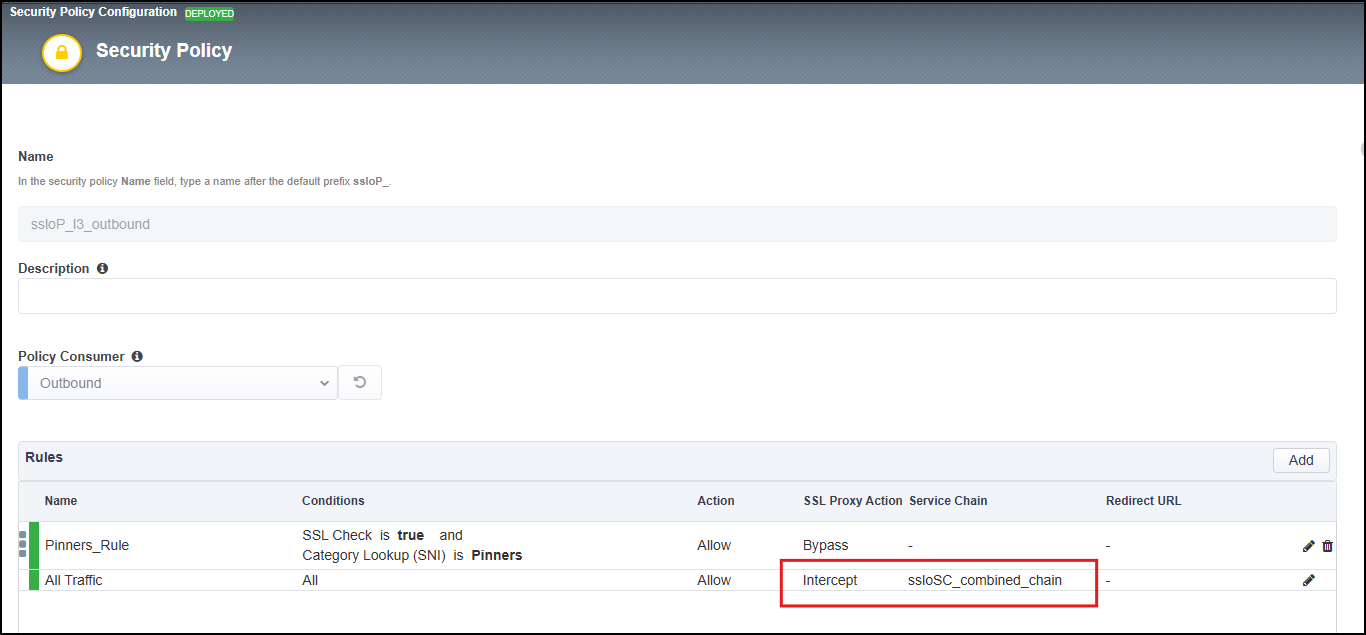
Click on the Deploy button and then click on Deploy again to accept the warning.
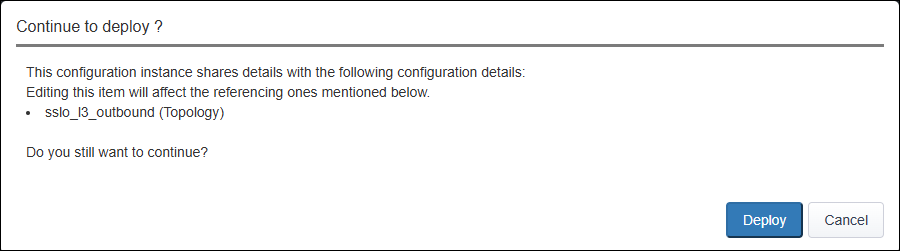
When the deployment has completed, click on the OK button to close the dialog box and return to the Topologies list.
2.5.3. Trigger Conditions for User Coaching with Cookie Persistence
The presentation of the user coaching prompt is determined by a URL category match. The category list is defined in the user-coaching-rule iRule.
Navigate to Local Traffic > iRules and verify that the following iRules are present.
Click on the user-coaching-rule iRule to view and modify it.
Notice that the COOKIE_IDENT section variables define the cookie persistence settings. By default, the cookie value is not encrypted.

Unencrypted Cookie Value Settings
Optionally, and not required for the lab, you can encrypt the cookie value with an AES value of your choice. In this example, remove the comment from the
set static::COOKIE_KEY "AES 128 b55c4753cba6adaa0e4ea7640504d9b4"and add a comment to theset static::COOKIE_KEY ""line.
Encrypted Cookie Value Settings
Note
Encrypting the cookie is not a requirement of this lab. It is here to offer additional options if your organization requires cookies to be encrypted.
Whichever method you decide to use, encrypted or unencrypted, ensure you click on the Update button to save any changes.
2.5.4. Test User Coaching
Return to the Ubuntu-Client WEBRDP session.
Close the Firefox browser window and restart the application.
Navigate to https://chatgpt.com/. You should receive the SSL Orchestrator user coaching prompt as follows:
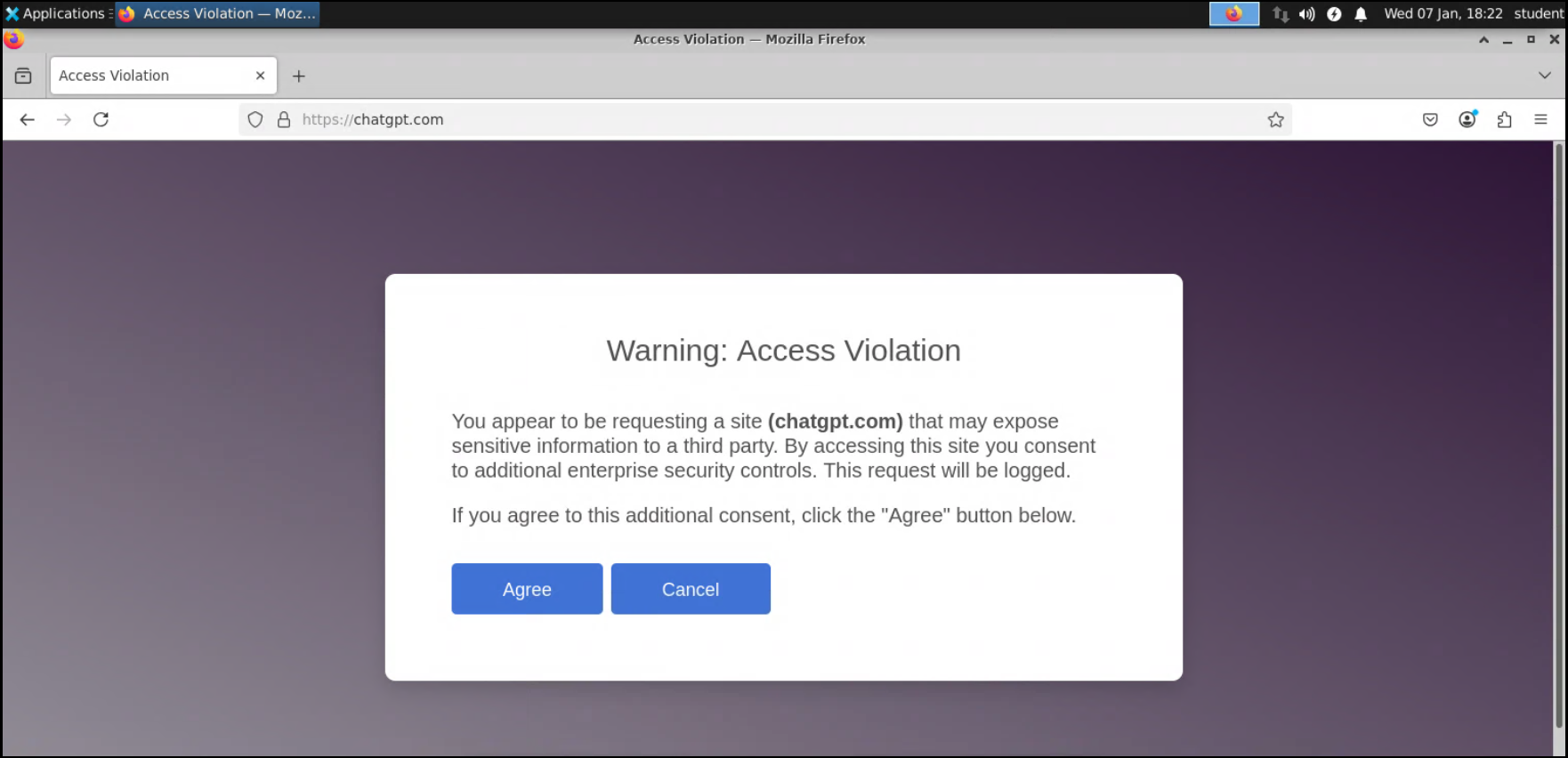
Click on the Agree button to acknowledge the warning and terms of use policy. You will then be presented with the OpenAI ChatGPT site.
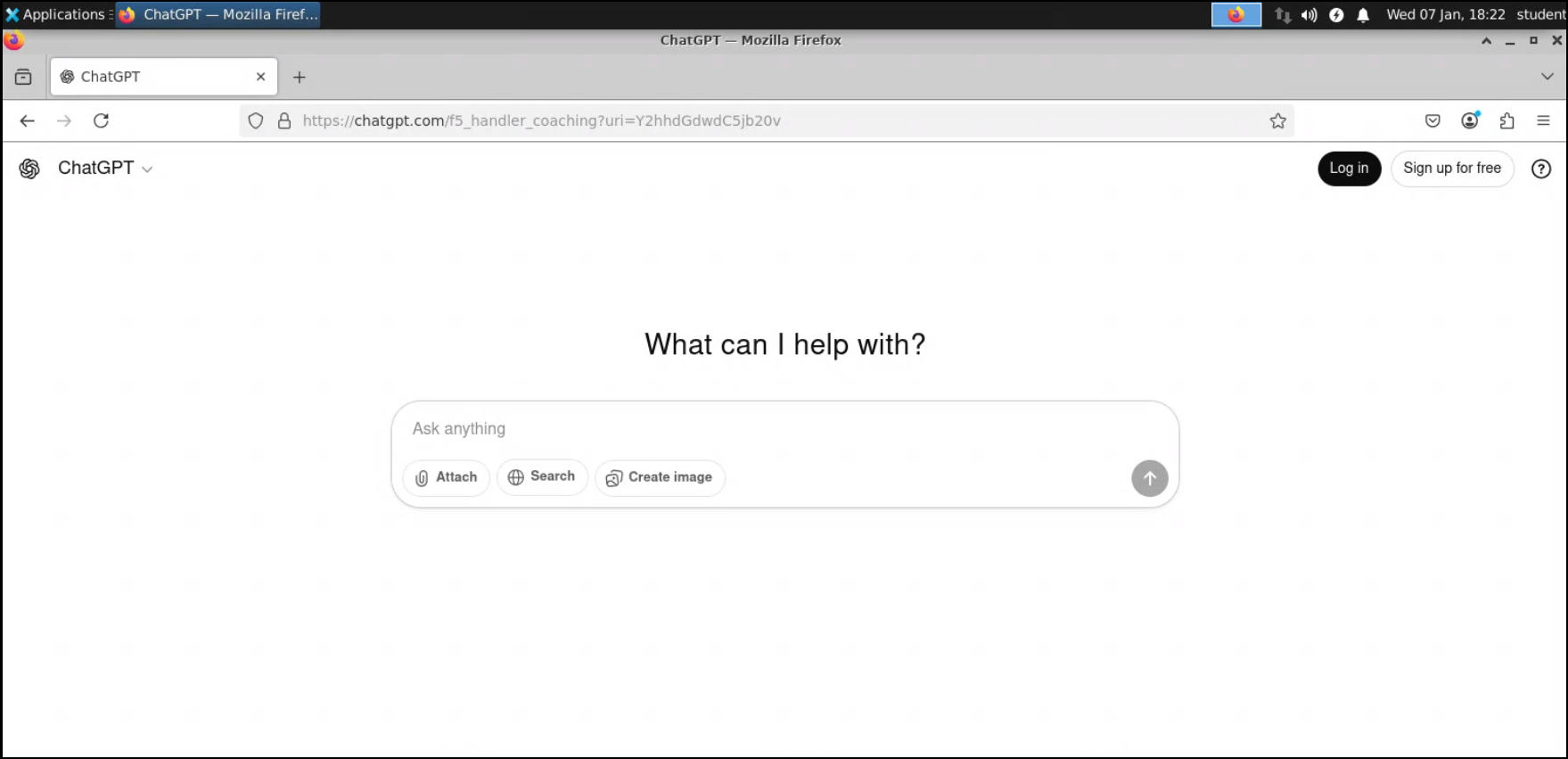
Restart Firefox and browse to ChatGPT again. You will be prompted again because this persistence method is based on cookies and the original user coaching acknowledgement has expired.
Note
Since this persistence method is based on cookies, the user will be prompted again when the user closes and restarts the browser.
If the desire is to have the user only be prompted once per assigned time period, then the JA4 persistence method should be used instead. Clicking on the Next button shows the JA4 persistence instructions.