F5 BIG-IP SSL Orchestrator Training Lab > All SSL Orchestrator Lab Guides > SSLO 101: Introduction to SSL Visibility with SSL Orchestrator (AppWorld 2026 | 2 hours) > 3. Lab 1: Deploy an Outbound Transparent Forward Proxy Source | Edit on
3.14. Testing the Deployment
You will now verify that the Ubuntu-Client machine can access the Internet through the SSL Orchestrator L3 Outbound Topology.
3.14.1. Access the Ubuntu-Client Desktop
From the Deployment tab in the UDF console, select ACCESS > WEBRDP for the Ubuntu-Client resource (Components > Ubuntu-Client > ACCESS > WEBRDP).
Note
This resource connects to the Apache Guacamole application that is running on the Ubuntu-Client machine. It acts as a web-based RDP client to the Ubuntu-Client machine's XRDP desktop.
A new tab will open and present the Apache Guacamole login screen.
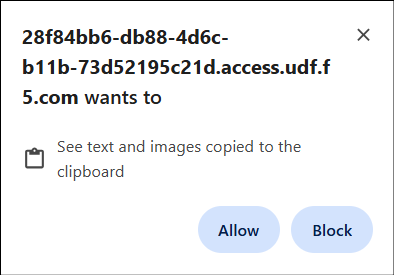
The first time that you connect to the desktop, you will be prompted for permission to "See text and images copied to the clipboard". Click on the Allow button to close the dialog box.
Log in as
userwith passworduser.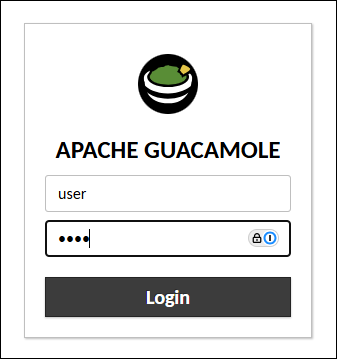
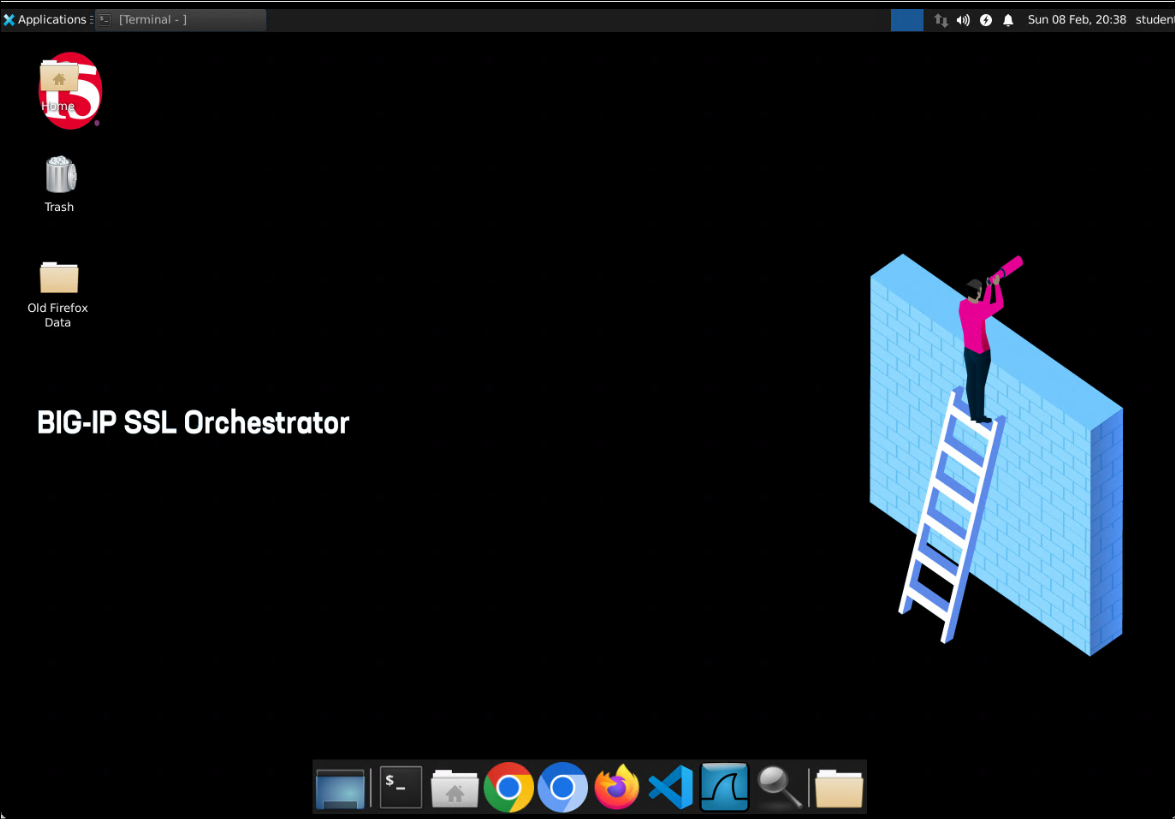
The desktop of the Client machine will be presented.
3.14.2. Check the Client's Routing Table
In order to route outbound traffic through the SSL Orchestrator, the Ubuntu-Client machine will use the SSL Orchestrator ingress interface IP (10.1.10.7) as its default gateway. Click on the Terminal icon at the bottom of the screen to open a new Linux shell session.

Enter
ip routeto verify that the default route is correctly configured.Enter
ping 10.1.10.7 -c 3to verify that it is reachable.Enter
ping google.com -c 3to verify that DNS is functioning correctly and the Internet is reachable.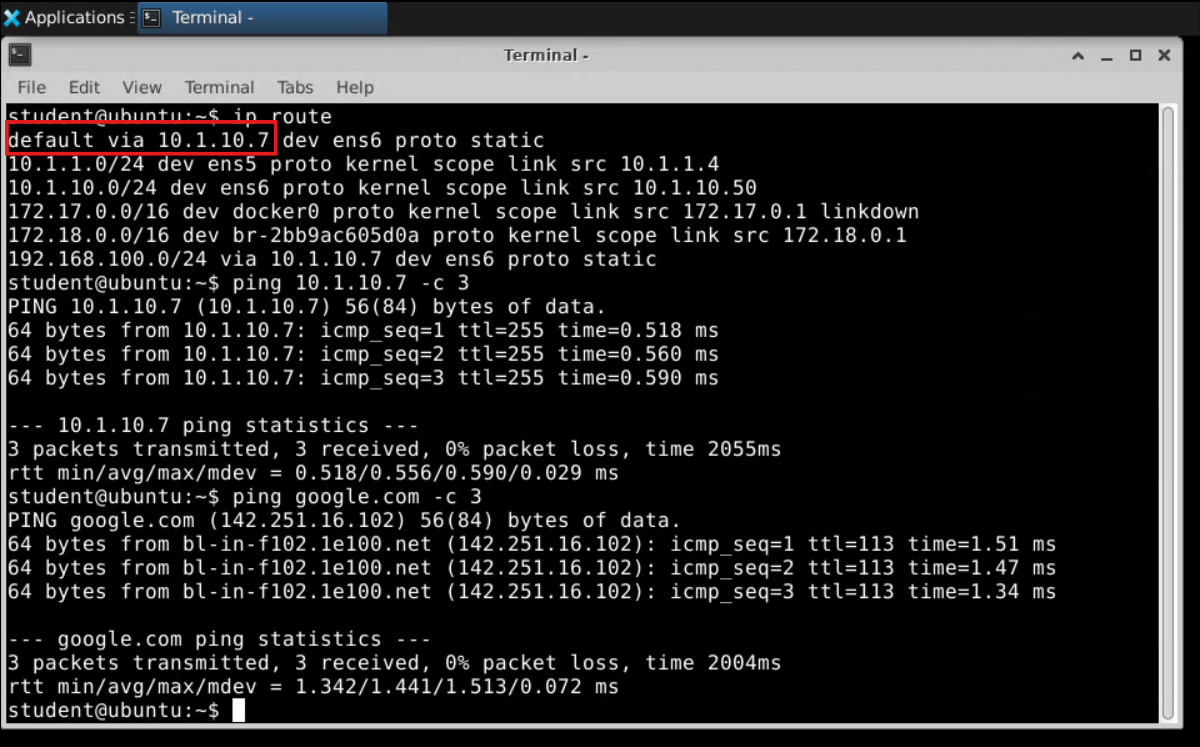
Important
Do not proceed if you cannot reach the Internet from the Ubuntu-Client machine. If you are not able to resolve this on your own, reach out to the lab team to help troubleshoot.
Enter
exitto close the Terminal window.
3.14.3. Test Internet Access
Launch the Firefox browser.
Warning
If the browser prompts you to Refresh Firefox, please do not do it!!!. Just cancel the prompt.
If you refresh Firefox, the pre-configured subrsa.f5labs.com and f5labs.com CA certificates will be removed from the trusted CAs store and forged server certificates will not be trusted by the client. This lab will not work as expected.
Note
Firefox automatic updates are enabled (for security). If you see a Welcome back pop-up, click on the Not now link or X button. Do not click on the Open my links button.
Enter https://www.f5.com in the browser address bar.
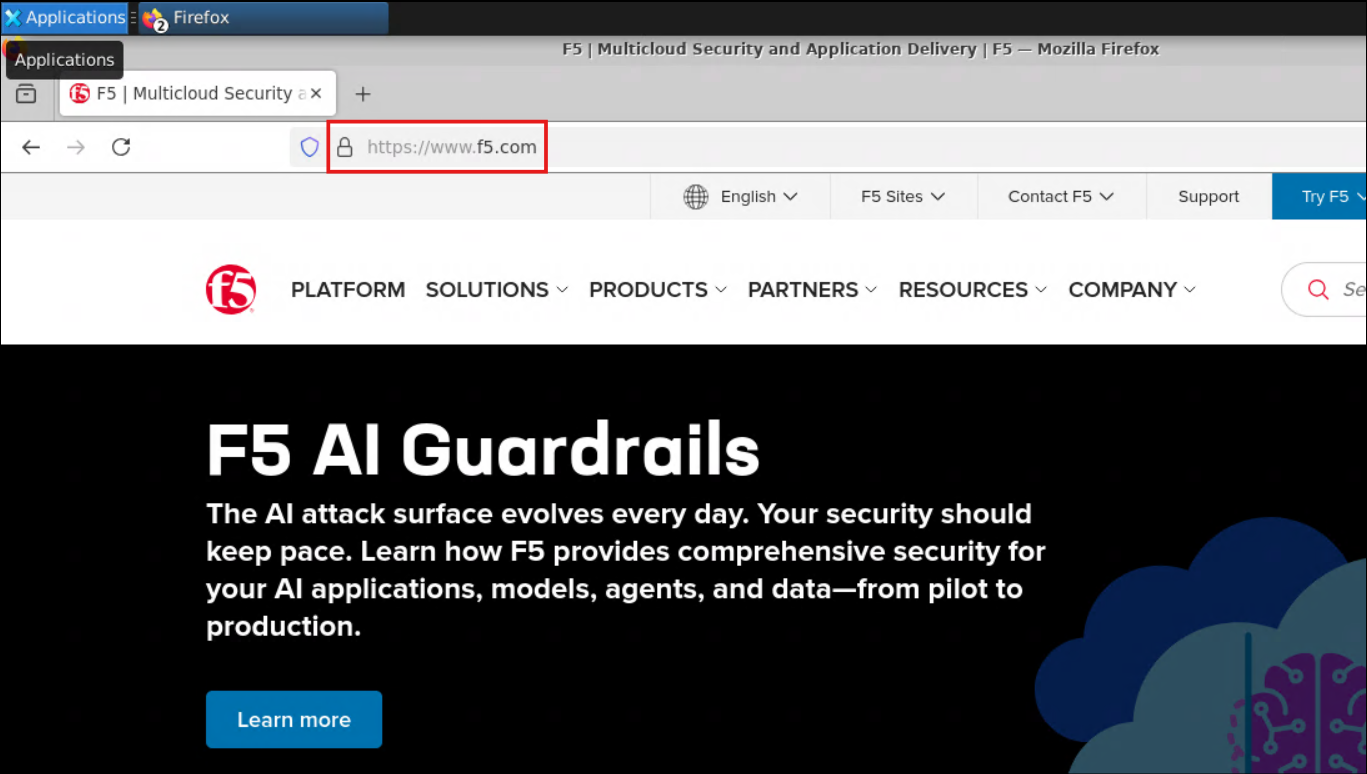
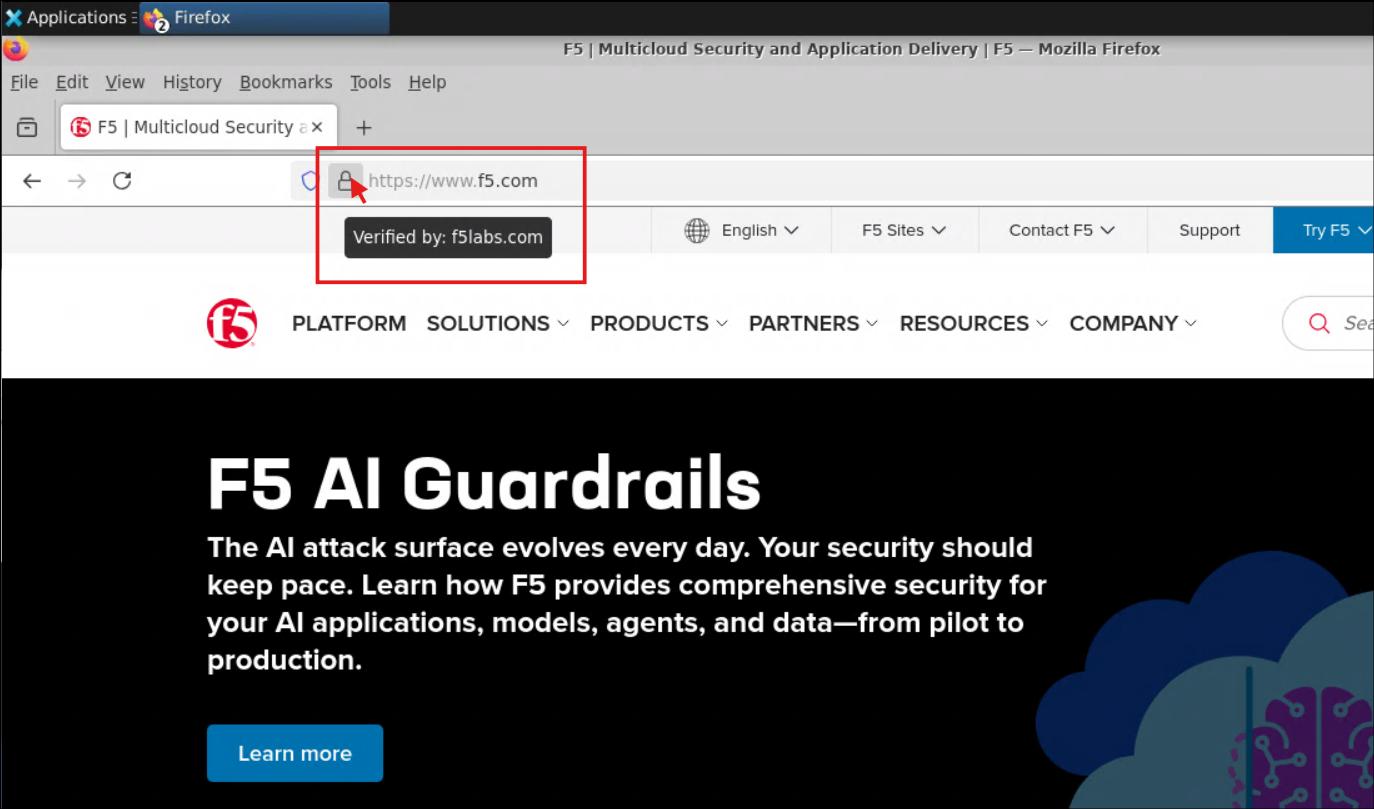
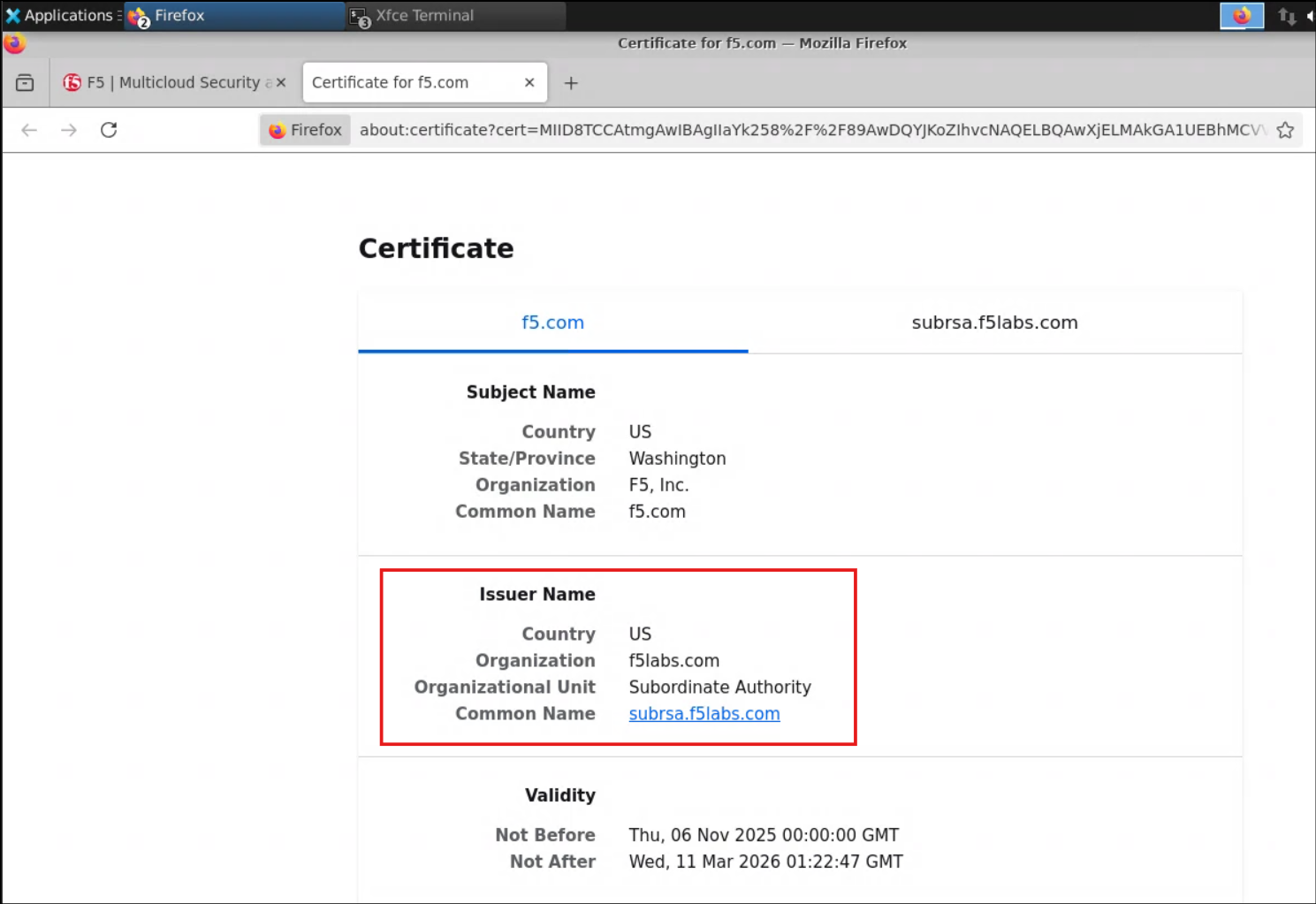
When the web page appears, hover the mouse pointer over the padlock icon on the address bar and verify that it displays Verified by: f5labs.com. This confirms that SSL Orchestrator is performing TLS interception for outbound traffic. The TLS certificate for https://www.f5.com was forged by the subrsa.f5labs.com CA certificate, which is trusted by the client browser.
Click on the padlock icon (beside https:://www.f5.com in the address bar). Then, click on Connection secure > More information > View Certificate. This will open a new browser tab that contains more detailed information about the certificate.
Close the Certificate information tab and the Page Info window.
Note
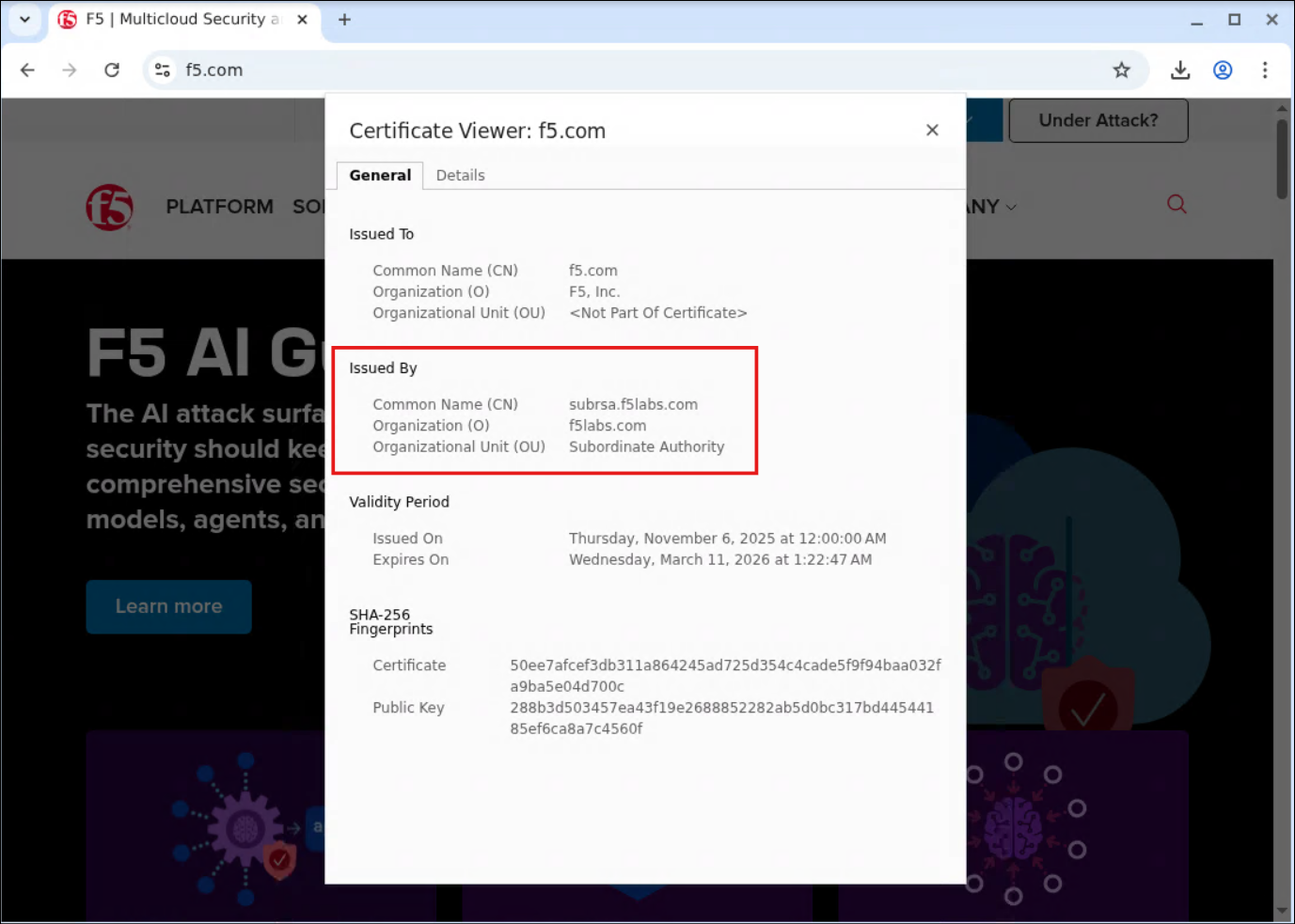
You can also connect using the Chrome browser and verify that the subrsa.f5labs.com CA certificate is being used to forge remote server certificates.
This the end of Lab 1.
You now have a working layer 3 outbound transparent forward proxy that is able to decrypt client traffic. In the next lab module, you will build on this deployment.